

Vehicles
The Vehicles skill turns your car into a device of the nomos system controller: state of charge and range, charging, doors and windows, odometer and position — and, as far as the car allows, charging, climate control, auxiliary heating and ventilation to control. The values are available in rooms, automations and places like those of any other device.
Today the skill supports Škoda through the interface of the MyŠkoda app. More brands will be added to the same skill: you then pick a different brand for the access, and everything else stays the same. You can add as many vehicles as you like, of different brands as well.
WARNING
Before you begin: You need an API key from the MyŠkoda app (version 8.16 or newer). Create it there under Profile › API keys and select the vehicles it should apply to. The key allows reading the data of these vehicles and sending the commands the vehicle in question offers; locking and unlocking are not among them. The key has an expiry date. Treat it like a password: the controller stores it and never shows it again.
Adding an access
An access is an API key. One key can cover several vehicles; when it expires, you renew it once on the access, not on every vehicle.
- Switch the Vehicles skill on.
- Click Add access.
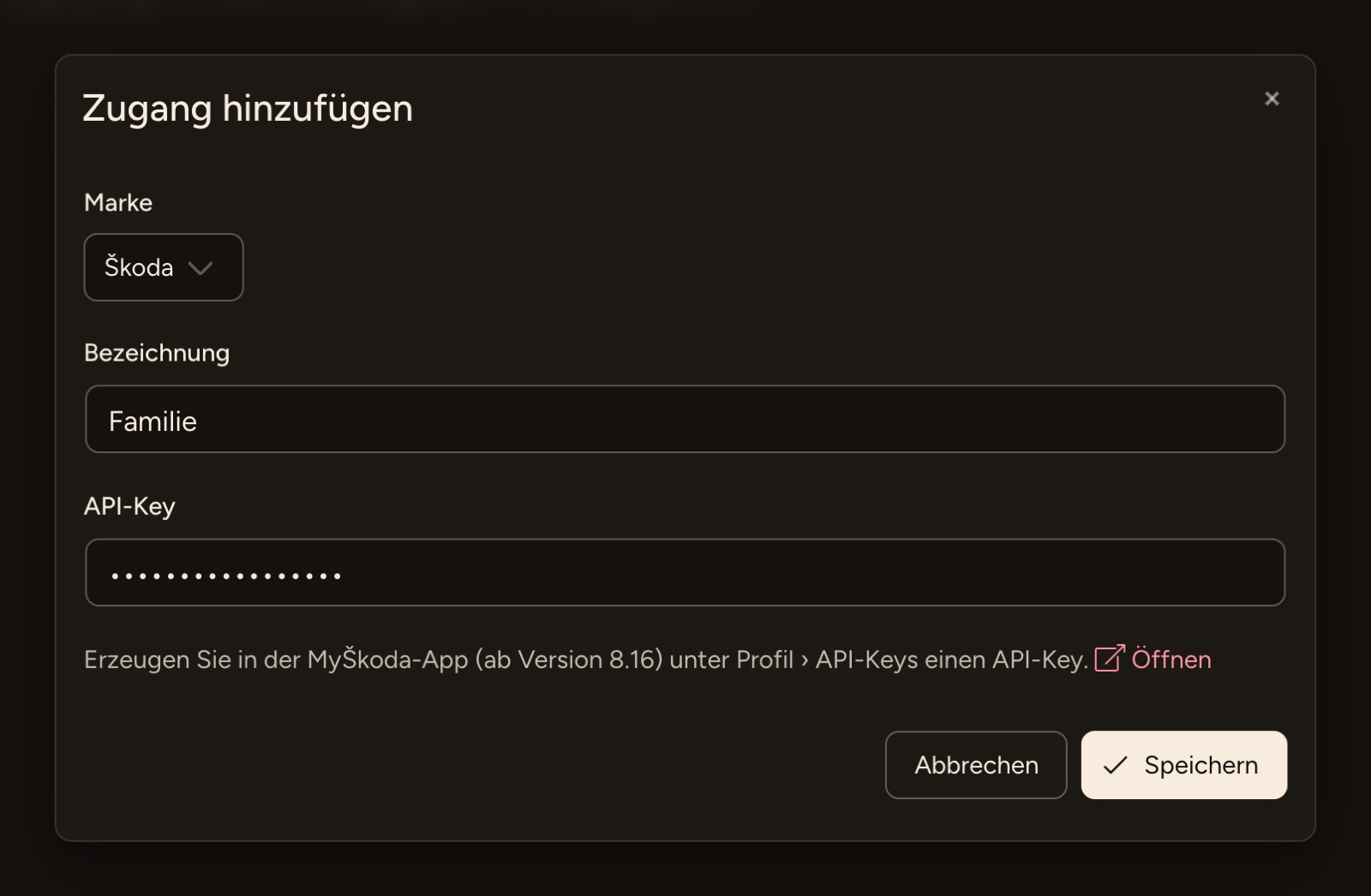
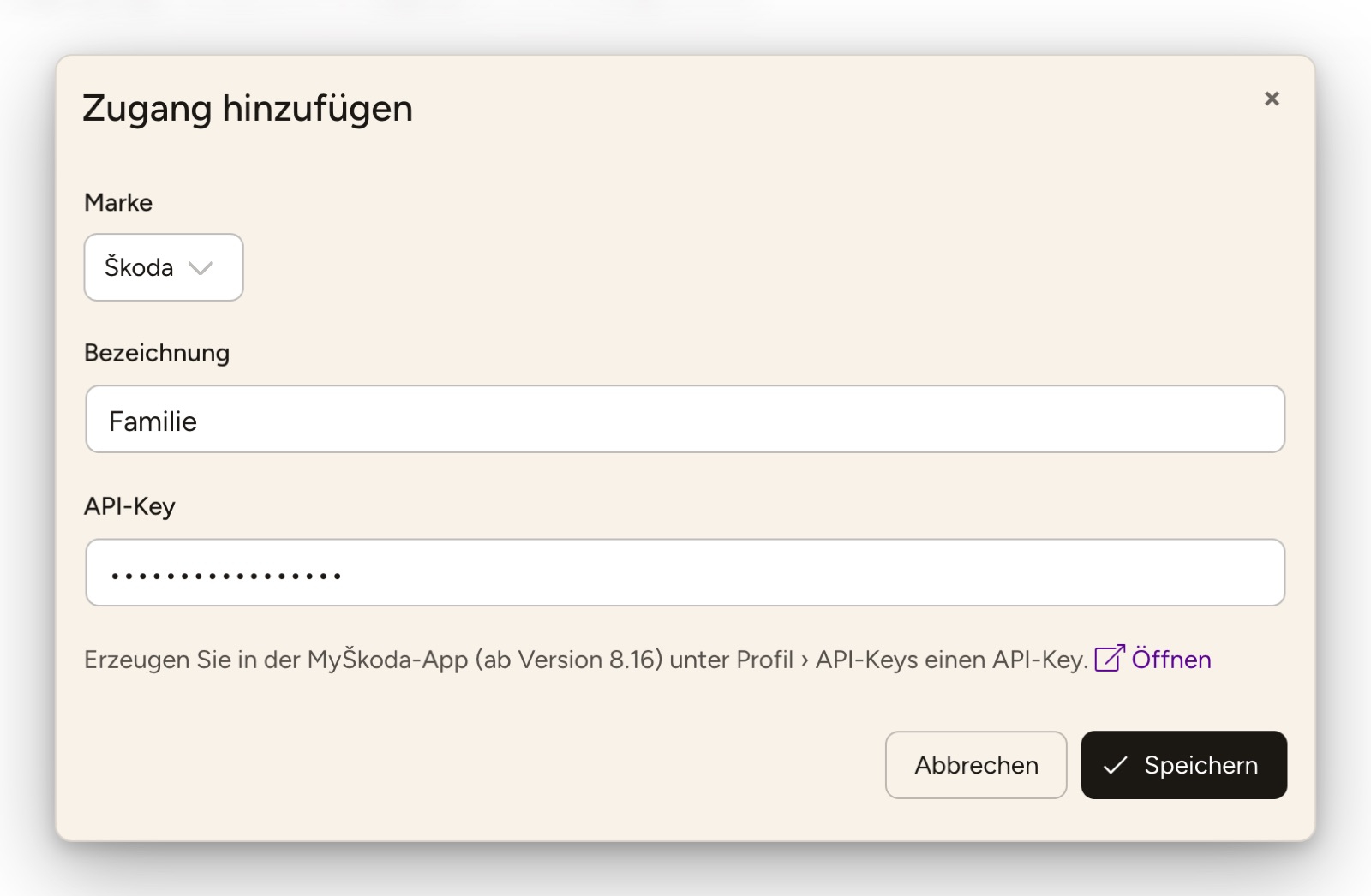
- Pick the Brand, enter a Label if you like, such as "Family", and paste the API key. Below the field, Open leads to the manufacturer's instructions.
- Click Save.
The controller does not check the key when you save it; that happens when you add the first vehicle. From the manufacturer's first answer on, the page shows Valid until with the key's expiry date next to the access.
Adding a vehicle
As soon as there is an access, Add vehicle appears. The wizard has three steps:
Access — Choose the access whose key covers the vehicle and click Next. If there is only one, it is preselected. Expired and refused accesses cannot be chosen.
Vehicle identification number (VIN) — You find it in the vehicle registration document and in the MyŠkoda app: 17 characters, letters and digits without I, O and Q. Spaces and lower-case letters are cleaned up. Check queries the vehicle once; that counts as one request to the vehicle (see Updates and quota).
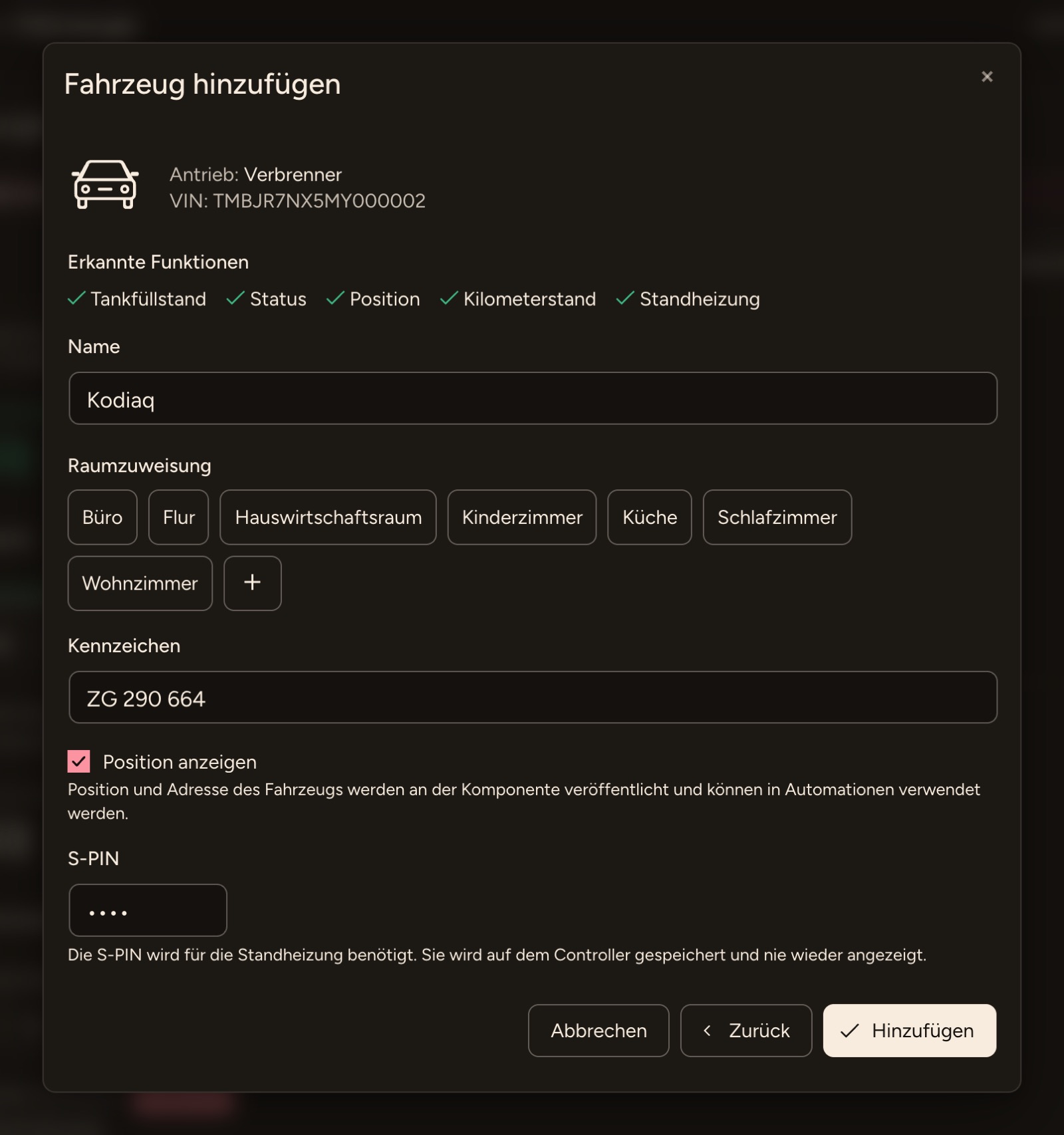
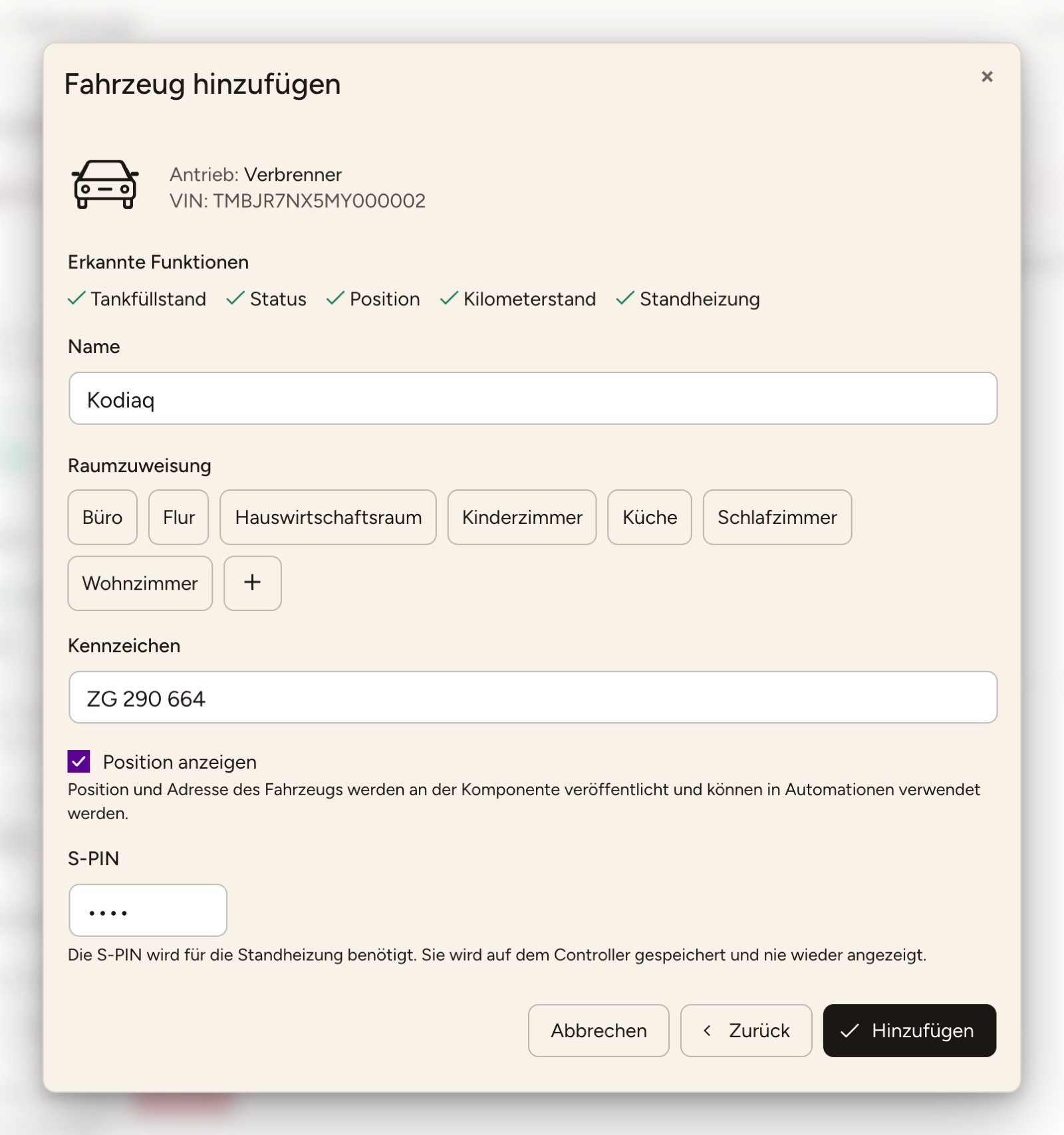
Result — The controller shows the picture of the vehicle if the manufacturer supplies one, the Drivetrain (Electric, Plug-in hybrid or Combustion), the VIN and, under Detected functions, what the vehicle can do, such as Battery, Charging, Charging profiles, Status, Position, Odometer and Climate control. Below that you enter:
- Name — prefilled with the name the vehicle has in the MyŠkoda app. Below it you choose the room.
- License plate — optional, at most 16 characters, prefilled if the manufacturer reports it. It is for display only.
- Show position — see Position.
- S-PIN — only for vehicles with auxiliary heating, optional; see S-PIN.
Add creates the vehicle; from now on the controller queries it regularly.
A vehicle's functions are fixed when it is added. Messages you may see when checking:
- "The vehicle did not report all its data yet. Please try again in a few minutes." — A part was missing from the answer for the moment. Rather than add the vehicle with too few functions, the controller declines. Wait a few minutes and check again.
- "The access does not cover this VIN." — Select the vehicle for the key in the MyŠkoda app, or take the access that covers it.
- "The API key has expired." or "The API key was refused." — Renew the access (see Expiry of the API key).
- "Too many requests to the vehicle. Possible again at …" — The quota for the hour is used up.
A vehicle that has already been added cannot be added a second time: "This vehicle has already been added."
The overview
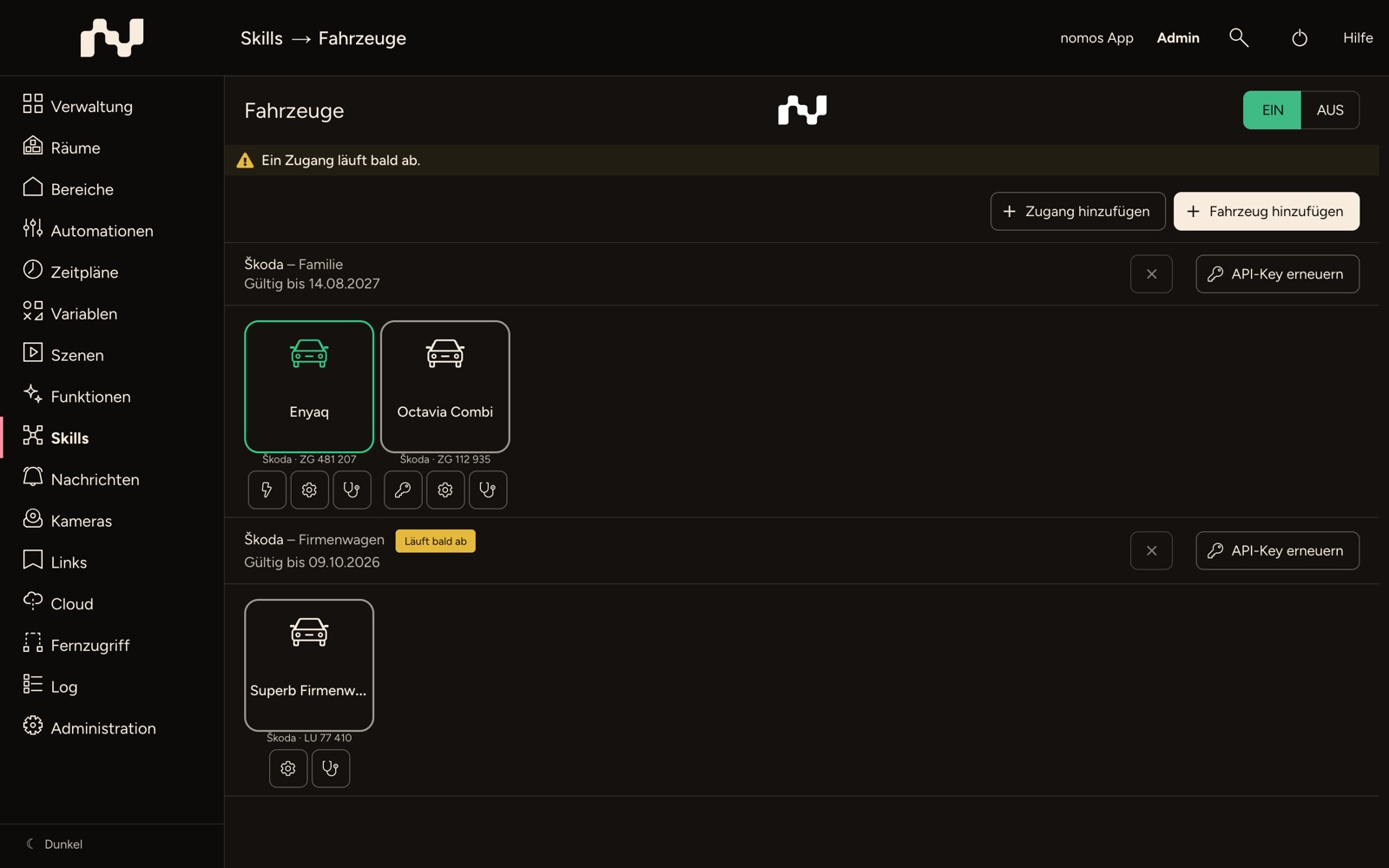
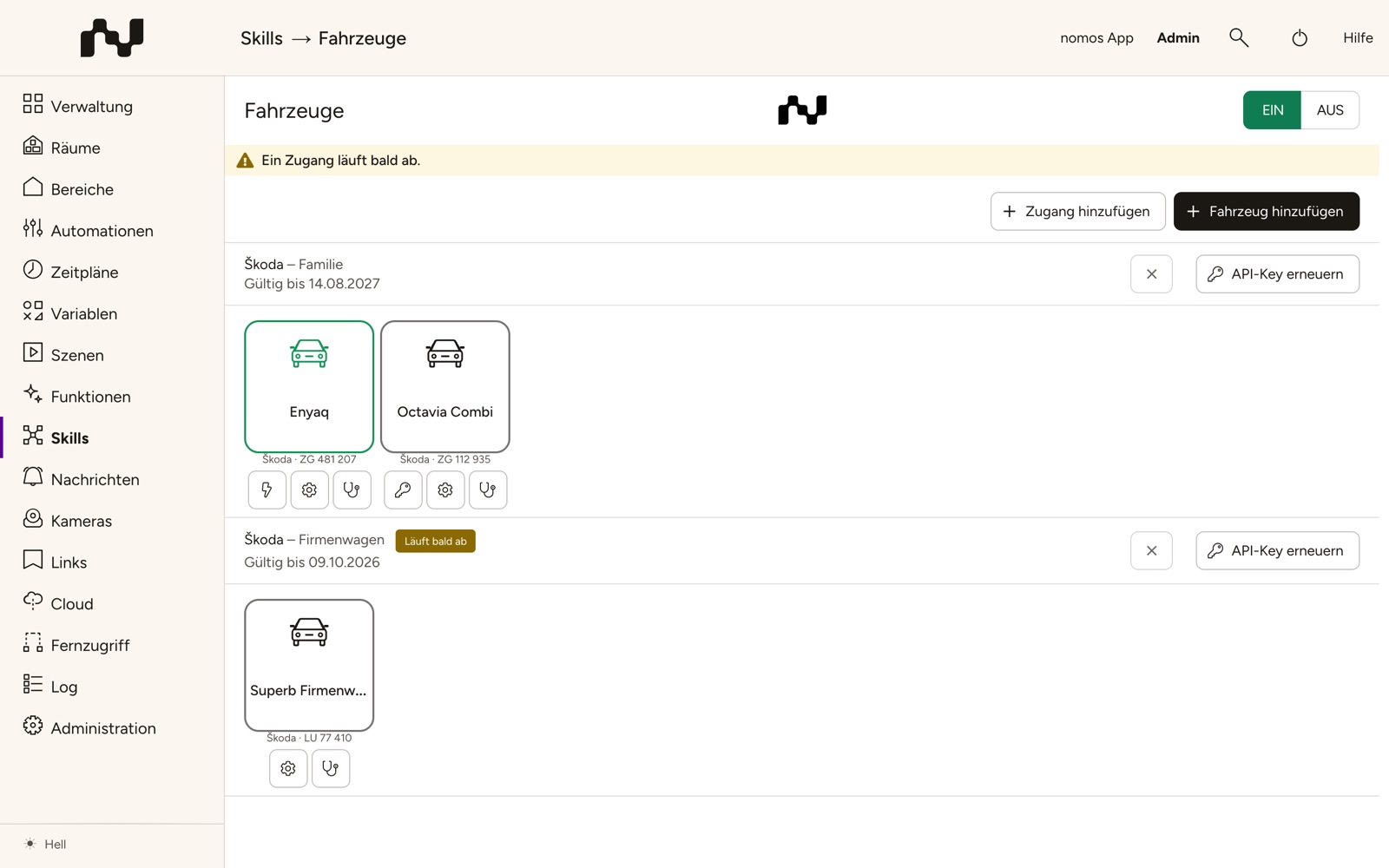
Every access has a section of its own with brand, label and Valid until. A tag next to the brand shows its state: Expires soon (from 14 days before expiry), Expired or Refused; at the top of the page a banner sums this up: "An access expires soon." or "An access has expired or was refused. Renew its key." On the right are Renew key and the × for deleting.
Below follow the vehicles of the access as tiles, with brand and licence plate, such as "Škoda · ZH 123456". Under every tile there are buttons whose names appear when you hover over them:
- Charging profiles — only if the vehicle reports charging profiles,
- S-PIN — only for vehicles with auxiliary heating,
- Settings — licence plate and position,
- Diagnostics — updates and quota.
The values of the vehicle
A vehicle is a device with one component. It only gets the values it reported when it was added; the app and the configuration group them in four groups:
- Charging — Charging state, Plug connected, Plug locked, Charging power, Charging type (AC or DC), Remaining charging time, Fully charged at and Charging current. You can switch Charging, Charge limit (50 to 100 % in steps of ten) and Charge mode (only the modes the car offers). With charging profiles, Charging profile (the profile at the current location) and Next charging time are added.
- Climate — Climate control (switchable), Climate state, Setpoint (16 to 30 °C) and Window heating; for vehicles with auxiliary heating Auxiliary heating and Auxiliary heating duration (10 to 60 minutes), with ventilation Ventilation.
- Vehicle — Battery (state of charge in per cent) and Range; for combustion vehicles and plug-in hybrids Fuel level, Fuel range and AdBlue range; Locked, Doors, Windows, Trunk, Bonnet, Sunroof and Lights; Odometer, Drivetrain and Last update — when the car last reported data. The Refresh action queries the car at once.
- Position — Parked, Latitude, Longitude and Address.
If the car does not report a value, the last reported one stays; a missing value is never shown as 0.
Commands
The car confirms a command only with the next update. The controller therefore checks back after one and after three minutes. The switchable values always show what the car reports, not what was asked for; until the confirmation, the command is listed in the diagnostics under Pending command. If the car has still not confirmed after three minutes, the command lapses without a message — cars also decline for good reasons, such as charging when the charge limit has been reached.
- Setpoint and Auxiliary heating duration are remembered and sent with the next start of climate control or auxiliary heating; until the car reports them, the device shows the requested value. Without a value of your own, the auxiliary heating runs for 30 minutes.
- Per vehicle, one command runs after the other. A new command for the same value replaces one that is still waiting.
- If a command cannot be carried out, you get a notification, such as "The vehicle does not support this function.", "The vehicle does not accept commands at the moment.", "Store the S-PIN for the auxiliary heating first." or "Too many requests to the vehicle. Possible again at …". The same message comes at most every 15 minutes per vehicle.
Settings
Under Settings you change the License plate and switch Show position.
Position
"The position and address of the vehicle are published on the component and can be used in automations." That is the default. If you switch Show position off, the controller empties Latitude, Longitude and Address and no longer writes them; Parked stays. The setting applies per vehicle.
Škoda reports the position only when the car is parked. During a drive, the last parking position stays.
S-PIN
For the auxiliary heating, Škoda requires the S-PIN, the four-digit security PIN of your MyŠkoda account. You can enter it when adding the vehicle or later via S-PIN on the tile. The dialog shows S-PIN stored or No S-PIN stored; enter the S-PIN and click Save, or delete it with Remove S-PIN. "The S-PIN is needed for the auxiliary heating. It is stored on the controller and never shown again." Without an S-PIN the auxiliary heating cannot be started.
Charging profiles
The car keeps charging profiles per location, such as for home and work. Charging profiles shows the vehicle's profiles; the profile at the car's location is tagged Current location. A click opens it, and you change what the car reports for it:
- Target charge and Minimum charge, plus Charge immediately below the minimum,
- Charging current — Reduced or Maximum,
- Unlock plug when charged,
- Preferred charging times — time windows, each with Active, start and end,
- Departure timers — each with Active, time and Once (with a weekday) or Weekly (with weekdays).
New profiles cannot be created or deleted here. After Save, the dialog shows Being transferred … until the car has confirmed the change. "This vehicle does not support changing charging profiles." means the car shows its profiles but does not accept changes. Opening the dialog and every save each cost one request.
Diagnostics
Diagnostics shows Requests left, Quota resets at, Last update (the controller's last query), Failed updates in a row and Pending command. Under Reported by the vehicle you see for every area when the car last reported it — the areas of a car are often of different ages. If the access no longer covers the vehicle, it says "The access does not cover this vehicle any more." Refresh reloads the display without querying the car.
Updates and quota
Škoda allows 20 requests per hour and vehicle. The controller divides them up like this:
- It queries the car every 15 minutes, every 5 minutes while it is charging, climatising, heating, ventilating or driving.
- It keeps four requests per hour free for commands. If only these are left, the regular update waits until the quota resets.
- Every command costs one request plus one or two for the confirmation. Check when adding a vehicle, and opening and saving the charging profiles, each cost one request as well.
- Refresh queries at once if the quota allows. If the last update was less than a minute ago, the current data stay.
- After a restart of the controller, the updates start staggered; if the last one was less than five minutes ago, the first waits accordingly.
Old data do not make a car unreachable: a parked car that is asleep reports only rarely. It becomes unreachable if the key has expired or was refused, if the key no longer covers the vehicle, or if three updates in a row fail.
Because the controller queries the car only every 5 to 15 minutes, the values also arrive with that delay — keep this in mind for automations.
Expiry of the API key
The controller reminds you of the key's expiry with a notification 14 days before, 3 days before (with high priority) and on expiry, such as "The access "Family" expires in 14 days. Create a new API key and renew the access." Once the key has expired or was refused, the controller stops querying the vehicles of the access, and they become unreachable. If you deselect a vehicle for the key in the MyŠkoda app, the controller reports "The access does not cover this vehicle any more. Check the vehicles selected for the API key."
To renew the access:
- Create a new API key in the MyŠkoda app for the same vehicles.
- Click Renew key on the access, paste the new key and click Save.
The controller queries all vehicles of the access again straight away. Vehicles, rooms and automations stay unchanged.
Removing vehicles and accesses
You remove a vehicle like any other device; the controller deletes its S-PIN and settings along with it. You delete an access with the ×, but only once it has no vehicles left: "Remove the vehicles of this access first".
Vehicles in places and automations
Places: With the position switched on, the vehicle appears among the devices with a position in places. That gives you triggers such as "car reaches work" or "car leaves home", and with the value Someone is there of the place Home, the car can serve as an input in presence detection. If the position is switched off, the vehicle stays where it was last, and the list shows no current position.
Automations: Every value of the vehicle can serve as a trigger and condition; as actions you can set Charging, Charge limit, Charge mode, Climate control, Setpoint, Auxiliary heating, Auxiliary heating duration, Ventilation and Refresh. Examples:
- on weekdays at 6:45 am, switch Climate control on if the car is at home,
- send a message when Battery drops below 20 % and Plug connected is off,
- in the evening, send a message if the car is at home and Locked is off.
Every command costs one request from the quota. So let automations fire only on a change (Only trigger if the reported values are different) and not on every new value.