

Login
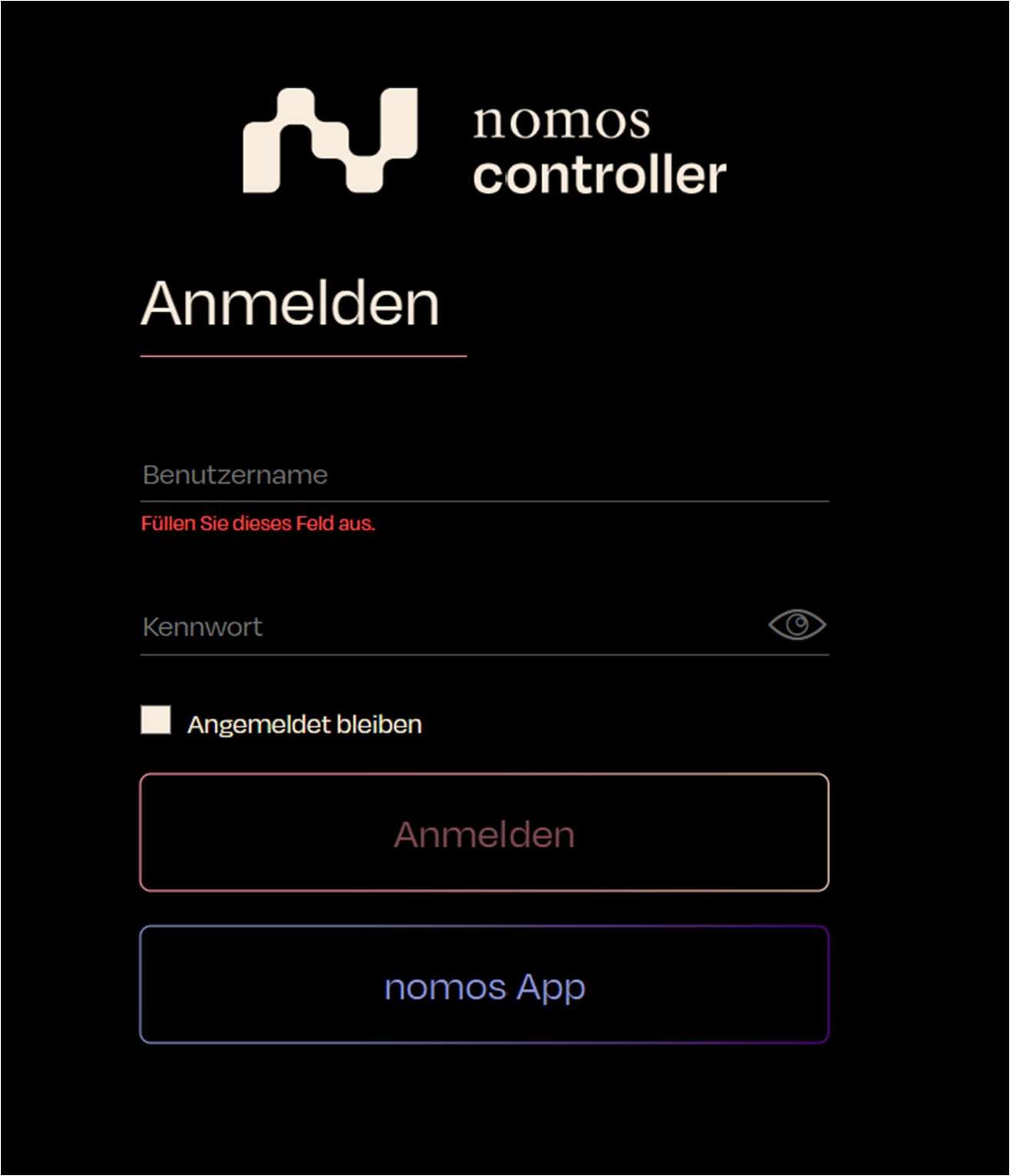
Logging into the nomos system Controller
- Username: Enter the username you created during setup or that was assigned to you.
- Password: Enter the corresponding password for the username.
- Stay Logged In: If this option is enabled, you will remain logged in even after closing the browser or session.
- Static IP: If you have assigned a new or static IP address to the controller, it is essential to reload the browser using this new IP address.
- nomos App: Use this button to log in directly to the app view.
Login via QR code
As an alternative to entering your username and password, you can log in without a password using a QR code. Click Log in with QR code.
- The screen shows a QR code and a two-digit match code.
- Scan the QR code with the nomos system app (on an admin device that is already logged in) and choose Approve sign-in there.
- Compare the two-digit code on both devices and confirm.
- After approval, the configuration interface logs in automatically.
INFO
QR login is a local convenience feature and is only available on the same network – not via remote access.
Forgot password
If you have forgotten your password, you can request access without a second device. Click Forgot password?.
- Enter your username and confirm with Request access.
- A two-digit code is shown together with “Waiting for approval…”.
- An administrator approves the sign-in (from the nomos system app or under Administration → Users → Incoming requests).
- After approval you are logged in with your own permissions. Set a new password afterwards.
INFO
Only available on the local network. For security reasons a code is always shown – no request is created for an unknown username.