Navigation Bar
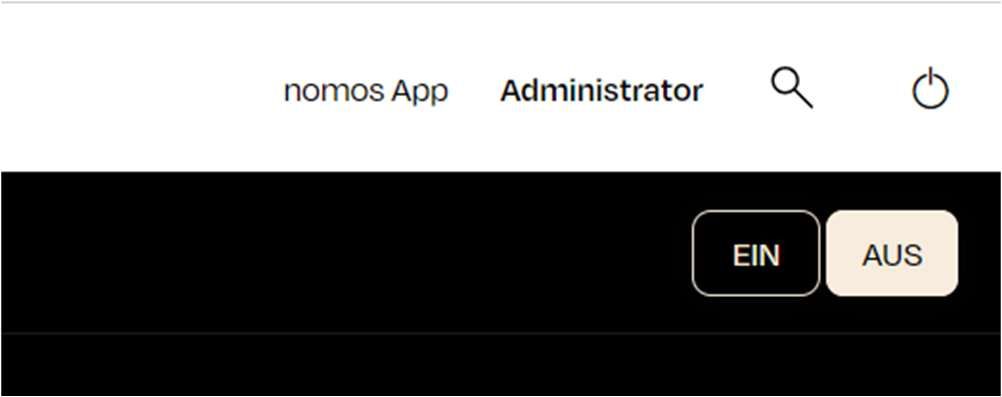
At the top right of the nomos system Controller dashboard, you'll find the navigation bar, providing quick access to essential functions.
Elements of the Navigation Bar
nomos App:
- Function: Clicking on "nomos App" switches the view directly to the mobile or web app version of the nomos system Controller.
- Usage: Allows for a swift transition between the dashboard view and the app view, keeping the user logged in.
Administrator:
- Function: Displays the current user logged into the system. In this case, it's the user "Administrator."
Search (Magnifying Glass Icon):
- Function: Enables searching within the dashboard. Users can search for devices, automations, messages, and other elements.
Power Icon:
- Function: Allows for restarting or logging out of the nomos system Controller.
Help:
- Function: Directly opens the help section of the currently open page.
ON/OFF Button:
- Function: This button appears depending on the active device or process. It allows for turning protocols, devices, or automations on or off directly from the view.