

Somfy
This integration connects a Somfy TaHoma box to the nomos system controller. The controller talks to the box directly on the local network through its Developer Mode; the Somfy devices paired with the box can then be used like any other device in rooms, scenes and automations.
Supported are, among others, roller shutters, venetian blinds and blinds, awnings and pergolas, windows and curtains, garage doors and gates, lights and switched plugs, heating and thermostat devices, and sensors (contact, smoke, temperature, humidity, light, rain, motion). A device whose type the controller does not know does not appear in the device list.
WARNING
Before you begin: The TaHoma box must be in the same network as the controller, and its Developer Mode must be switched on. To do so, sign in on the Somfy website with the account the box belongs to, open My Account and enable Developer Mode for your TaHoma box. You need the same credentials to sign in from the controller.
Adding a gateway:
- Enable the integration:
- Switch the Somfy skill on.
- Pick the gateway:
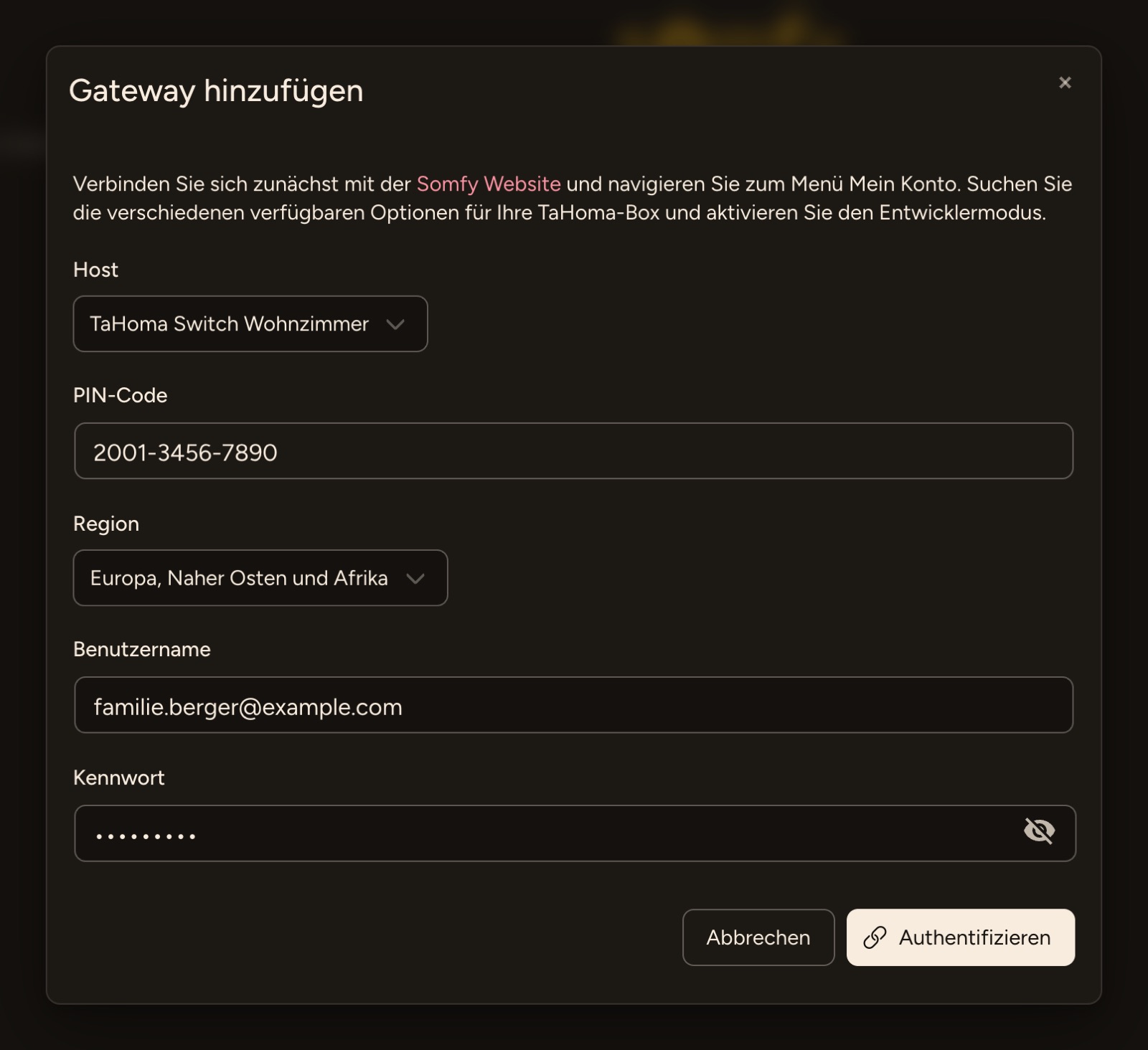
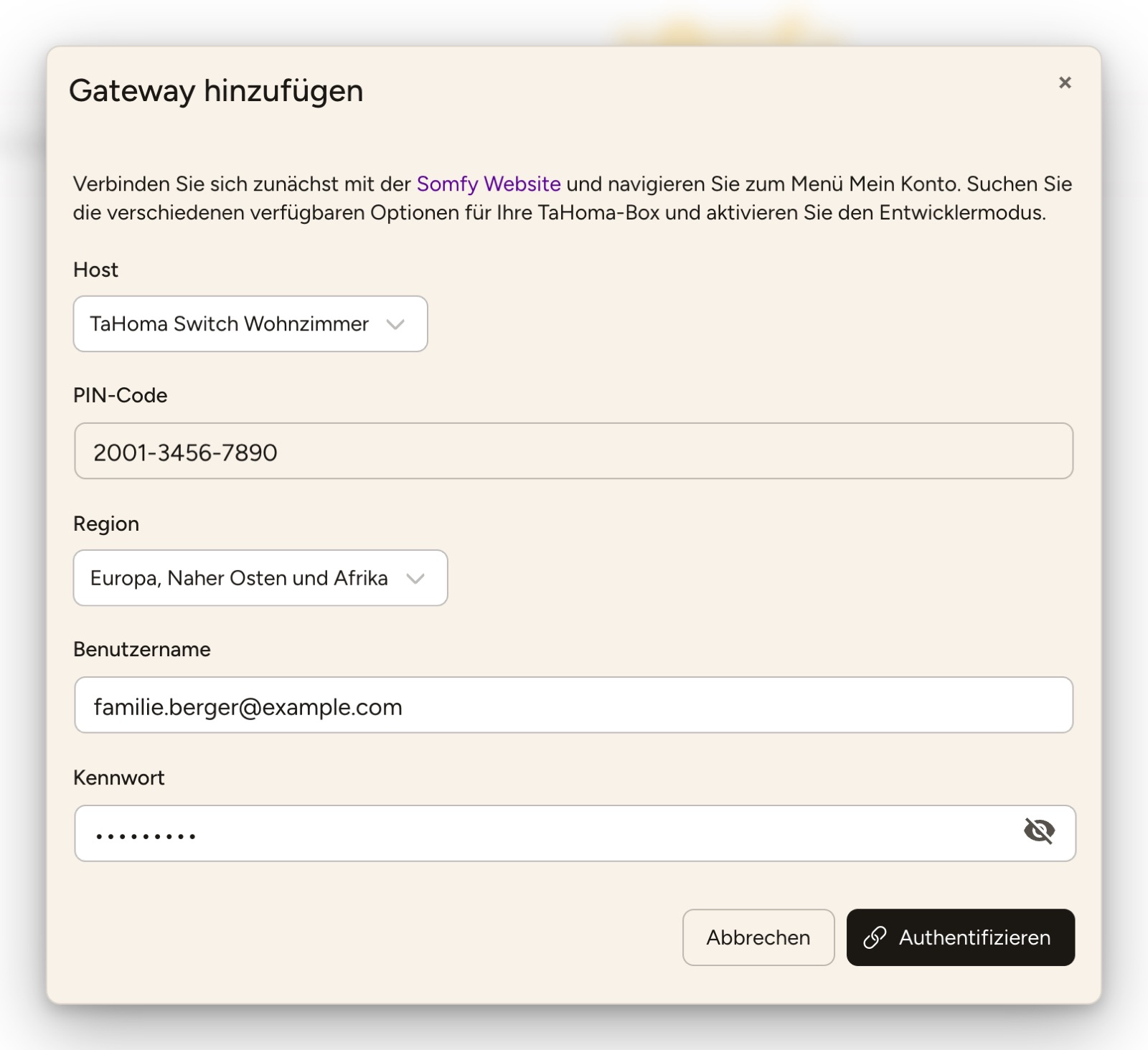
- Click Add Gateway. The controller searches the network for TaHoma boxes and offers the ones it finds under Host. The PIN-Code – the identifier that is also printed on the box – is filled in along with it.
- Region:
- Pick the region of your Somfy account: Europe, Middle East and Africa, Asia and Pacific or North America.
- Sign in:
- Enter the Username and Password of your Somfy account and click Authorize. The controller signs in to Somfy once and creates an access key of its own for the box. From then on it talks to the box only locally; your password is not stored.
Adding devices:
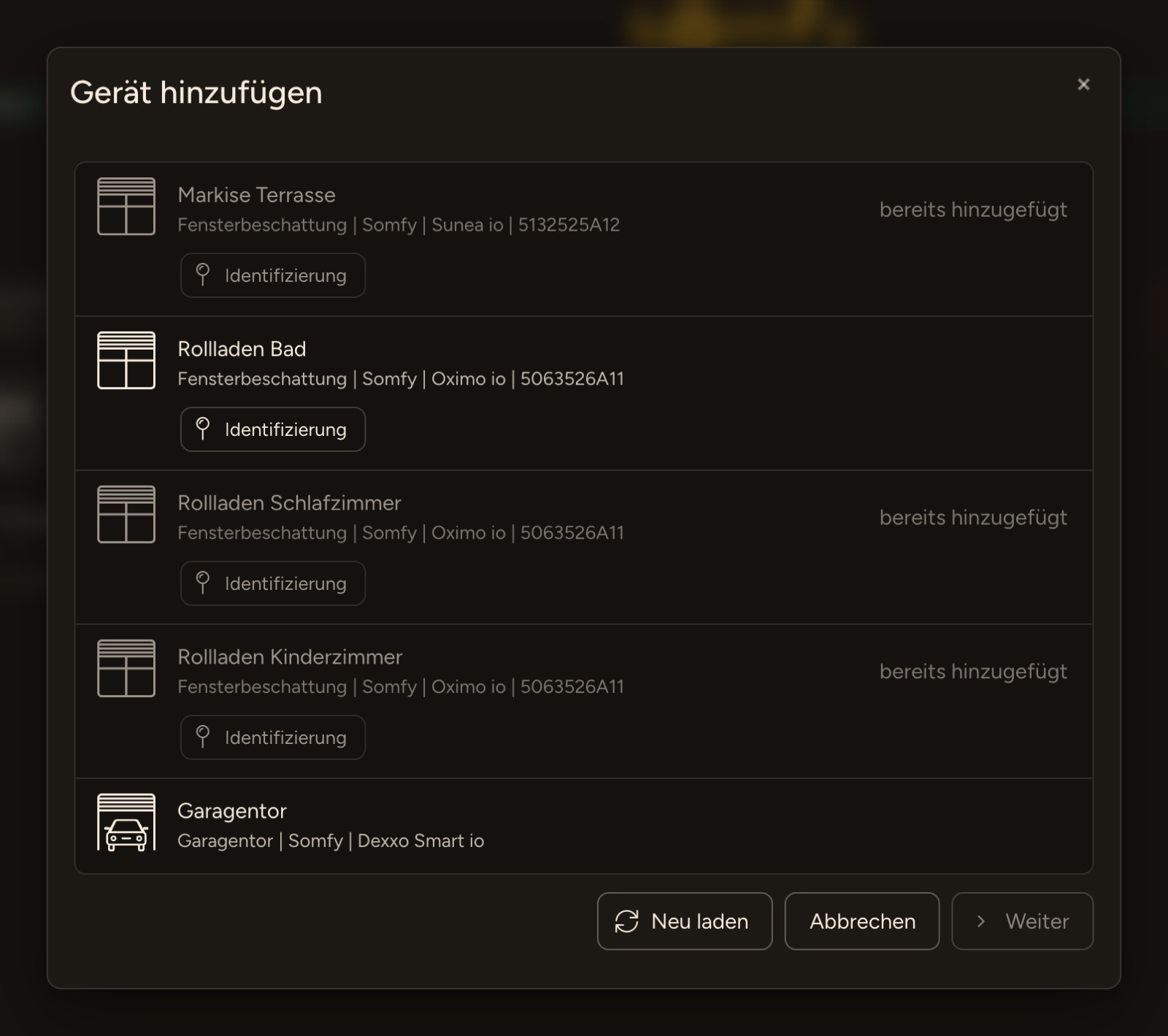
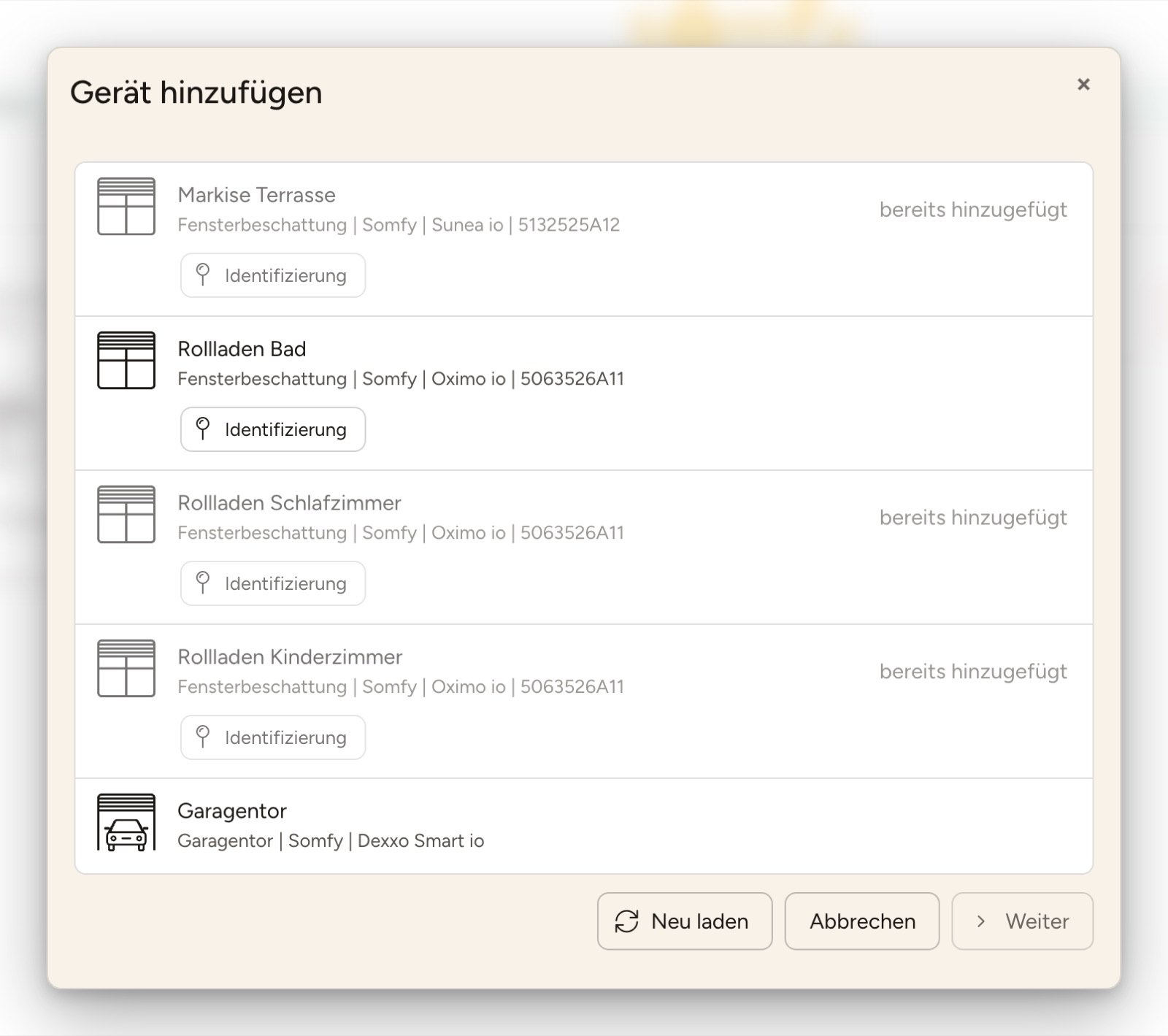
- Click Add Device on the gateway. The list shows all devices paired with the box; devices that were already added are marked already added.
- Identification makes the device draw attention to itself briefly – depending on the device with a short movement or a blink – so you can recognise it on site.
- Pick the device, assign a name and pick the room.
The overview:
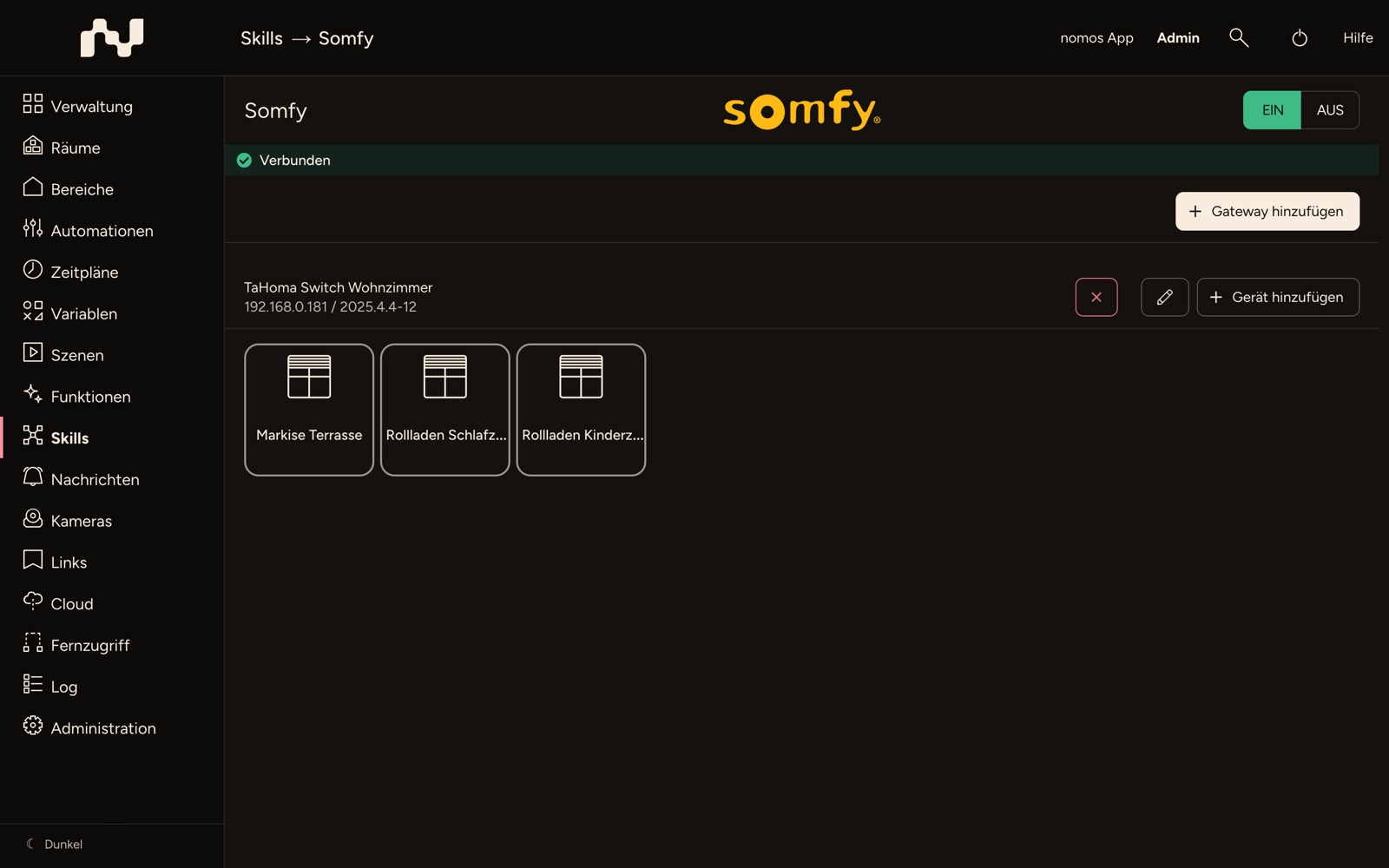
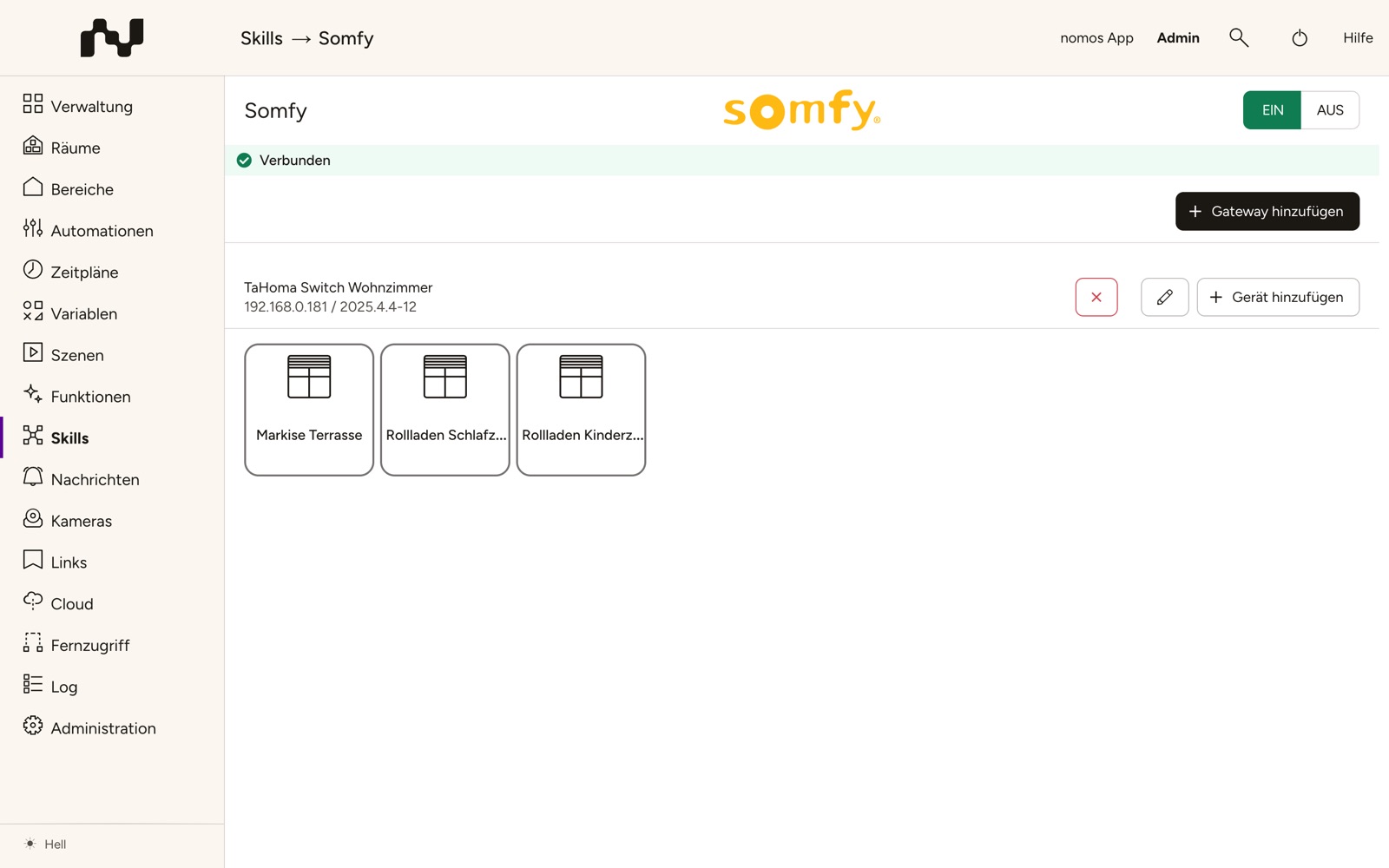
Each gateway has a section of its own with the box's name, address and firmware version; below it are the devices that were added from it. The banner at the top sums up the state: Connected, Partially connected (at least one box cannot be reached) or Not connected.
INFO
Tip: Give the TaHoma box a fixed IP address in your router (DHCP reservation). If the box cannot be reached, no device can be added and its devices do not respond.
Editing or removing a gateway:
- The pencil on the gateway lets you sign in again, for example after a password change in the Somfy account or if the wrong region was picked.
- The × removes the gateway; the controller deletes the access key it stored for the box. The TaHoma box and its devices keep working on their own, through the Somfy app and their switches. Afterwards you can switch Developer Mode off again in the Somfy account.