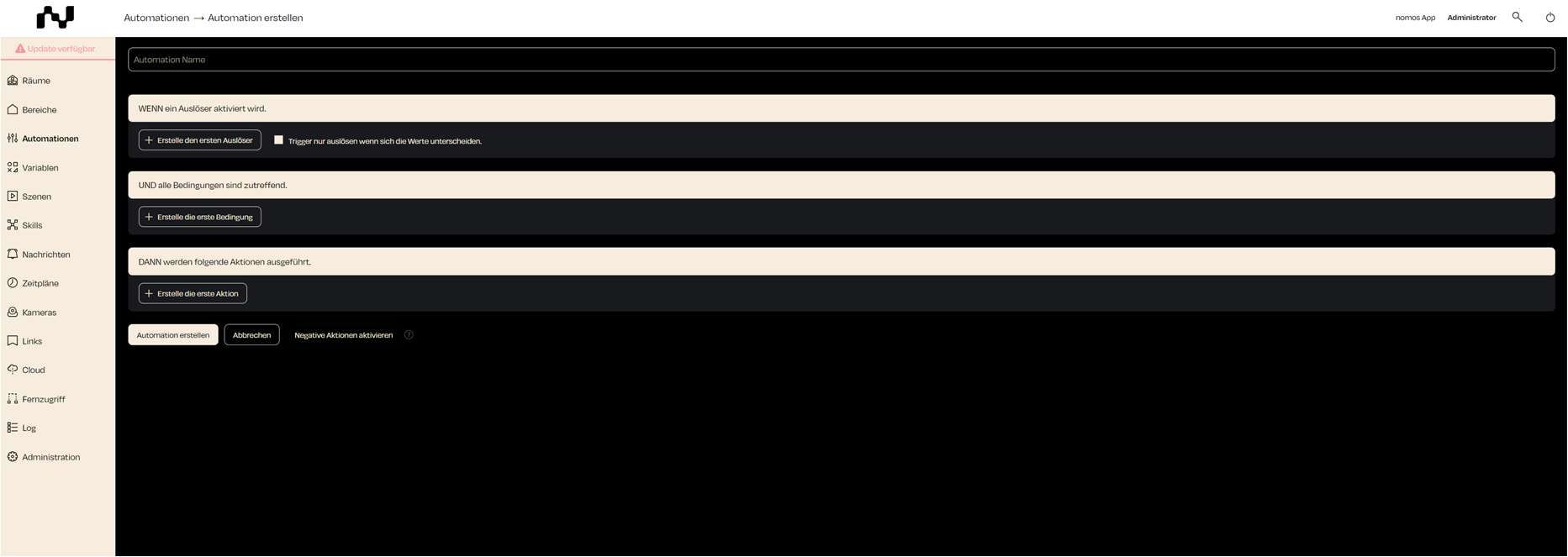
Create Automation
In the nomos system Controller, you can create a new automation that responds to specific conditions and triggers. Automations allow you to automatically control devices or scenes based on predefined rules.
Steps to Create an Automation:
- Automation Name:
- Enter a unique name for the automation so you can easily identify it later.
- Example: "Turn on lights at sunset."
- Add Trigger:
- Click "Add your first trigger" to define a trigger.
- A trigger is an event that starts the automation, such as reaching a specific time, turning on a device, or detecting motion.
- Set Conditions:
- Optionally, click "Add your first condition" to add conditions that must be met before the automation is executed.
- A condition could be, for example, that the automation only triggers at night or only when no one is home.
- Define Actions:
- Click "Add your first action" to define the actions to be executed when the conditions are met.
- An action could be, for example, turning on the lights or sending a message.
- Enable Negative Actions:
- Optionally, you can also define negative actions that, for example, undo a specific action when the conditions are no longer met.
- Save Automation:
- After all triggers, conditions, and actions have been defined, click "Add" to activate the automation.
- The automation is now displayed in the list of automations and is ready to run.
- Cancel:
- If you wish to cancel the process, click “Cancel” to stop creating the automation and return to the previous screen.