

Create Notification - Step by Step
The actions are in the bar at the top: the notification's name on the left, Cancel and Save on the right. When editing an existing notification, the bar also shows Delete, set apart before Cancel. There are no buttons at the bottom of the form.
Type:
- The type follows from the tab you chose before New Notification (E-Mail, Push Notification or Log Message) and is only shown here.
- If the controller is the management master, Global forwards the notification to all connected controllers.
Notification Name:
- Give a unique name to the notification. This name will be shown in the overview and should describe the purpose of the notification.
Status:
- Active: By checking this box, you ensure that the message will be used immediately after saving. If you uncheck this option, the message will be saved but not sent out actively. When editing, the status sits right under the name; when creating, at the end of the form.
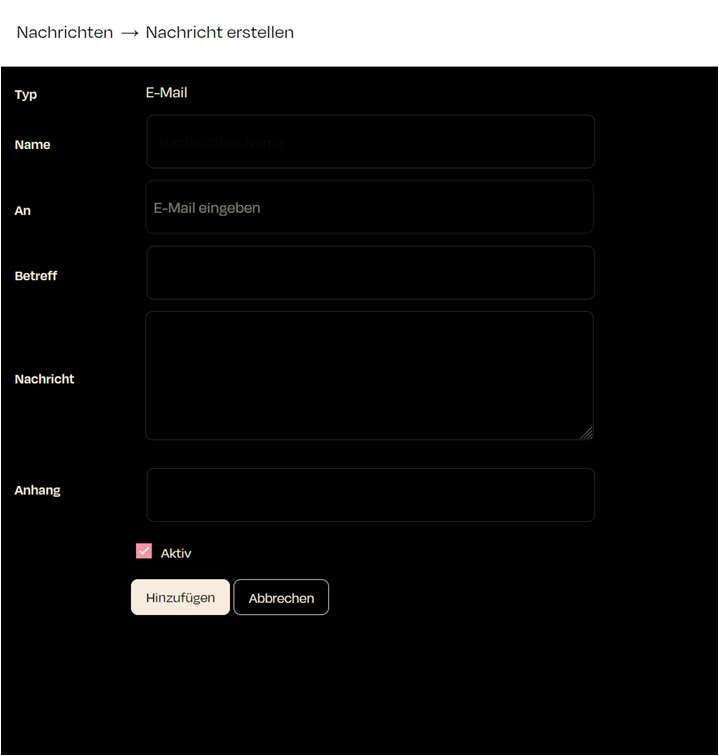
To:
- Enter the recipient's email address.
Subject:
- This is the subject of the email or message. It should be short and clear to inform the recipient about the content.
Message:
- This is where you write the actual content of the message. This text can include more detailed information or instructions.
Attachment:
- Optionally attach the image of a camera to the email, or enter the address of a file to be sent along under Separate Url.


Push Notification
For a push notification, the following fields take the place of To, Subject and Attachment:
- Receiver: Choose the devices that receive the notification, or All Devices.
- Silent message: The notification is sent without a title and text: nothing appears on the device. If the app is open and Even if app in the foreground is set, it opens the Jump to target directly. The Title and Message fields are then hidden.
- Title and Message: Heading and text of the push notification.
- Delivery: While the app is open, it shows no notification. Without Even if app in the foreground the message then has no effect; with the option the app opens the Jump to target directly.
- Jump to: What the app shows when the notification is opened. In one field you choose the type on the left (Room, Zone, Device or Camera) and the target next to it.
- Channel (Android only): The last field. Sets the notification channel on Android devices (Default Channel or Channel 1–3). It only appears when an Android device is among the receivers.
Log Message
- Link: Like Jump to for push notifications: the type on the left (Room, Zone or Device) and the target next to it, in one field. The field is hidden when Global is set.
- Priority: None, Low, Normal, High or Emergency. The priority appears in the Log.