Room Visualization (Visu)
The visualization function (Visu) in the nomos system Controller offers a way to graphically represent and personalize the structure of a room. This feature allows you to upload an image to better visualize the devices within the room.
Steps to Use the Visualization
- Visu Button:
- To start the visualization, click the "Visu" button next to the room you wish to visualize.
- This opens the visualization mode for the selected room.
- Upload Image:
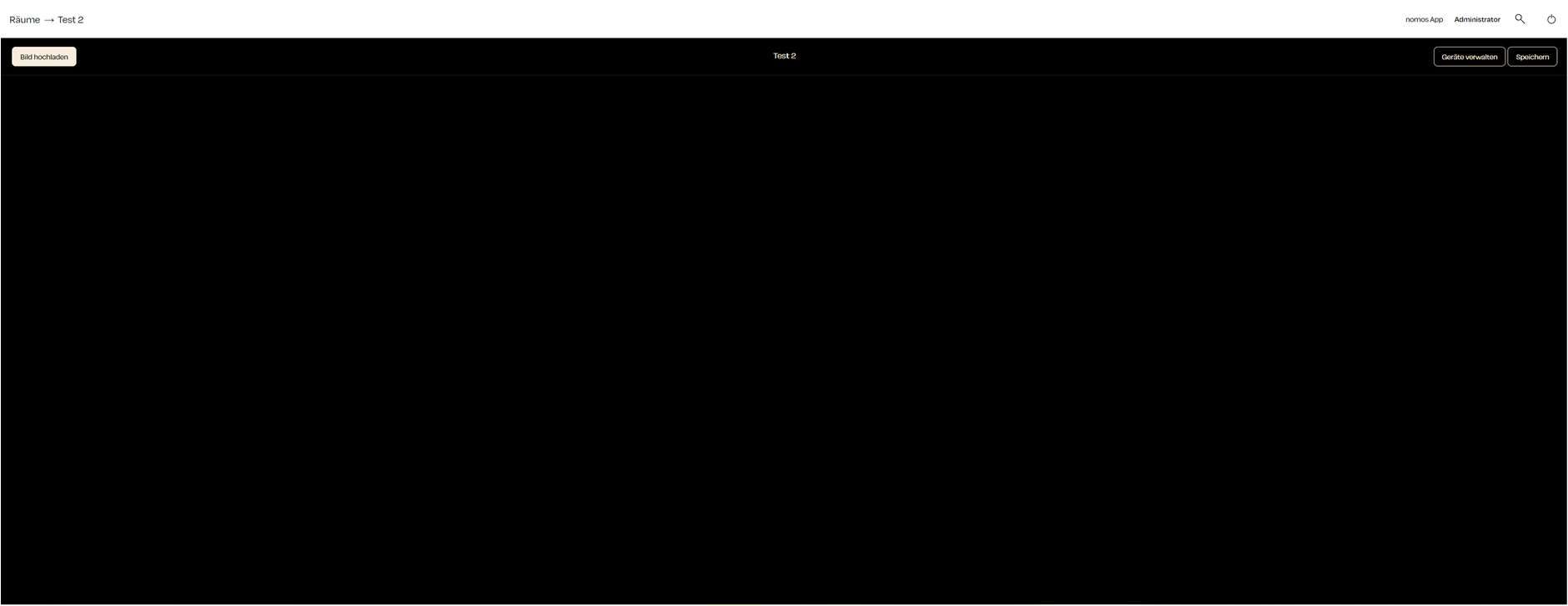
- In visualization mode, you'll see the "Upload Image" option. This allows you to upload an image, such as a floor plan or room view, to begin the visualization.
- Step: Click "Upload Image" to select and upload an image from your device.
- Manage Devices:
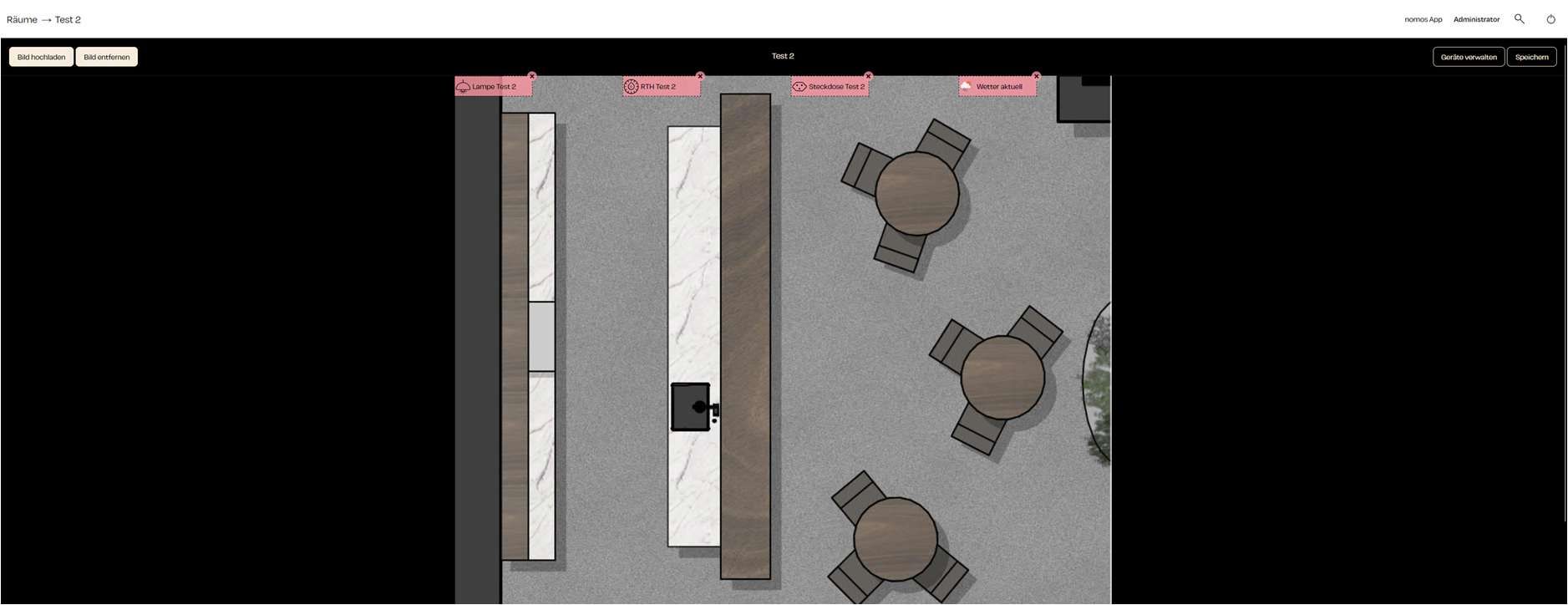
- After uploading an image, you can visually position the devices within the room on the uploaded graphic.
- Use the "Manage Devices" button to add or remove devices and arrange them accordingly on the image.
- Save:
- Once you've placed the devices and set up the visualization, click "Save" to secure the changes. This visualization will then be saved and can be adjusted at any time.
INFO
Note:
- The visualization function provides a user-friendly method to graphically represent the arrangement and placement of devices in a room. It's particularly useful for large installations.