

SFTP Access
SFTP access opens the folder with the controller's project and configuration files (/root/nomos) to an SFTP program such as FileZilla or WinSCP. You start it only when you need it, and it ends by itself after an hour.
WARNING
Note:
The access allows full reading and writing in this folder, and improper changes can cause malfunctions. Only give the login details to people who really need them.
Starting the access
- Open Administration → Advanced, tab Tools, and click Start next to SFTP access. This requires an administrator account.
- Set a User name and Password. Both are optional: without a user name the account is called
nomos, without a password the controller generates one. A password of your own has at least 8 characters. - Click Start.
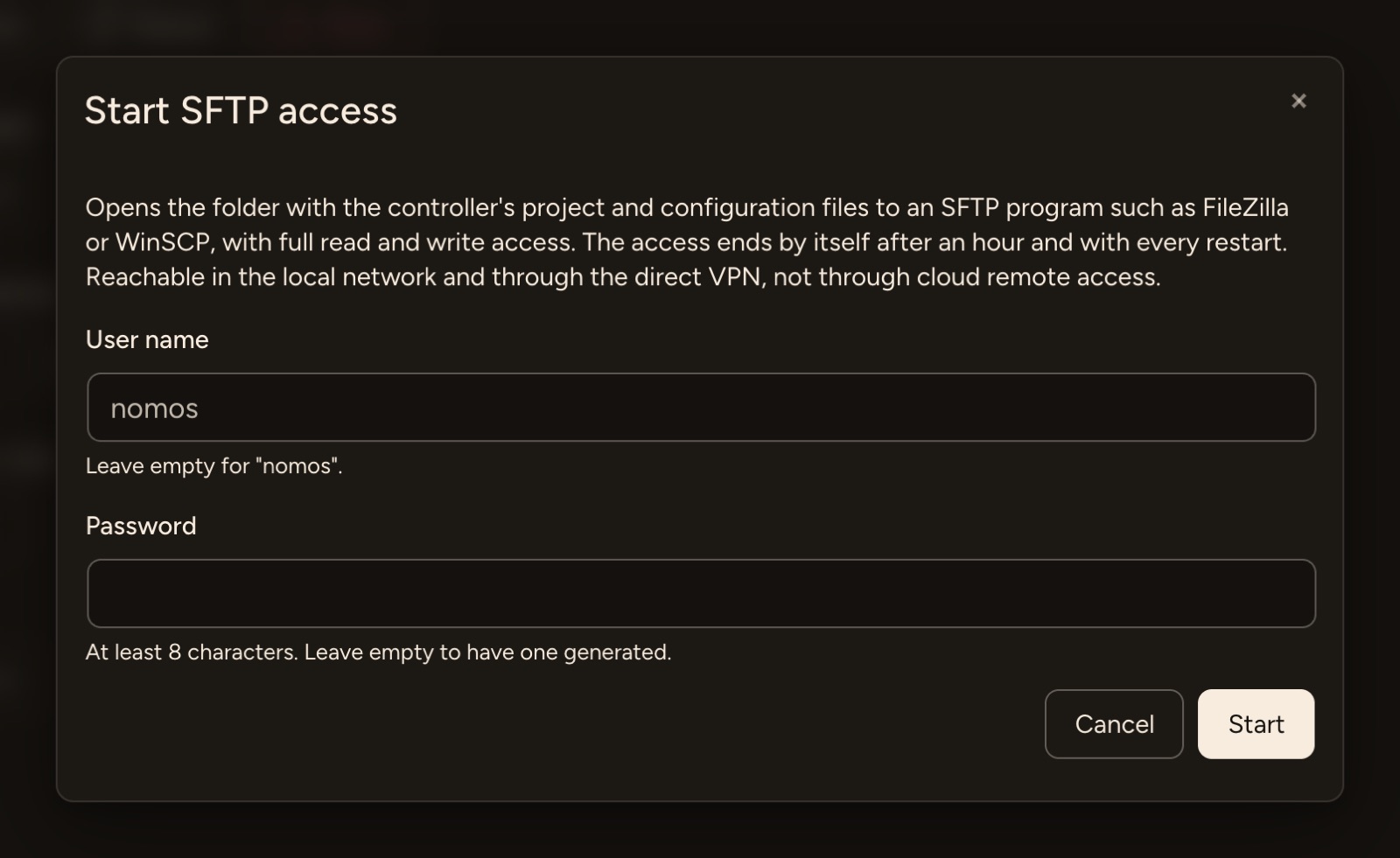
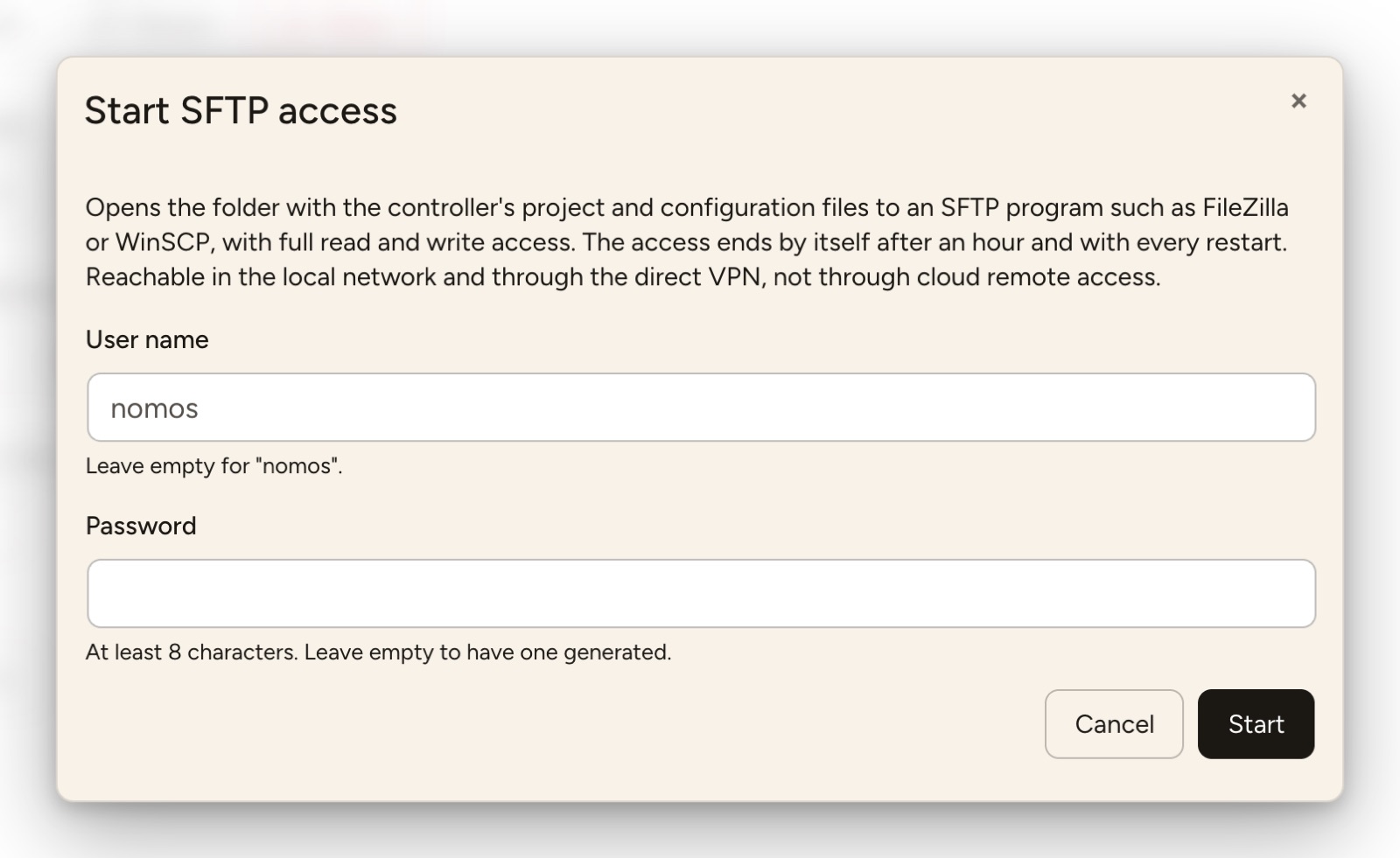
The controller then shows the server, port, user name and password. Make a note of the password, because it is shown only now.
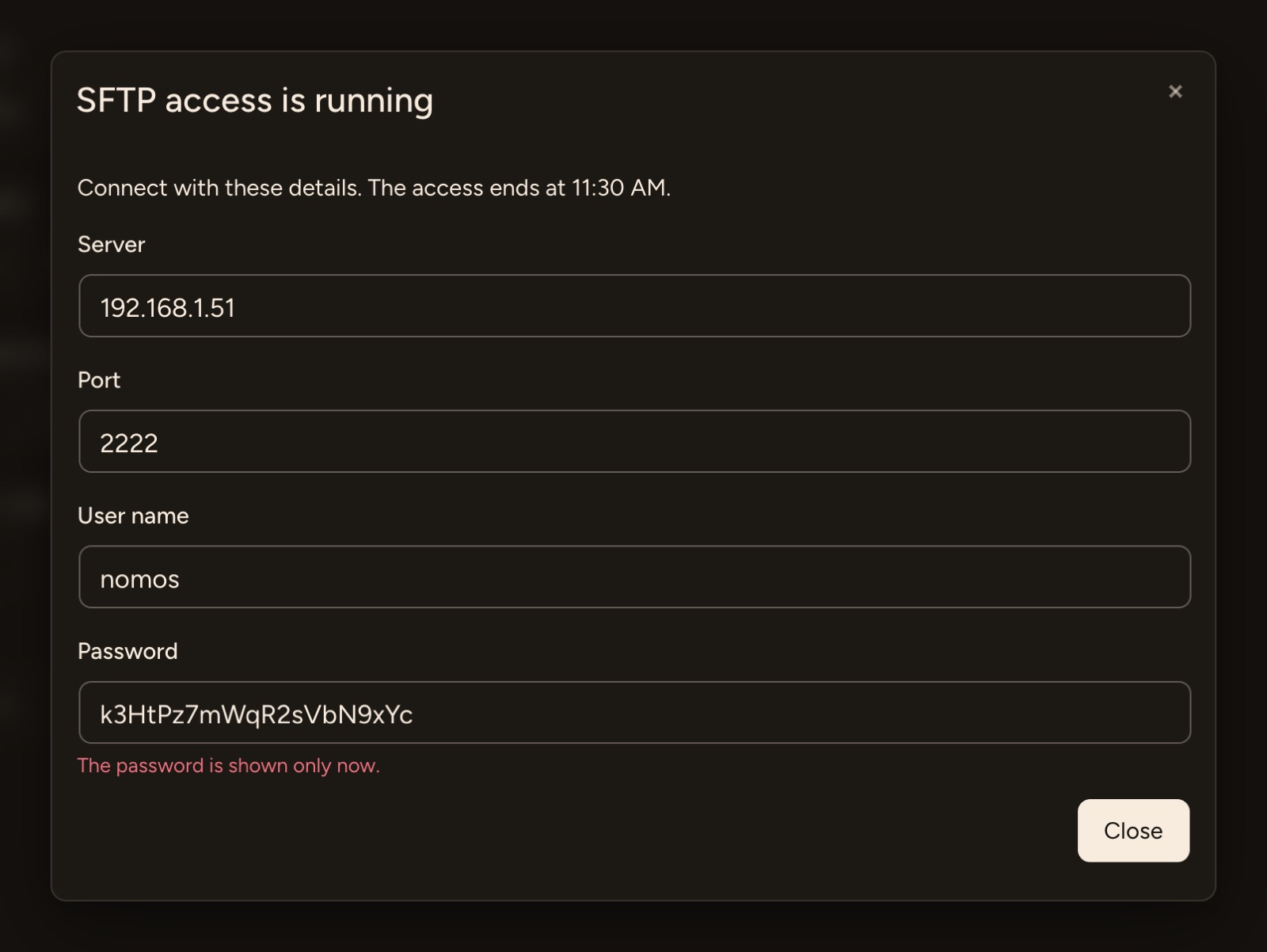
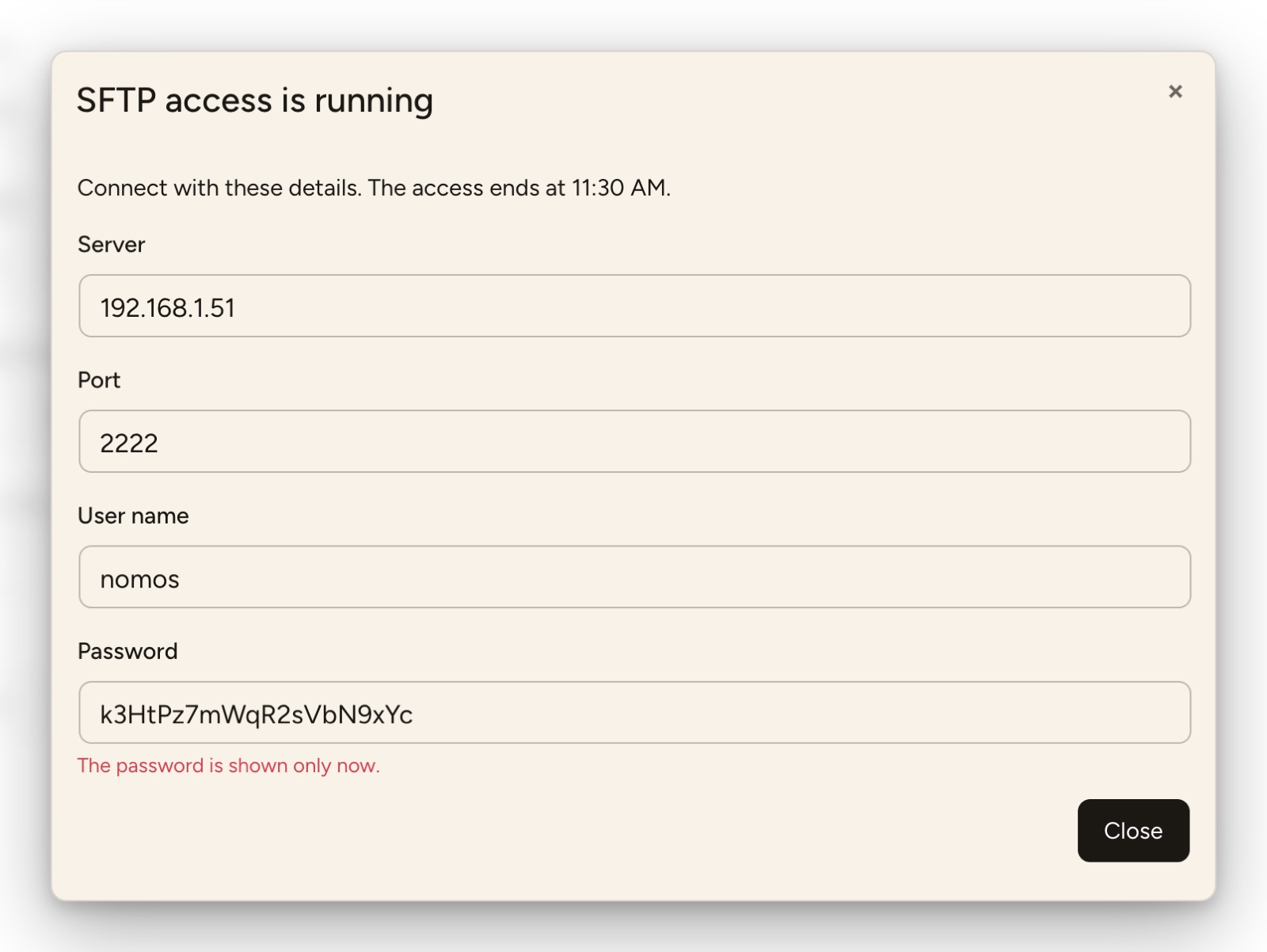
Connecting
In the SFTP program, create a connection with the protocol SFTP and these details. On the first connection the program usually asks whether to trust the server key. The folder appears as the top level, and you cannot go beyond it.
The access can be reached in the local network and through the direct VPN, not through cloud remote access. It uses TCP port 2222, see System Requirements.
Ending the access
While the access is running, the SFTP access row shows until when and at which address. It ends, and open connections are closed as well:
- with Stop,
- after an hour,
- with every restart of the controller.
The user name and password are then no longer valid and are not stored. Start the access again the next time you need it.