

Notes
You can attach a note to many objects in the configuration interface: what an automation is for, why a variable exists, what to keep in mind about a device. Notes are meant for integrators only and do not appear in the nomos app.
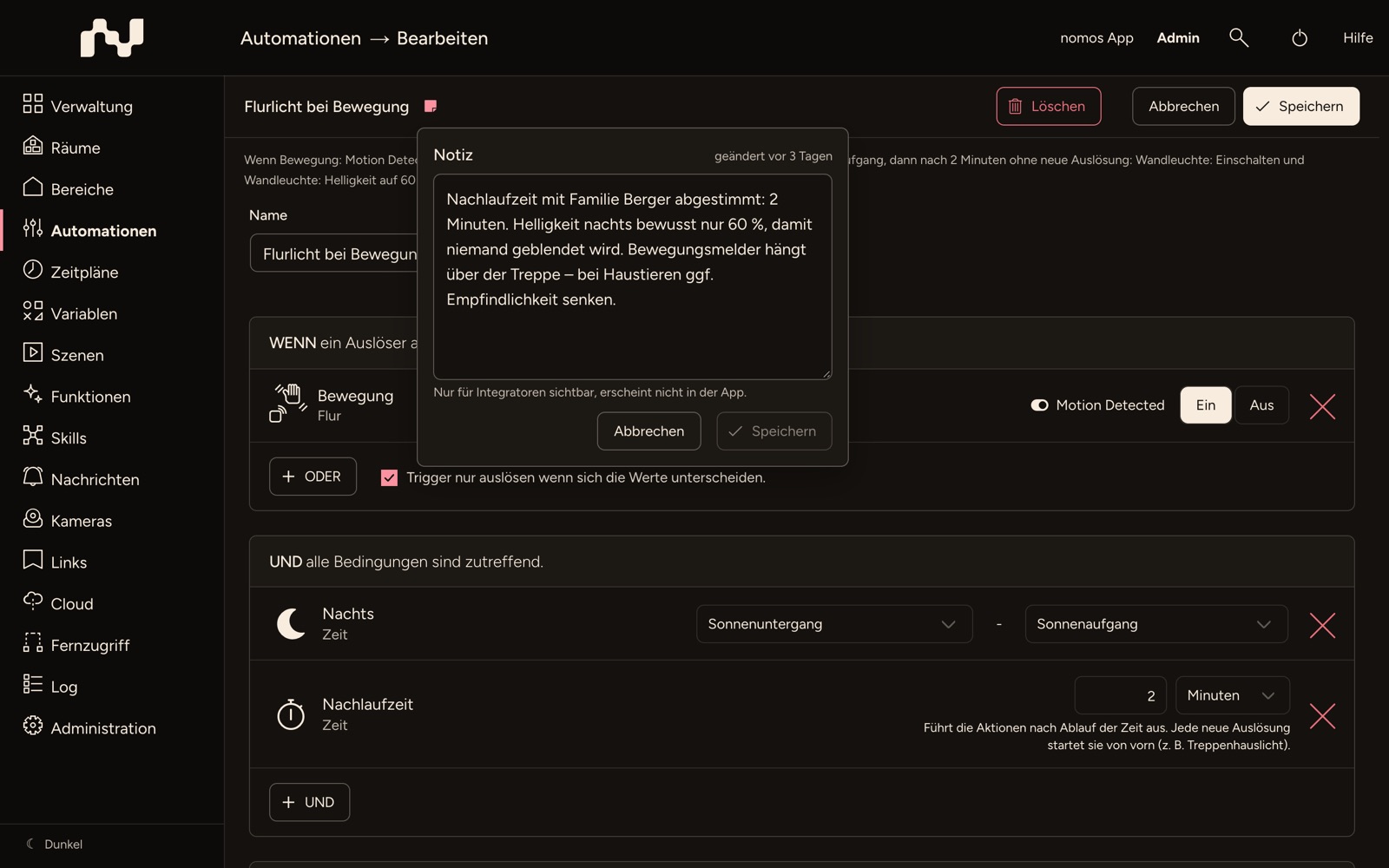
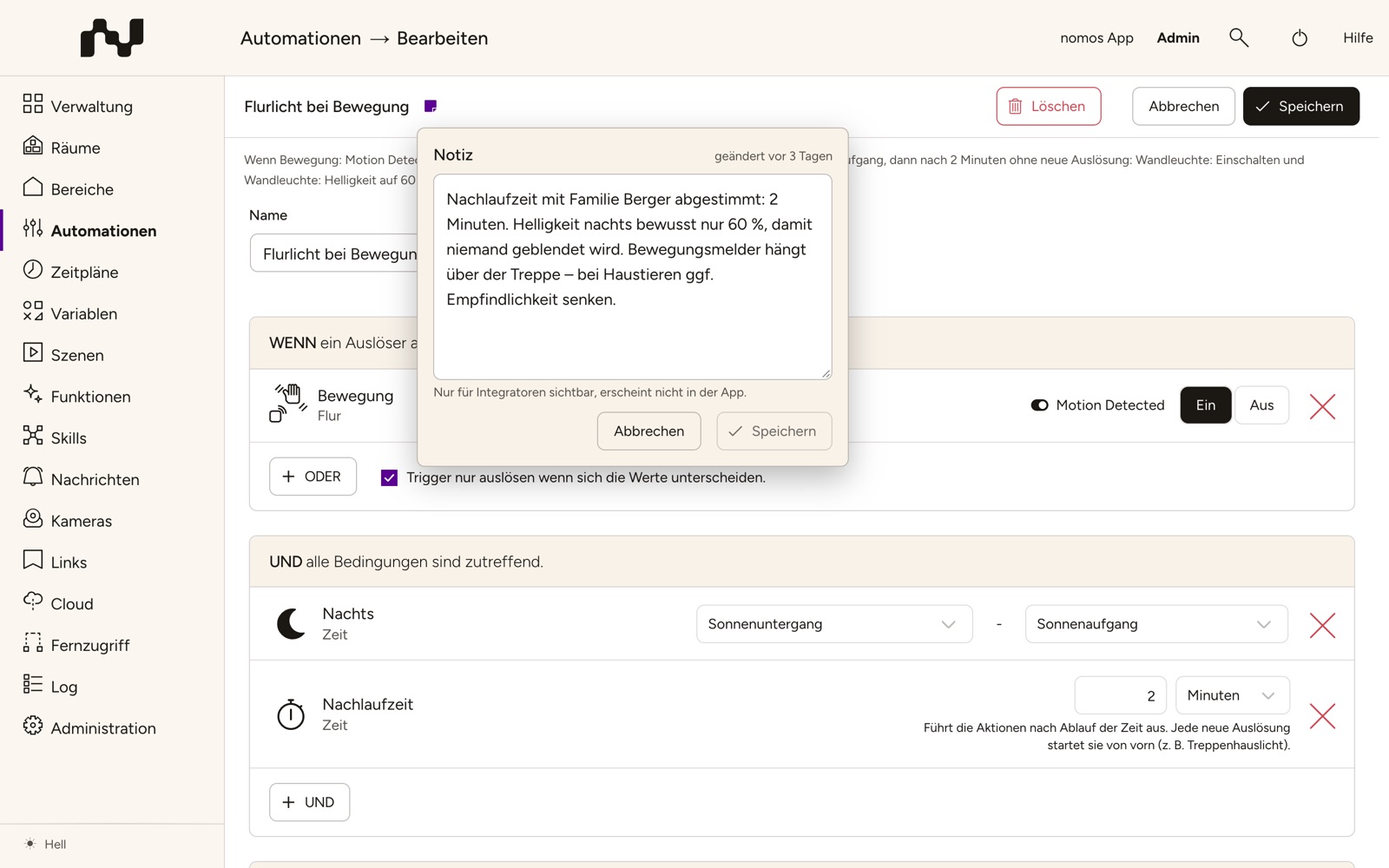
The note icon
The note icon (a sticky note) sits right after the object's name:
- In the editors in the bar at the top, to the right of the name.
- In the lists after the name in every row. Rows without a note show the icon only when you move the mouse over them or reach the row with the keyboard, so the list stays calm.
- For devices in the bar at the top of the device page and on the device cards, for example in the device lists of the skills.
A filled, highlighted icon shows that there is a note; an outline means: no note yet. When you move the mouse over the icon, it shows the beginning of the note and when it was last changed (e.g. changed 3 days ago); without a note it shows Add note.
Writing a note
- Click the note icon. The Note field opens; it lies over the page and pushes nothing aside. Next to the heading you see when the note was last changed.
- Enter the text. An empty field asks: "What is it for? What should be kept in mind?" Below it reads: "Visible to integrators only, not shown in the app."
- Click Save in the field (or press Ctrl+Enter, Cmd+Enter on a Mac). The note is saved immediately, independently of the editor's Save.
Cancel or the Esc key closes the field without saving. A click next to the field closes it only as long as you have not changed anything, so text you have started is not lost that way. To delete a note, empty the field and click Save.
In the lists you edit the note right in the row: a click on the icon opens the field, not the object.
New objects
For an object that has not been saved yet, such as a new automation, the field shows Draft, stored when you save. Save in the field keeps the text as a draft; the note is stored together with the object when you click Save in the bar at the top.
Duplicating and searching
- Duplicate on an automation or scene copies its note to the copy.
- The search field in the lists of automations, schedules, scenes, variables, zones, notifications, links and users also finds the text of the notes.
Where notes are available
| Section | Where |
|---|---|
| Automations | List and editor |
| Schedules | List and editor |
| Scenes | List and editor |
| Variables | List and editor |
| Rooms | List and Manage Devices, not for the Default Room |
| Zones | List and Manage Rooms |
| Devices | Device page and device cards; on a Management controller not for devices of managed controllers |
| Functions | Page of every function, next to the title; the individual entries of Adaptive lighting, Motion lighting and Places (except Home) in list and editor |
| Notifications | List and editor |
| Links | List and editor |
| Users | List and editor |
Error messages
- The notes could not be loaded. – The icon shows this message, and the field cannot be edited, so that an existing note is not overwritten. Reload the page.
- The note could not be saved. – The field stays open with your text; try again. For a new object, the object itself is saved all the same.