

Services
Through the Services channel a profile sends to chat and push services: Slack, Microsoft Teams, Discord, ntfy, a JSON webhook or a Telegram group. You set up the services once under Notifications in the Services tab and then pick them in every profile that should send to them.
The controller sends to the service directly, not through the nomos cloud. For this it needs access to the internet or to the service's server.
INFO
Only administrators set up services. Other users see the list without actions.
The Telegram bot is set up here too and is then listed as a row of its own, see Telegram.
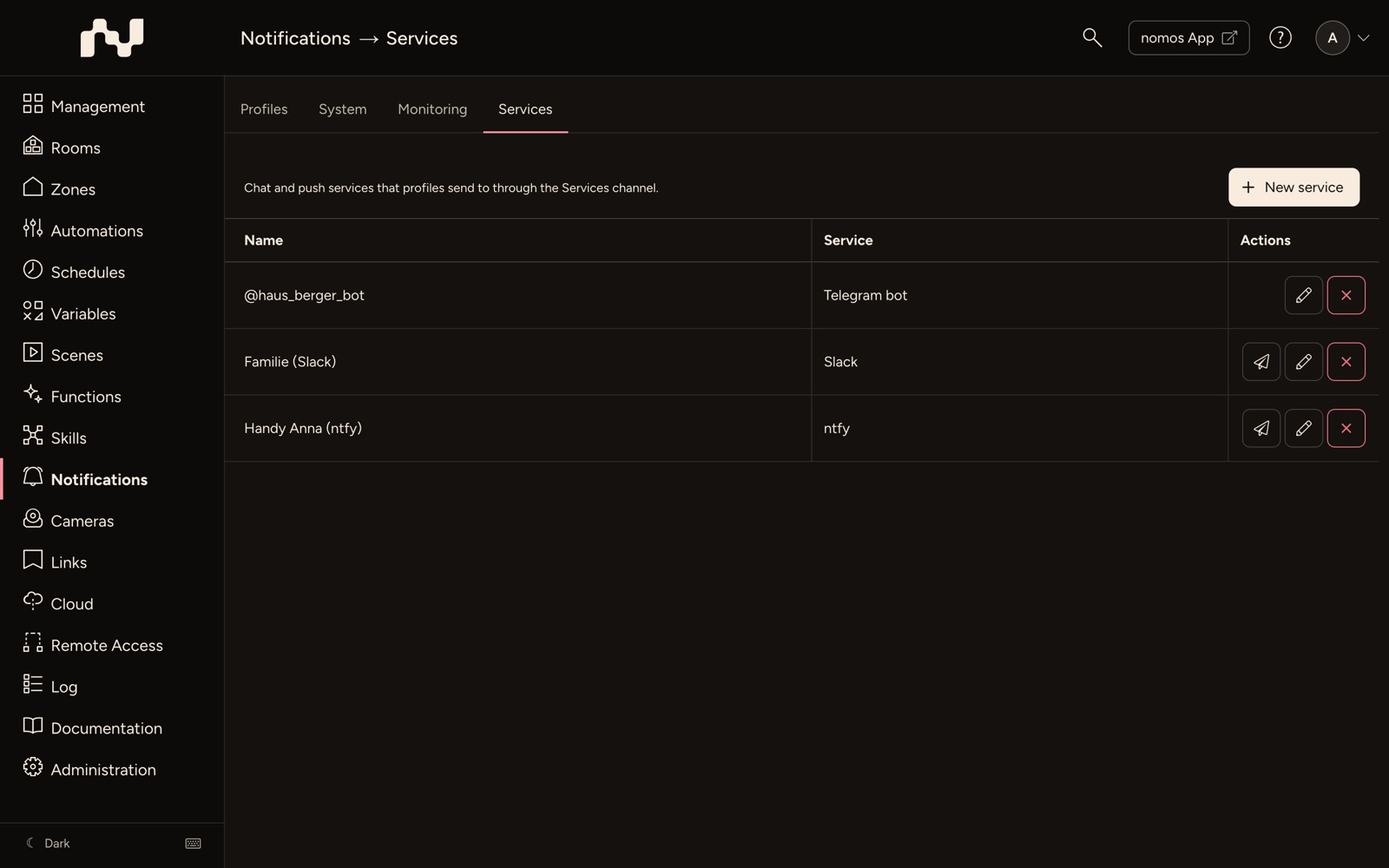
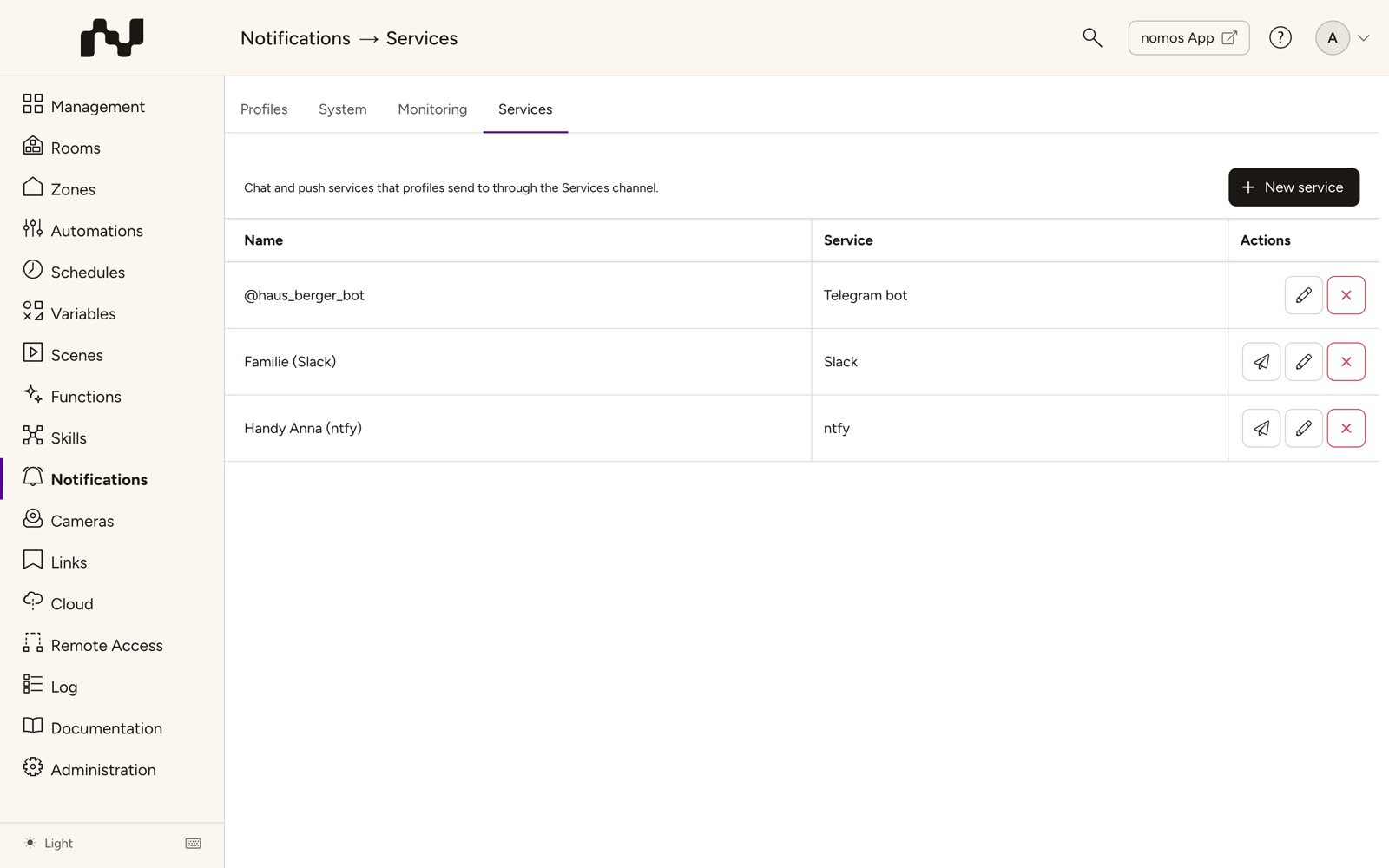
The list
- New service: Creates a service.
- Name: The service's name as it appears in the profiles.
- Service: The type, for example Slack or Telegram group.
- If a Telegram bot is set up, it is the first row of the list: its Telegram name as Name (for example @MyHouseBot), Telegram bot as Service. It has Edit and Delete, but no test message.
- Actions:
- Send a test message (paper plane): Sends a test message to the service at once.
- Edit: Opens the service.
- Delete: Deletes the service after a confirmation and removes it from every profile that sends to it.
Setting up a service
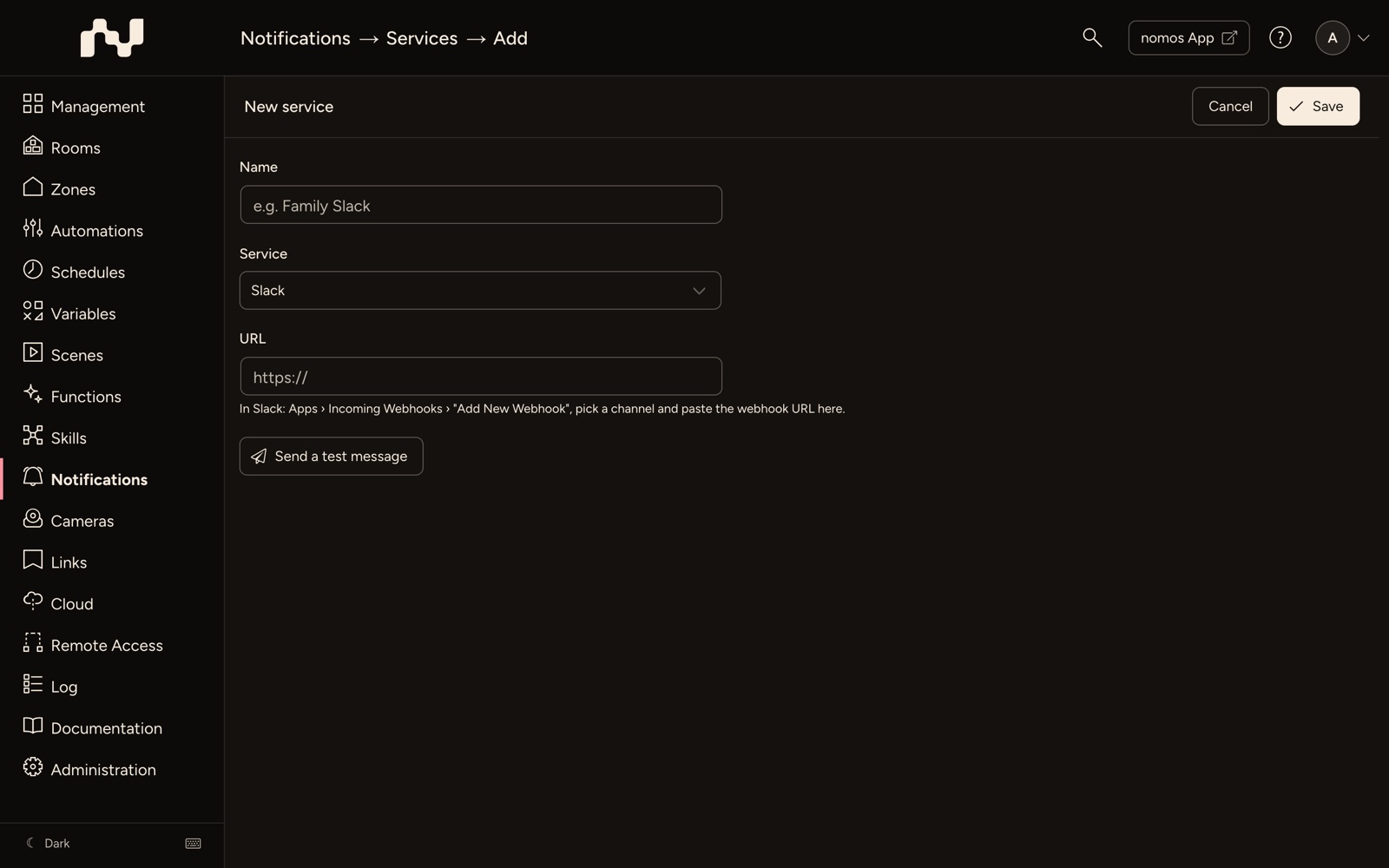
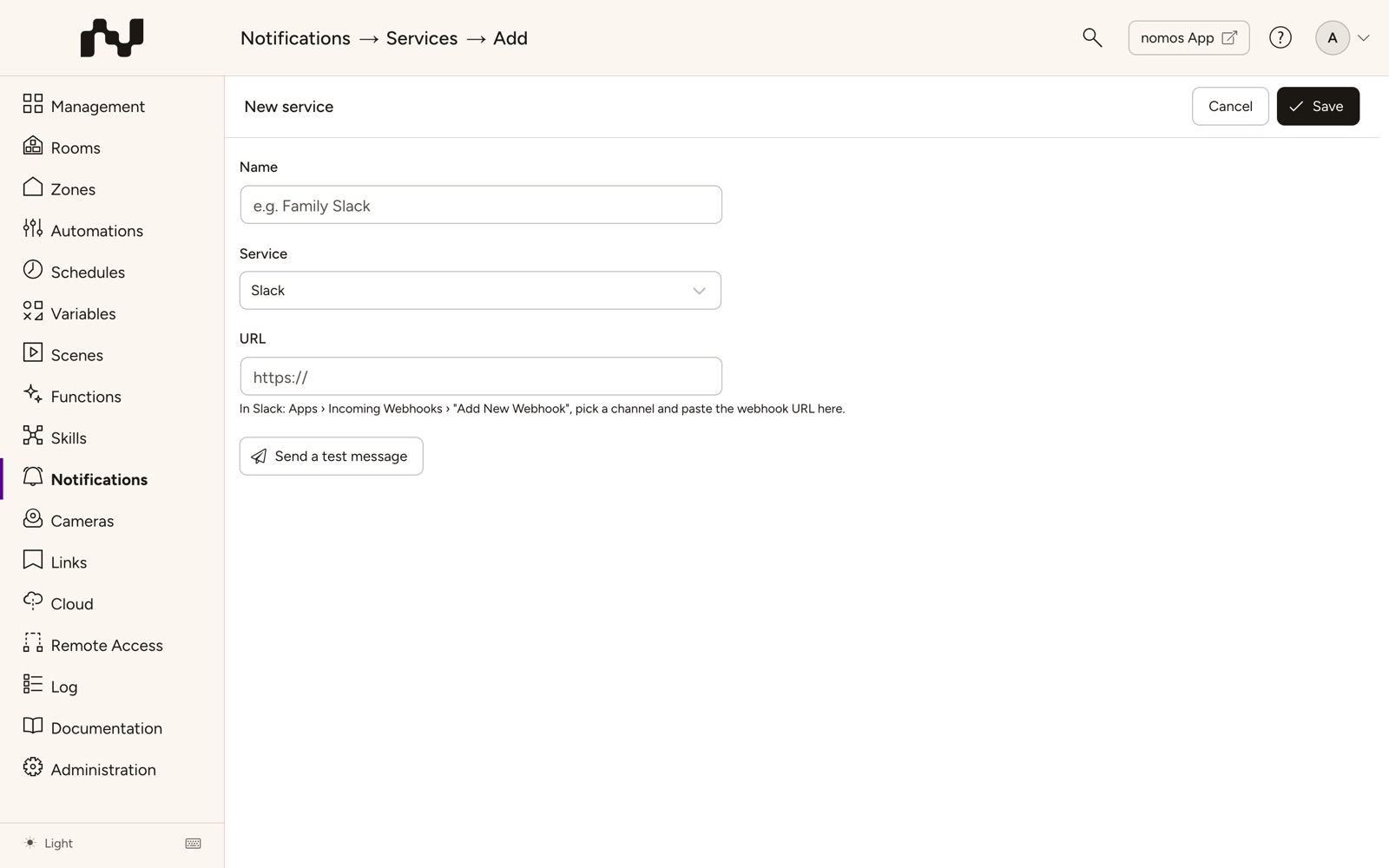
The actions are in the bar at the top: the name on the left, Cancel and Save on the right, for an existing service also Delete.
- Click New service.
- Name: A name under which you find the service in the profiles, for example "Family Slack".
- Service: Choose the type of service. Telegram bot is offered while no bot is set up, Telegram group only once there is one.
- URL: Paste the address the service gives you (see the table below). Below the field it says where to find it in the service. For a Telegram group you choose the group instead of a URL, see Telegram.
- Access token (ntfy only): Only for protected topics. A stored token is not shown; leave the field empty to keep it, or set Remove the stored token.
- Send a test message: Below the fields you check the service with what is entered right now, even before saving.
- Click Save at the top.
Then pick the service in a profile on the Services tab, see Create Notification - Step by Step.
The services in detail
| Service | Where the URL comes from |
|---|---|
| Slack | In Slack: Apps › Incoming Webhooks › "Add New Webhook", pick a channel and paste the webhook URL. |
| Microsoft Teams | In Teams, in the channel: ··· › Workflows › "Post to a channel when a webhook request is received", and paste the workflow's URL. |
| Discord | In Discord: Server Settings › Integrations › Webhooks › "New Webhook" and copy the webhook URL. |
| ntfy | The topic's address, e.g. https://ntfy.sh/my-house. Subscribe to the same topic in the ntfy app. |
| JSON webhook | Any address that takes a POST with title, text, profile, sid and time, e.g. Home Assistant, n8n or Zapier. |
| Telegram group | No URL: a group the Telegram bot is a member of, see Telegram. |
| Telegram bot | No URL and no name: only the Token of the bot through which people and groups get their Telegram messages, see Telegram. |
The URL must be complete and start with https://. For ntfy and the JSON webhook http:// is allowed too, for example for a server of your own in the house; for ntfy the topic is part of the address.
WARNING
Whoever knows a webhook's URL can post there. Treat it like a password.
A forwarded notification does not go to services on the managed controllers: the services belong to the controller they are set up on.