

Motion lighting
Motion lighting is the classic staircase function: motion switches lights on, and after a follow-up time they go off again. It is needed not only in the staircase but just as much in the hallway, the garage, the WC or the cellar.
You create as many instances as you like for it, for instance one per area. Every instance connects selected triggers — motion detectors, buttons, door contacts — with selected lights. The follow-up time, the automatic and "Permanently on" of every instance are system variables: you can release them for the app, and automations and scenes can change them.
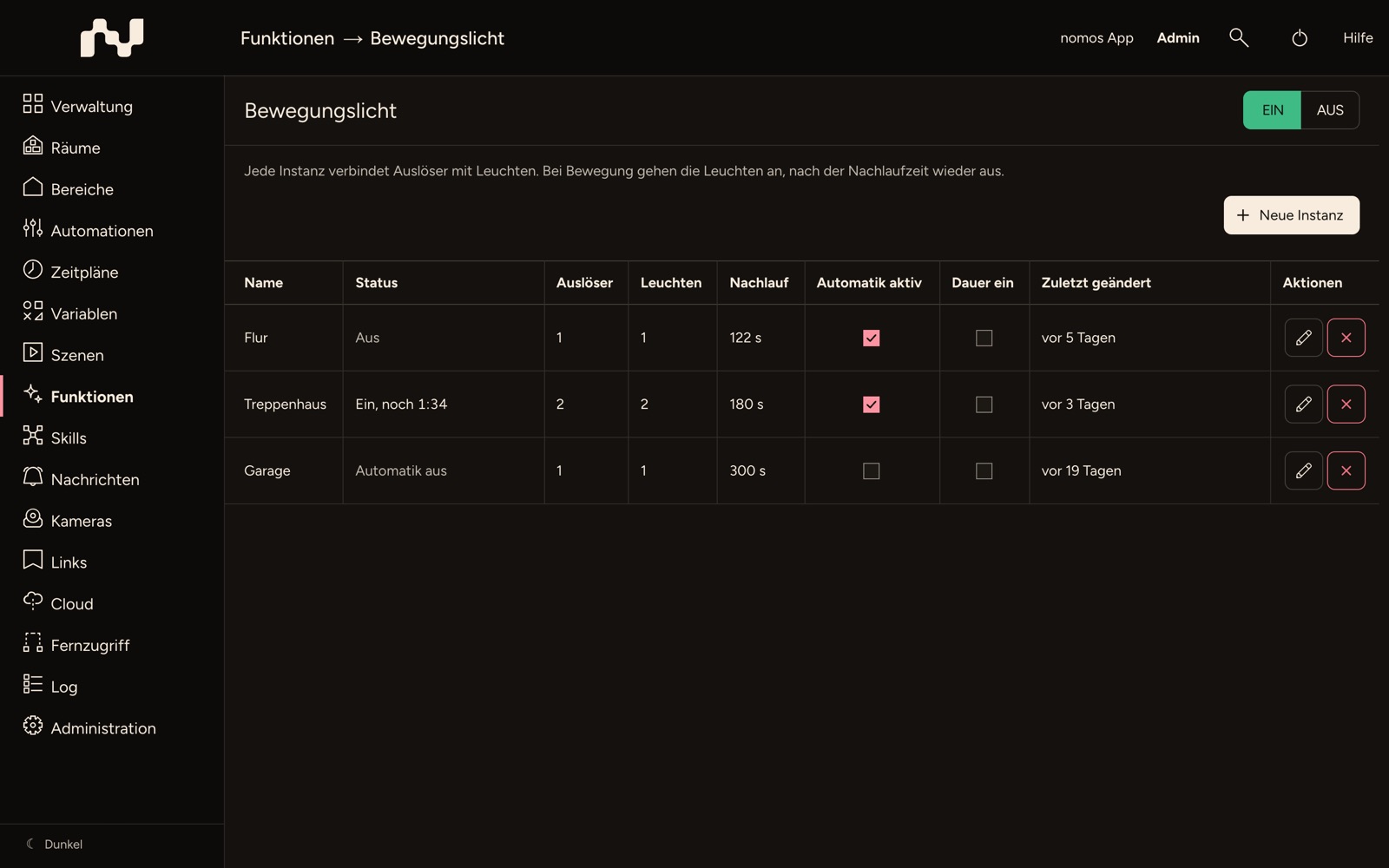
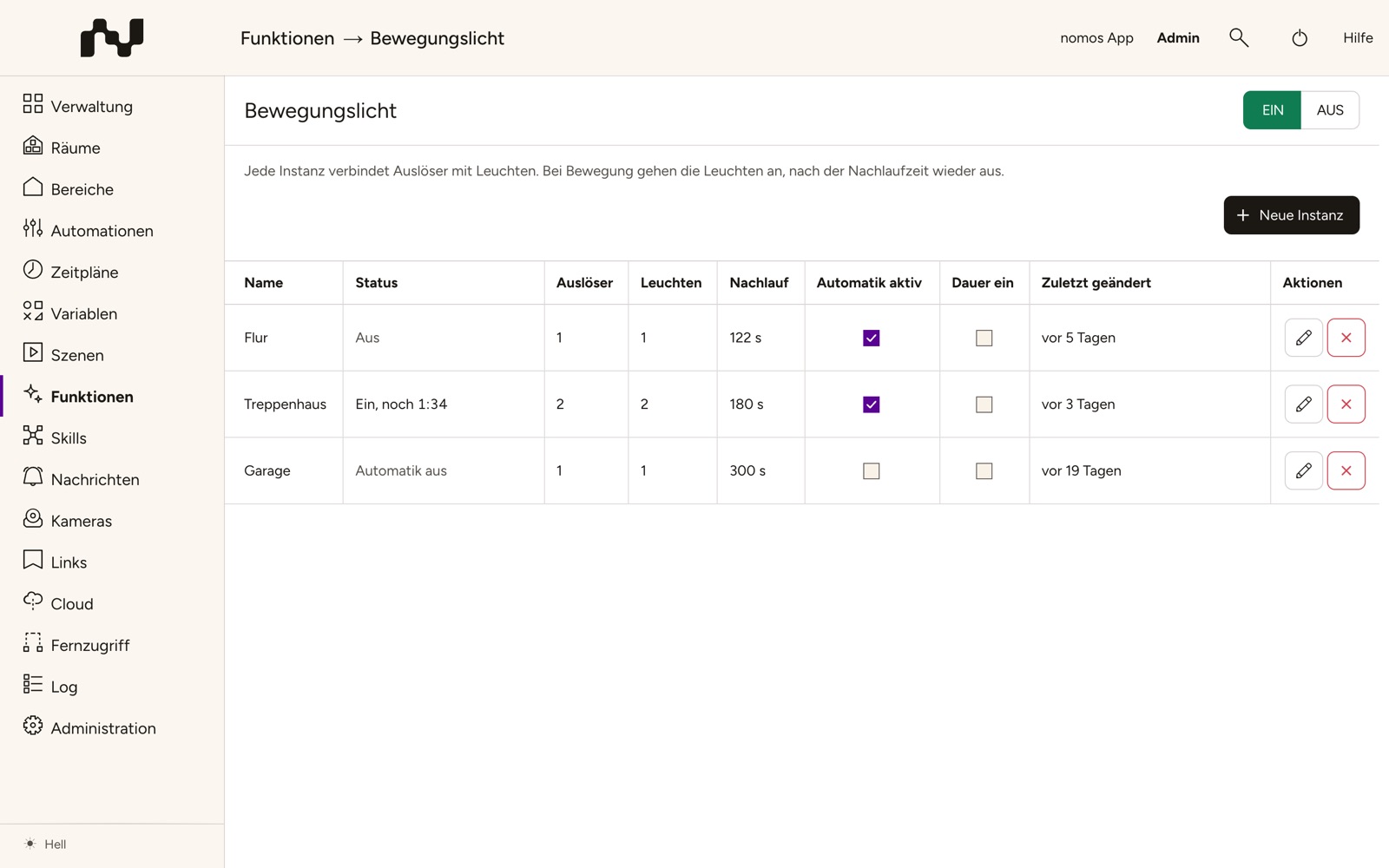
Overview
The table shows every instance with Name, Status, the number of its Triggers and Lights, the follow-up time under Follow-up and Last updated. The Status shows what the instance is doing right now:
- Off — waiting for the next trigger,
- On, motion detected — a motion detector is still reporting motion,
- On, … left — the follow-up time is running,
- Prewarning, … left — the lights are warning before switching off,
- Locked, … left — after a switch-off by hand,
- Automatic off or Permanently on — see System variables.
The columns Automatic active and Permanently on switch the instance directly from the list. Under Actions you find Edit and Delete.
Creating an instance
New instance opens the editor. At the top are the name of the instance and Cancel and Save.
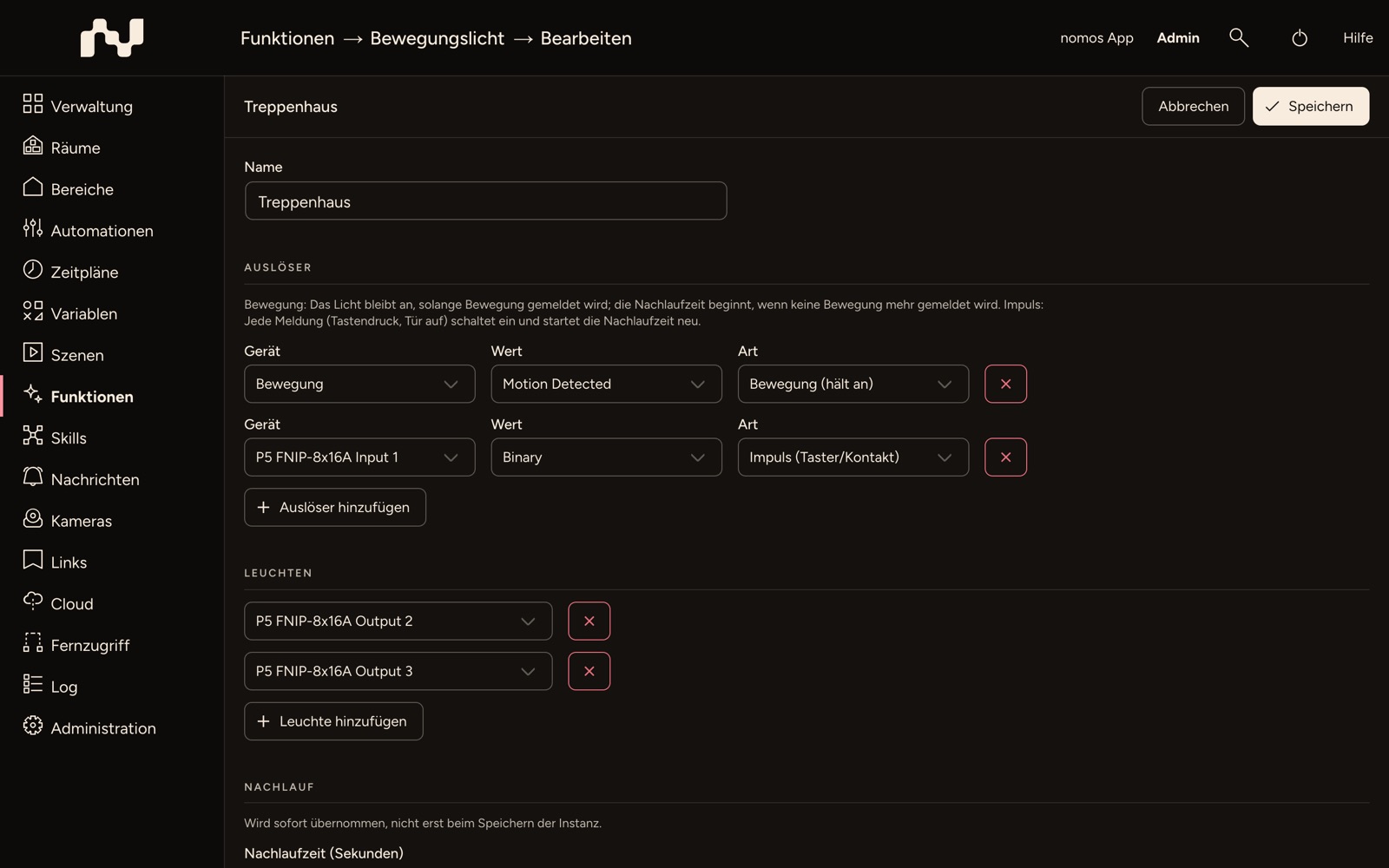
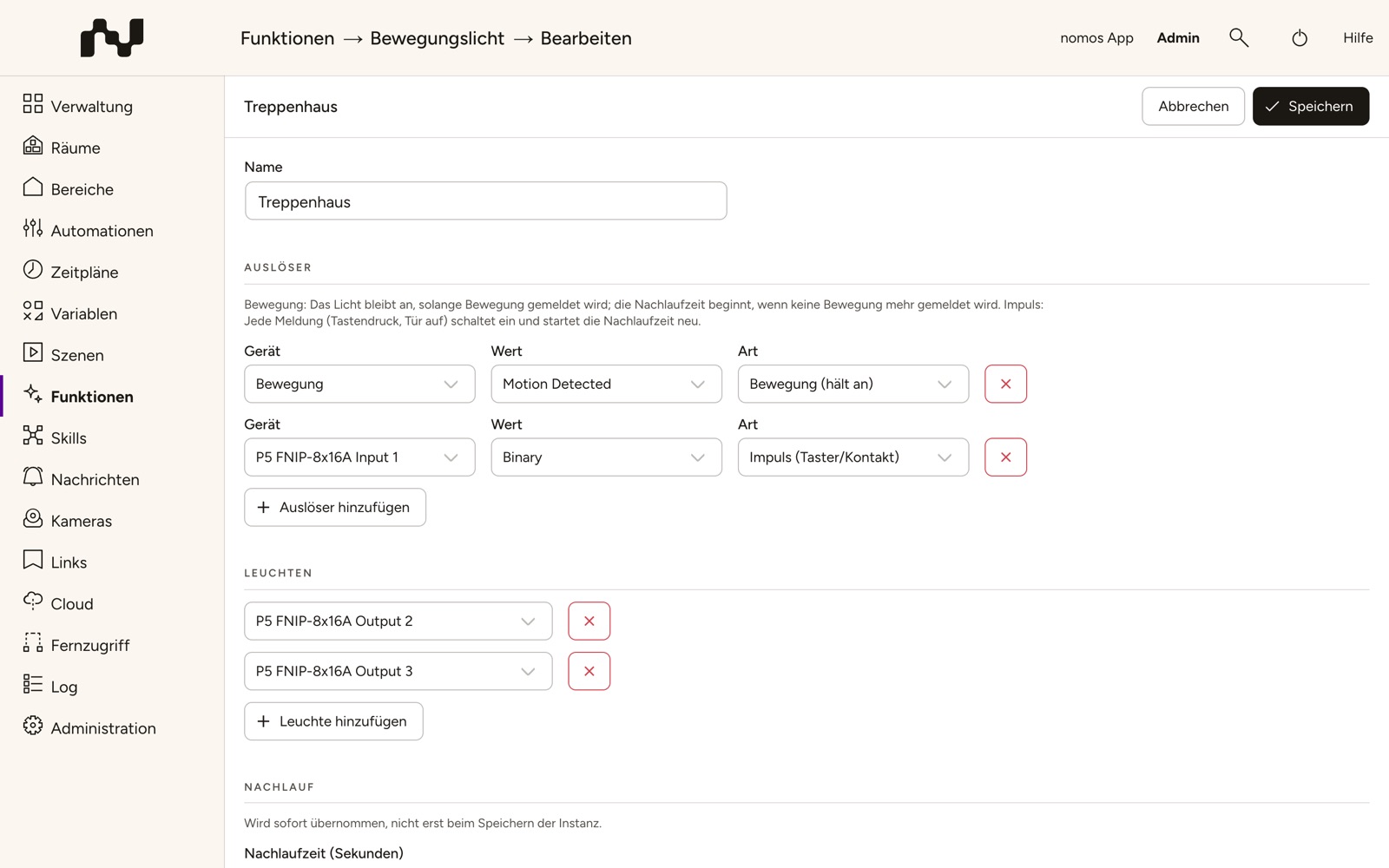
Name
A descriptive name, such as "Staircase". It also appears in the category of the system variables.
Triggers
Every trigger consists of Device, Value and Kind. You can choose from the values of sensors that report on/off — motion and presence detectors, door and window contacts, binary inputs — and from the reports of buttons. Maintenance values such as reachability or battery are left out of the list.
The Kind determines how the trigger acts:
- Motion (holds) — The light stays on as long as the trigger reports activity. The follow-up time only starts once none of the triggers of this kind is active any more. A door contact of this kind holds the light for as long as the door is open.
- Pulse (button/contact) — Every report (button press, door opened) switches on and restarts the follow-up time. If a motion detector is still reporting motion at the same time, the follow-up time waits for it to end.
When you choose the value, the page suggests the kind: buttons always Pulse, motion and presence values Motion, everything else Pulse. You can change the suggestion. Add trigger adds further rows.
A light cannot also be its own trigger: the page refuses to save if the status or brightness value of one of the instance's lights is a trigger of the same instance.
Lights
Add light lets you choose the lights, grouped by room. You can choose from switchable lights and switch actuators, each only once per instance.
Follow-up
Follow-up time (seconds) — how long the light stays on after the last trigger, at least 5 seconds.
For a saved instance, Automatic active and Permanently on appear here as well. These fields and the follow-up time write directly to the system variables: a change is applied immediately, not only when the instance is saved. "Permanently on" takes precedence: while it is on, the lights stay on.
Brightness
Under Switch on you set when a trigger switches the light on:
- Always,
- Only at night — between sunset and sunrise (system variable
NIGHT), - Only when dark (sensor) — only if the Brightness sensor with the chosen Value is below the Threshold (lx).
The brightness is only checked while the lights are off. Once the light is on, every movement extends the follow-up time, even if the sensor in the same room is now measuring the light itself. If no reading is known yet, or if shortly after a start the controller does not yet know whether it is night, the instance switches on — better light than darkness.
Extras
You add each extra individually:
- Warn before switching off with Warning time (seconds) — Once the follow-up time has run out, dimmable lights go to half their current brightness, and switch actuators go off and on again for about a second. Only after the warning time does the light go off. A trigger during this time restores the brightness and restarts the follow-up time.
- Set switch-on brightness with Brightness (%) — Dimmable lights go to this value instead of 100 %. The extra creates the system variable "Switch-on brightness (%)".
- Lock after manual switch-off with Lockout time (seconds) — see Switching by hand.
At the bottom of the page, a note names the category of this instance's system variables; Go to system variables leads to the Variables page.
How an instance switches
- Switching on: The instance only switches on lights that are off at that moment, and remembers exactly those as its own. It leaves lights that were already on alone and does not switch them off later either. If all of them are already on, nothing happens. Dimmable lights go to 100 % or to the switch-on brightness, switch actuators simply on.
- Switching off: After the follow-up time (and the warning time, if set) only its own lights go off.
- A light in several instances: A light only goes off when no instance holds it as its own any more. If instance A switched it on, it is already on for instance B.
- Restart: Lights an instance had switched on get a fresh follow-up time after a restart of the controller. Nothing stays on forever, and nobody is suddenly left in the dark. "Permanently on" survives the restart.
Switching by hand
- Switched off by hand: If somebody switches off one of the instance's own lights by hand, the instance releases it. Once all of its own lights are released, the instance is off again. With the extra Lock after manual switch-off, it then ignores triggers for the lockout time — whoever switches off at the button on the way out is not put straight back into the light by the motion detector.
- Dimmed by hand: The light stays one of its own and still goes off at the end of the follow-up time.
- Switched on by hand: The instance does not take over a light that somebody switched on themselves. It stays on until somebody switches it off.
System variables
Every instance gets system variables of its own in the category "Motion lighting – ‹instance name›". ‹n› in the ID is the number of the instance. It never changes and is not given out again after the instance is deleted.
| ID | Name | Type | Initial value |
|---|---|---|---|
MOTIONLIGHT_‹n›_DELAY | Follow-up time (s) | Whole number | Follow-up time from the editor |
MOTIONLIGHT_‹n›_ENABLED | Automatic active | On/Off | On |
MOTIONLIGHT_‹n›_PERMANENT | Permanently on | On/Off | Off |
MOTIONLIGHT_‹n›_LEVEL | Switch-on brightness (%) | Whole number | Brightness from the editor; only with the extra Set switch-on brightness |
Once the instance is saved, the value of the system variable applies, no longer the initial value.
- Automatic active off: triggers are ignored. A running follow-up time ends as usual, but triggers no longer extend it.
- Permanently on on: all lights of the instance go on, regardless of the brightness, and stay on. A lockout ends. Permanently on off: exactly one normal follow-up time runs, even if Automatic active is off — otherwise the light would stay on until somebody walks by.
- Follow-up time and switch-on brightness take effect from the next start of the follow-up time or the next switch-on. A value below 5 seconds or outside 1–100 % does not count; the instance then uses the initial value.
The variables only appear in the app once you release them as Editable under Variables — motion lighting never decides that itself. Automations and scenes set them like any other variable, for instance "Permanently on" during a party or "Automatic active" off while nobody is at home. The variables cannot be deleted as long as the instance exists. If the instance is renamed, name and category follow; the IDs stay, and automations are not affected.
Adaptive lighting
If a light is also part of an adaptive lighting instance, adaptive lighting keeps writing the colour temperature. It leaves the brightness to motion lighting if the instance sets a switch-on brightness. The dimming of the prewarning does not count as a manual intervention there.
Changing and deleting instances
A changed instance carries on with the new settings as soon as it is saved. If its light is on at that moment, it keeps its own lights and starts a fresh follow-up time. A light you remove from the instance is switched off if the instance had switched it on itself. If you switch off Set switch-on brightness, the system variable "Switch-on brightness (%)" is deleted.
Delete asks first: the instance and its system variables are deleted, and automations using these variables will no longer find them. Lights the instance had switched on go off.
Switching off and on, reset
If you switch the function off, the lights stay as they are, and the system variables remain, so that automations that set them still find them. When it is switched on again, the lights an instance had switched on get a fresh follow-up time.
Reset deletes all instances and all their system variables.