Connected Devices – More Options
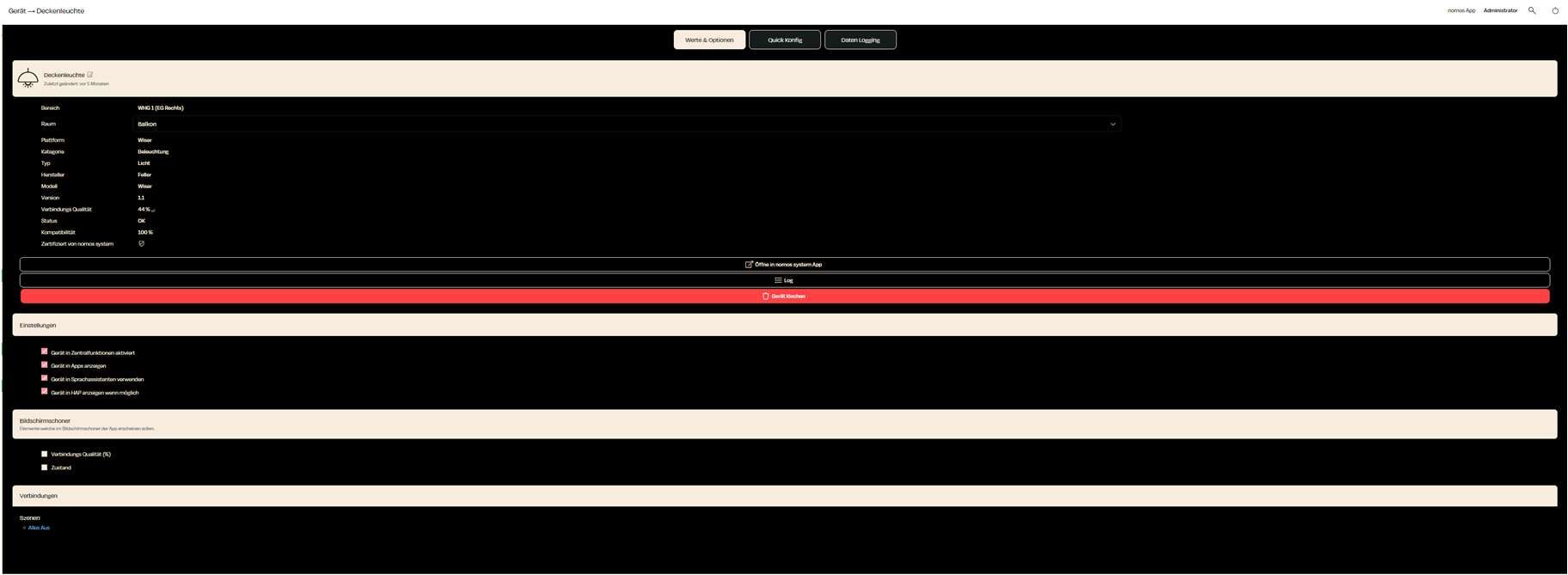
Click on a connected device to see more options. A window will open showing detailed information and settings for the selected device.
Device Overview:
- Zone and Room:
- This shows the zone and room where the device is located. In this case, the device is placed in the area WHG 1 (ground floor right) in the balcony room.
- Platform, Category, and Type:
- The platform is Wiser, the category is Lighting, and the type is Light.
- Manufacturer and Model:
- Manufacturer: Feller
- Model: Wiser
- Connection and Status:
- This shows the connection quality (here 44%) and the current status of the device (OK).
- Compatibility and Certification:
- Compatibility: 100%
- Certified by nomos-system.
Settings:
- Central Function:
- Activate or deactivate whether the device should participate in central functions, such as controlling in central scenarios.
- App Display:
- The device can be shown in apps or kept hidden, depending on your needs.
- Voice Control:
- Enable whether the device can be used with voice assistants (e.g., Google Assistant, Alexa, or Siri).
- HAP Display:
- This indicates whether the device is available in the HomeKit Accessory Protocol (HAP) to be controlled through Apple Home.
Connection:
- Scenes:
- This shows the connected scenes, such as a scene that turns off all lights ("All Off").
Screen Configuration:
- Connection Quality:
- This setting allows displaying the connection quality on a status screen.
More Options:
- Values & Options:
- This button allows you to set advanced settings such as the brightness of the lamp or other functions (depending on the device type).
- Data Logs:
- You can access a data log here that provides useful information about the connection and activity of the device.
- Delete Device:
- If you want to remove the device from the system, you can do this through the delete device option.