

System report
The system report creates a PDF about the installation: what is installed and configured, with your notes, your texts and selected attachments. You find it under Documentation → System report. The report is meant for integrators, is available to administrators only and does not appear in the nomos app. The controller does not keep the report; it is created anew with every click.
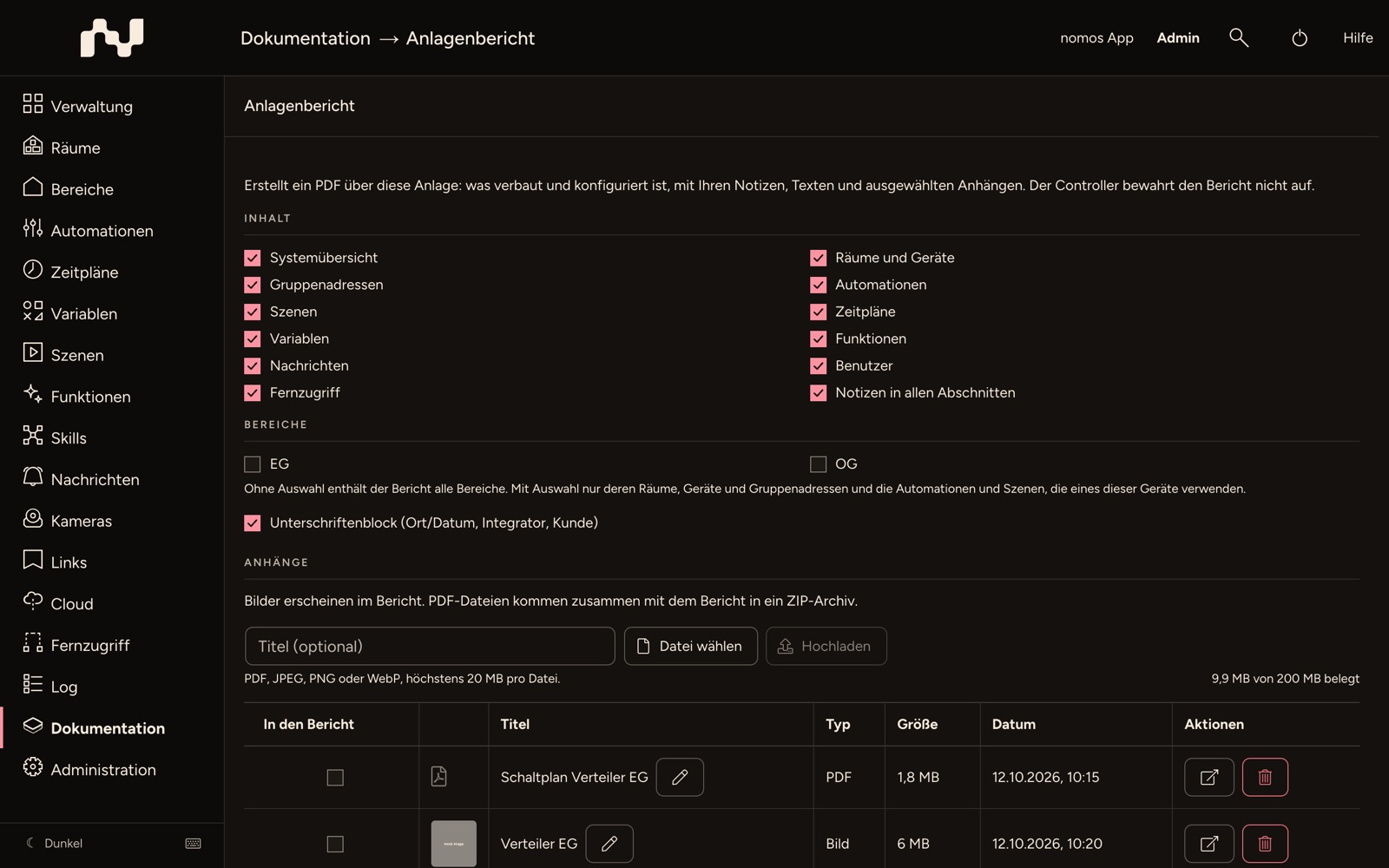
Content
The checkboxes under Content decide which sections the report contains. A section without entries appears with No entries. Passwords, tokens and setting values never appear in the report.
- System overview: controller name, model, software version, serial number, IP address and product.
- Rooms and devices: for each zone and room a table of the devices with name, category, platform and address (for example the KNX address). Without a zone selection, rooms without a zone and devices without a room come last.
- Group addresses: group address, name and data point type.
- Automations: name, whether the automation is enabled, and its logic in plain text.
- Scenes: name and the actions of the scene in plain text.
- Schedules: name and whether the schedule is enabled.
- Variables: name and type.
- Functions: each function, whether it is enabled, and its entries with names, without setting values.
- Notifications: each notification profile with its recipients (users, all devices, e-mail recipients, in the app).
- Users: user name, user group, whether the user is enabled, and whether the user has the full remote access permission.
- Remote access: whether remote access, cloud and support VPN are on or off, without tokens, keys or addresses.
- Notes in all sections: includes your notes in the sections, as a column or row of its own.
Within their section, automations, scenes and schedules are grouped by tags: alphabetically, with Without tag at the end. An entry with several tags appears under each of them. If no entry of the section has a tag, the grouping is left out.
The cover page carries the title, the controller name, the serial number, the date, your contact details and the introduction from the Integrator Info.
INFO
Create report is active only when at least one section other than Notes in all sections is selected.
Zones
Under Zones you limit the report to individual zones. Without a selection the report covers all zones. With a selection it contains only their rooms, devices and group addresses, and the automations and scenes that use one of these devices. Rooms without a zone and devices without a room are then left out. Schedules, variables, functions, notifications, users and remote access stay unchanged.
Signature block
With the checkbox Signature block (place/date, integrator, customer) the report ends with fields for place and date and the signatures of integrator and customer. Before it comes the closing text from the Integrator Info.
Attachments
Under Attachments you store files that belong in or with the report: photos of the distribution board, wiring diagrams, data sheets.
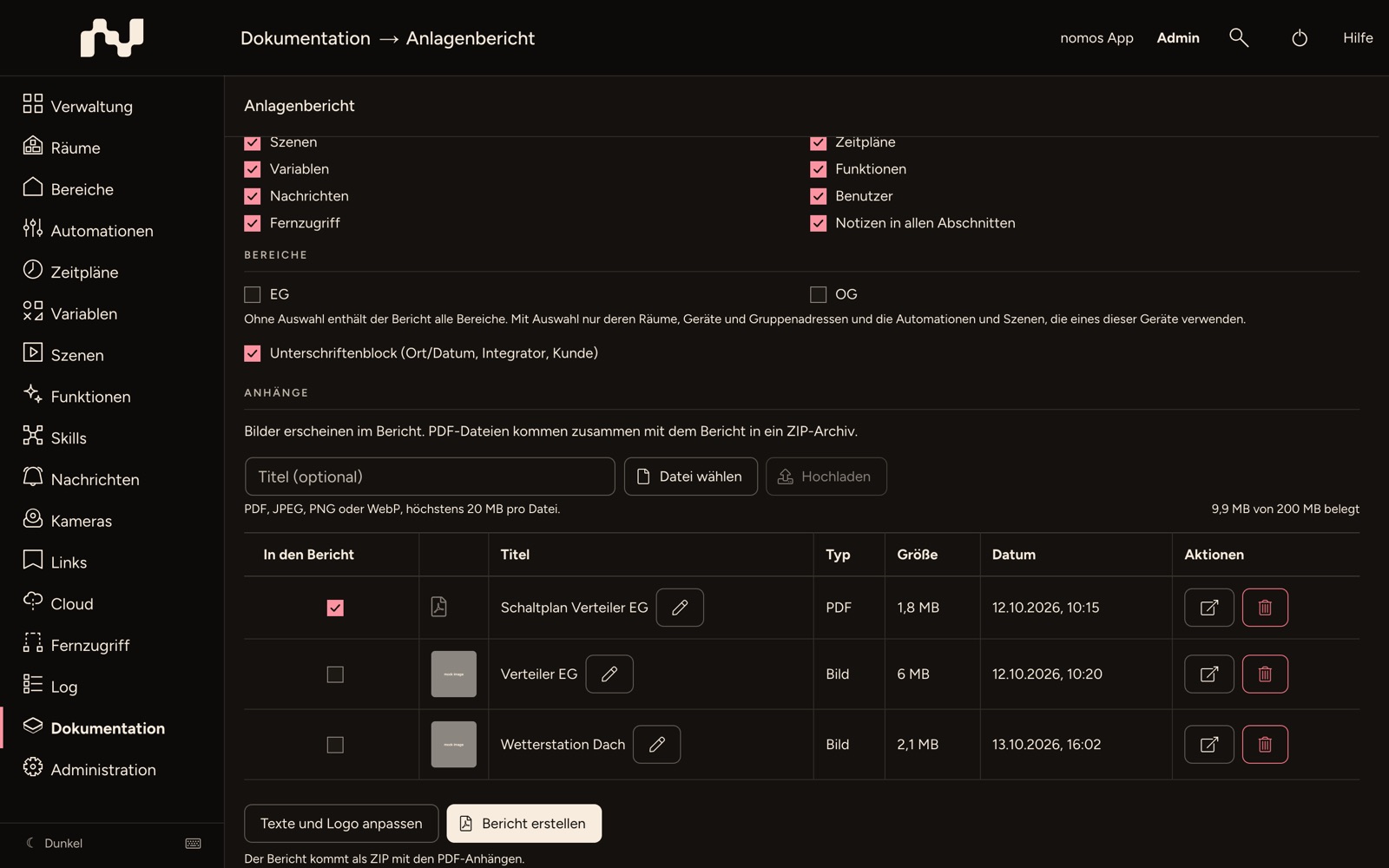
- Upload: if needed, enter a Title (optional), pick the file with Choose file and click Upload. PDF, JPEG, PNG and WebP are allowed, at most 20 MB per file and 200 MB in total. How much is used is shown below the list (x of 200 MB used).
- Rename: changes the title of an attachment.
- Open: shows the attachment.
- Delete: deletes the attachment from the controller after the question Delete attachment?. This cannot be undone.
- In the report: only attachments with a checkmark go into the report.
Photos (JPEG, PNG and WebP) are embedded in the report and shrunk for that. PDF files and photos over 100 megapixels (or ones that cannot be processed) are listed in the report and go into a ZIP archive together with the report.
Create report
Click Create report. The report is created on the controller; with many photos this can take a few minutes. If it takes longer than 4 minutes, the controller stops and reports The report took too long. Leave out some photos or sections and try again. Then the browser downloads the file. The download link is valid only briefly (2 minutes).
- If a PDF attachment is selected, the note The report comes as a ZIP with the PDF attachments. appears below the button. The file is then a ZIP, otherwise a PDF.
- The file name is
<title>_<serial number>_<date>.pdfor.zip. - The browser remembers your selection of sections, zones and signature block, but not the checkmarks of the attachments.
Texts, logo and paper size
You set your logo, your contact details, the introduction on the cover page, the closing text before the signature block, and paper size and orientation in the Integrator Info. Edit texts and logo on the report page leads there.