Lutron
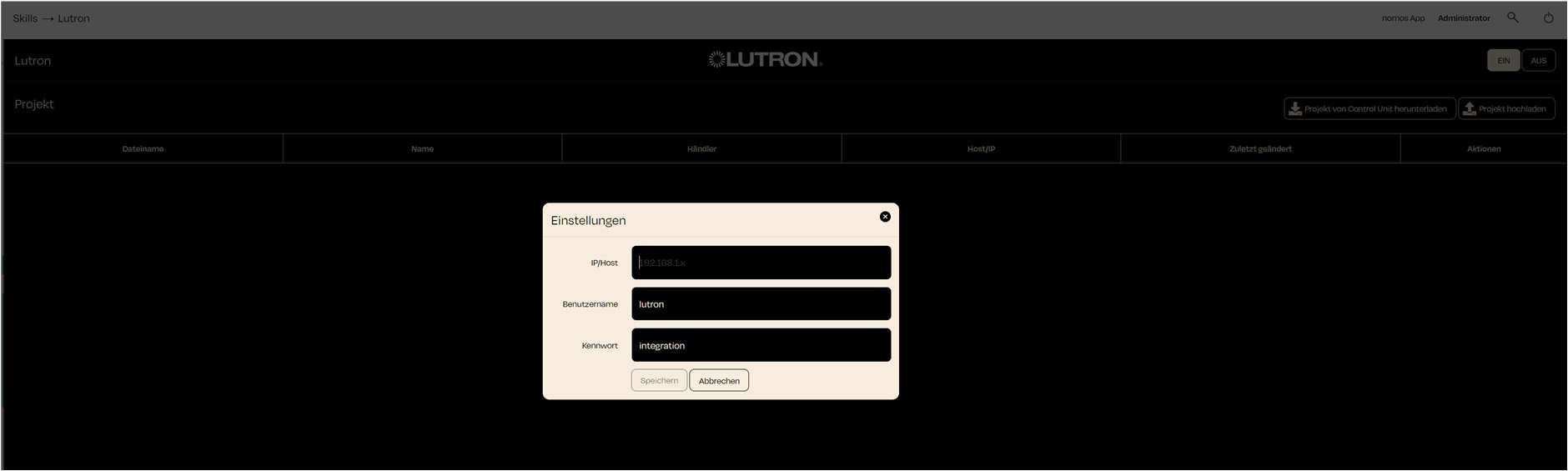
The dashboard is designed to manage Lutron projects and connect with the Control Unit. There are two main functions that can be used for configuring Lutron projects:
Download Project from Control Unit:
- This button allows you to download an existing project from the Control Unit to the nomos controller.
This is useful for integrating changes to an already existing Lutron project into the nomos system Controller. - This is useful for integrating changes to an already existing Lutron project into the nomos system Controller.
- After downloading, the project will appear in the list, including information such as filename, name, dealer, host/IP, and date of last modification.
- This button allows you to download an existing project from the Control Unit to the nomos controller.
Upload Project:
- With this feature, you can upload a new or modified Lutron project to the Control Unit.
- This is used to activate and run a newly created or changed project on the Lutron hardware.
- It's important to ensure that the uploaded project is correct and complete before applying it to the Control Unit.
Project List
- InIn the table below, you can view existing projects, including the following information:
- Filename: The name of the project file.
- Name: The unique name of the Lutron project.
- Dealer: The name of the provider or installer handling the project.
- Host/IP: The IP address or hostname connected to the Lutron Control Unit.
- Last updated: The date when the project was last changed or updated.

Lutron / Add Project:
- IP/Host:
- Enter the IP address or hostname of the Lutron Control Unit here. This is necessary for nomos to communicate with the Lutron hardware.
- Example: 192.168.1.12
- Username:
- Enter the username required to access the Lutron Control Unit. By default, it is saved as "lutron."
- Password:
- Here, you need to enter the password to access the Control Unit. A common password for integration is "integration," but it should be adjusted if a different password has been set.
- Save:
- After entering all the information correctly, click Save to add the device and establish a connection with the Control Unit.
INFO
Important:
Make sure that the network connection is stable and that the IP address is entered correctly to avoid communication issues.