

Relations
The Relations page shows how the elements of the system refer to each other: which automation switches which device, which schedule runs which scene, which variable is used in which notification. You find it under Documentation → Relations. The page is meant for integrators, is available to administrators only and does not appear in the nomos app.
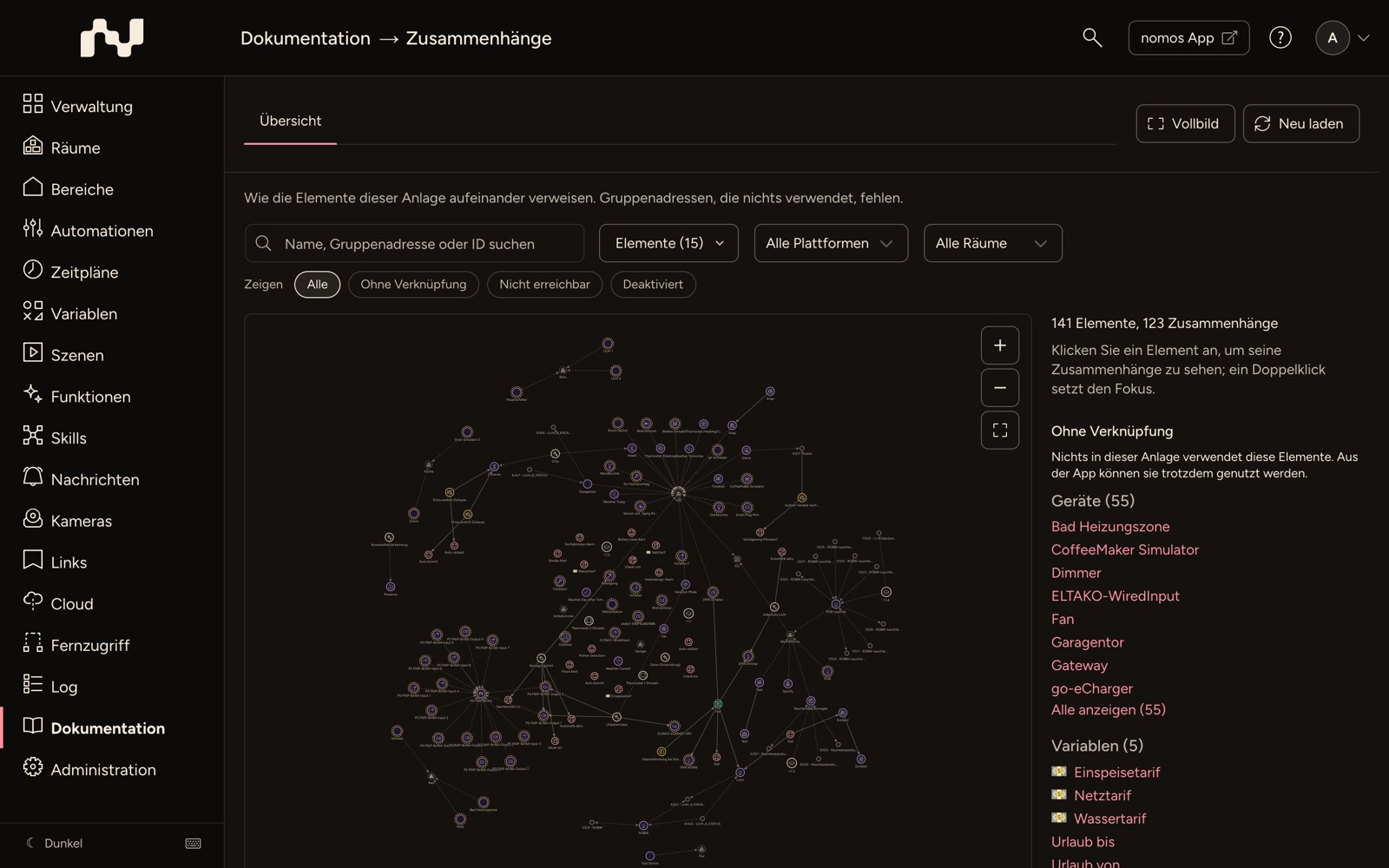
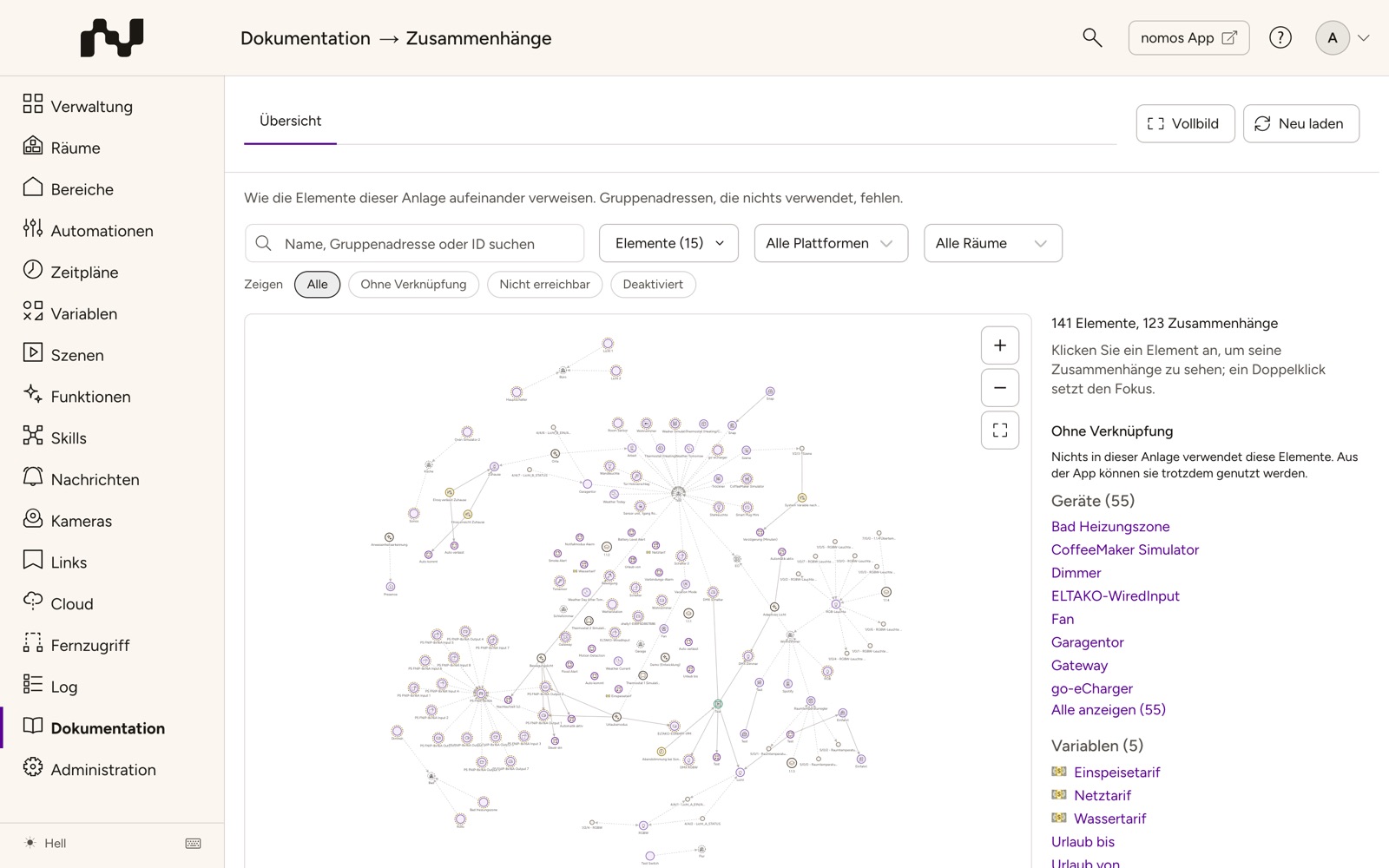
The map covers devices, automations, scenes, schedules, variables, notification profiles, cameras, functions, Node-RED flows, webhooks, monitorings, rooms, zones, and KNX group addresses and KNX devices. Group addresses that nothing uses are left out.
The page helps most with three tasks:
- Checking the impact: What depends on this device, this scene, this variable before you change or delete it?
- Cleaning up: Which elements is nothing using any more, and which references lead nowhere?
- Handover: How is the system put together when you take it over from someone else?
WARNING
Without links does not mean unused. The map cannot see whether the nomos app, a voice assistant or a service outside the controller uses an element. Check such an element before you delete it.
Overview and focus
The page has two views, which you switch with the tabs at the top:
- Overview: the map of the whole system. Every element is a dot, every relation a line, and the arrows follow the value. You can pan and zoom the map. Up to 250 elements, all names show next to the dots. In bigger systems they show for the selected element, its neighbours and the element under the mouse pointer, and all of them only once you zoom in far enough. Below the map you see how many elements and relations it shows.
- Focus: name: the view of a single element. The tab appears as soon as you have set a focus and carries the name of the element. A click on Overview takes you back; the map keeps its position and zoom.
A click on an element selects it and shows it in the side panel. A double-click sets the focus on it. The search leads to the focus as well: the field Search name, group address or ID finds elements by name, by KNX group address and by ID; a click on a hit sets the focus.
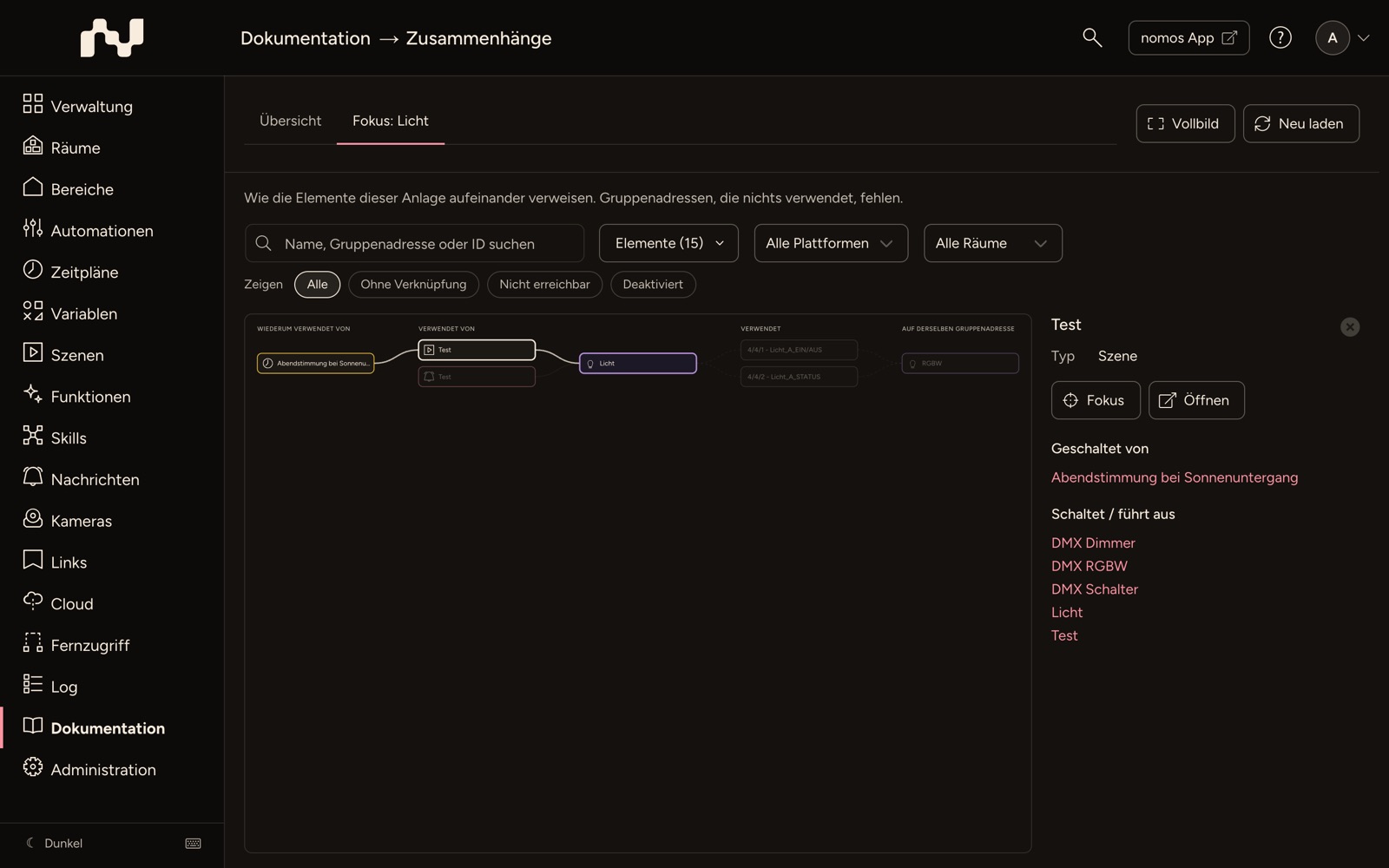
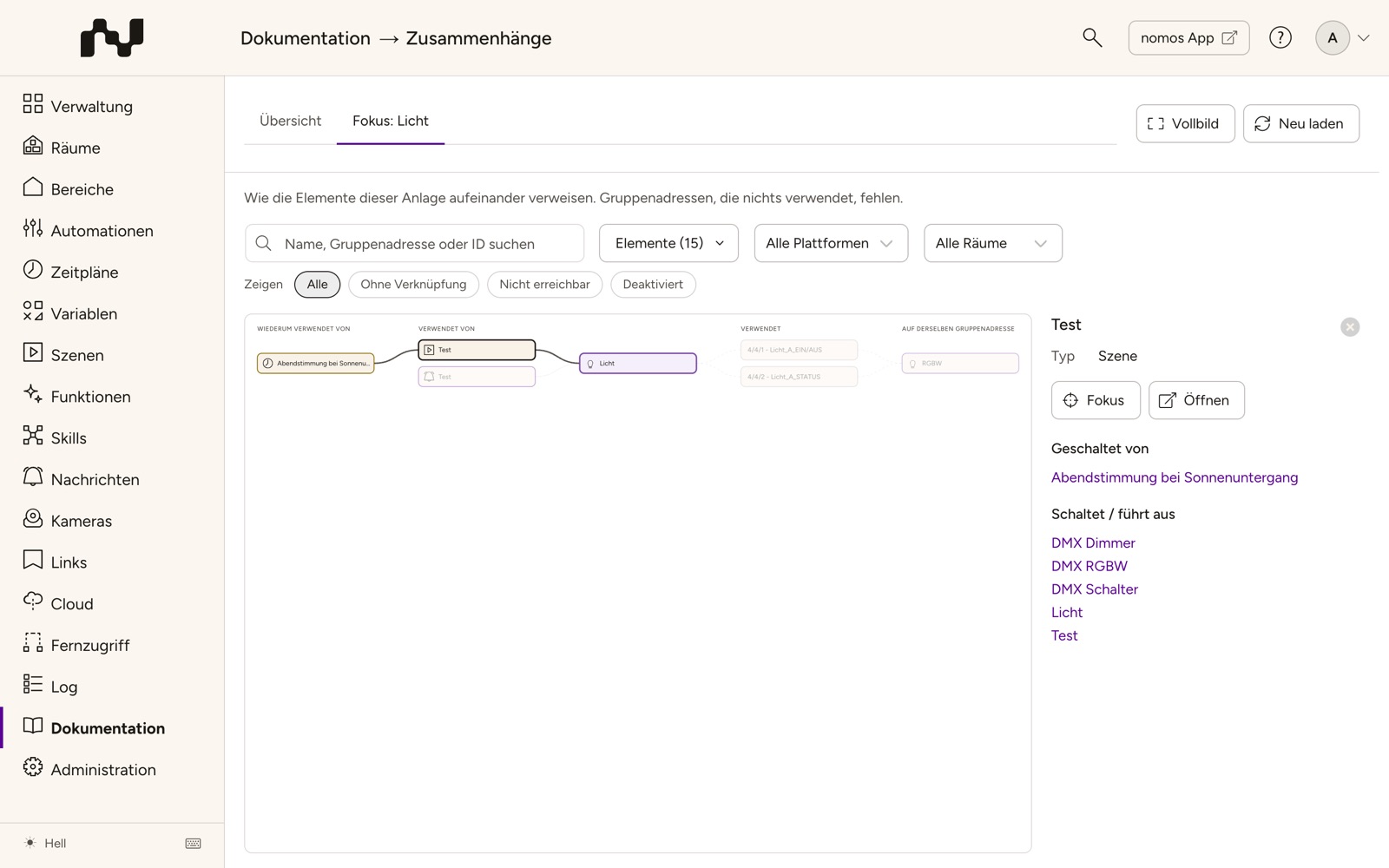
The focus view shows the element in the middle, in fixed columns:
- Used by (next to it on the left): what uses the element directly. A device is used by a scene or an automation, for example.
- In turn used by (further left): what in turn uses those elements, to the last end. So you see the whole chain, such as the schedule that runs the scene that switches the device.
- Uses (on the right): what the element itself uses, one step only. For a KNX device these are its group addresses, for an automation its triggers, conditions and actions.
- On the same group address (far right, behind the group addresses): the other devices on these addresses, such as a push button beside its actuator.
Solid lines mean that one element uses another. Dashed lines show how something is built or assigned, such as channels, rooms, zones or sub-devices. A column with more than 25 rows combines similar elements into one row such as + 14 Devices; a click expands it.
A KNX device counts as linked as soon as anything else is on one of its group addresses, for example an automation or a second device.
Without relations the view says: Nothing in this system refers to this element, and it refers to nothing. If a link points to an element that does not exist (any more), you get the message "…" does not exist in this system (any more). For a group address that nothing uses, it says that the address is not part of the map.
Two buttons at the top right:
- Full screen: puts the map over the whole window. The side panel then shows only while an element is selected. Exit full screen returns.
- Reload: reads the relations from the controller again. The map is a snapshot from when the page loaded.
Filters
Above the map you narrow down what it shows. The overview and the focus view each remember their own settings. Reset appears as soon as a filter is set. It sets everything back to the start and also clears the selection.
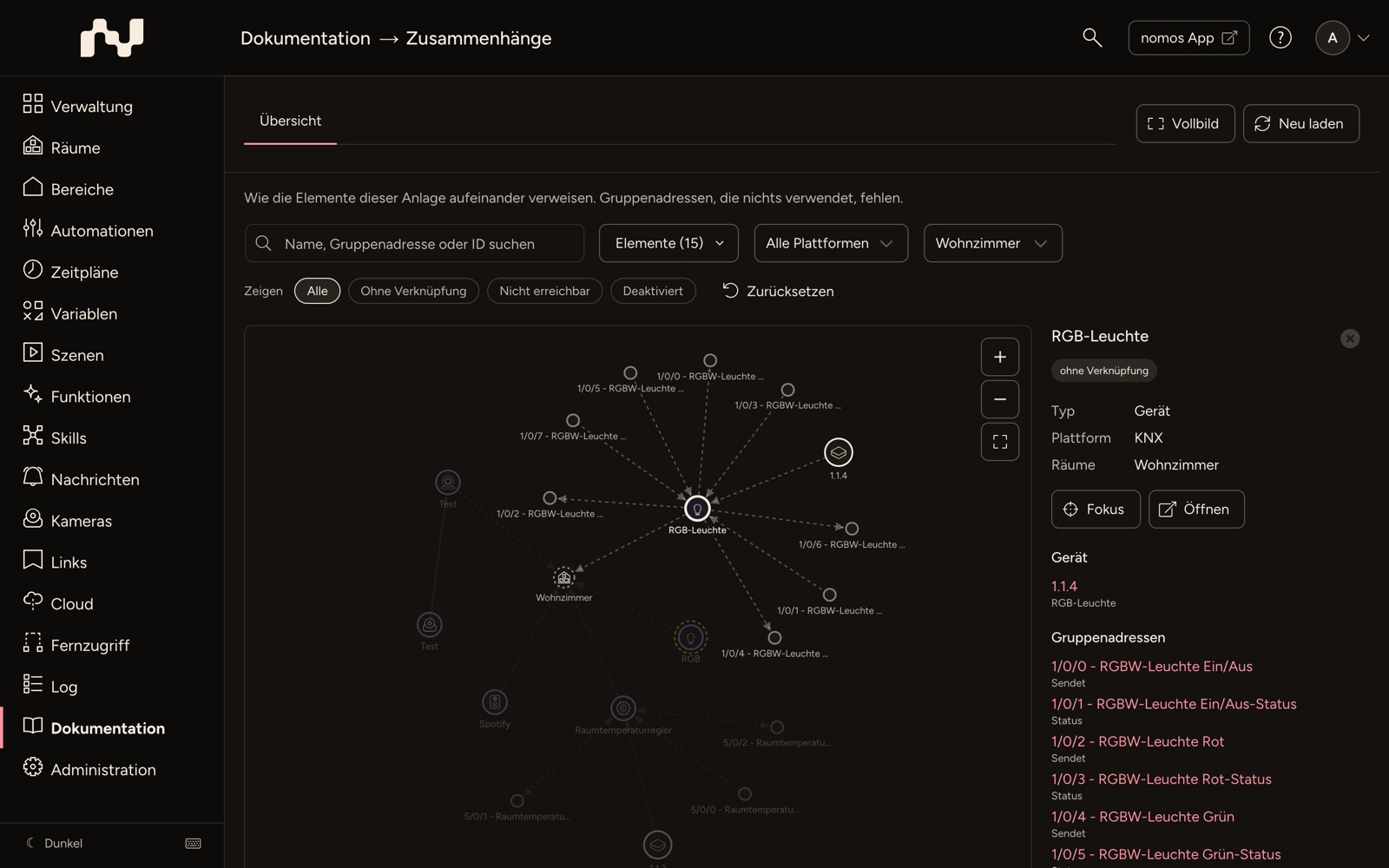
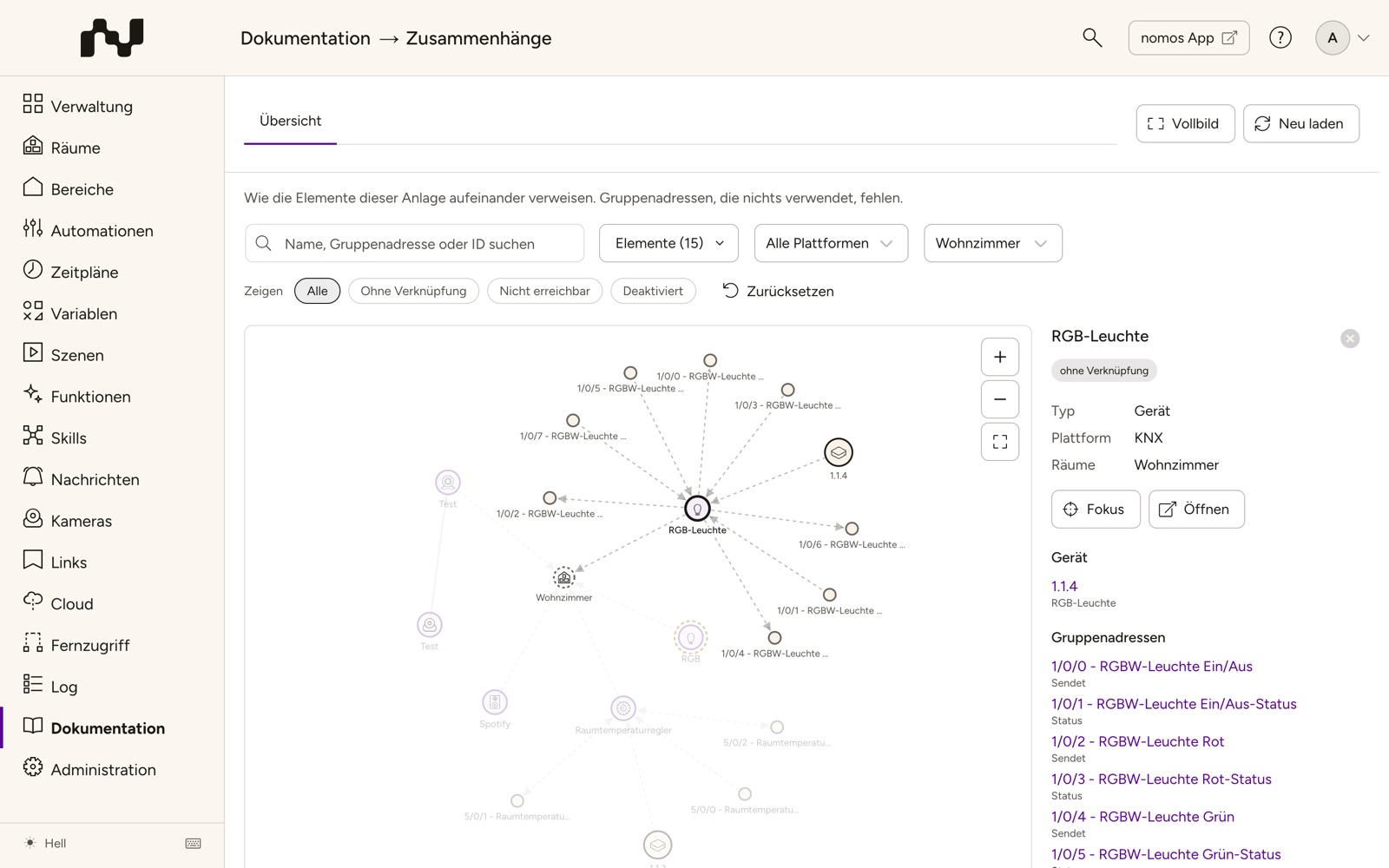
- Elements (n): Choose the kinds of elements that should appear. The number in brackets is how many kinds are chosen. A kind you clear is missing as an intermediate link as well: whatever can only be reached through it does not appear either.
- All platforms: shows only devices of one platform, for example KNX or ZigBee.
- All rooms: shows only devices of one room.
- Show: one choice, always just one: All, Without links, Unreachable or Disabled. Without links is the clean-up list: elements that nothing uses and that use nothing themselves.
Platform and room pick the devices the map starts from. The map then shows what uses these devices (upwards, to the last end) and what they use themselves (downwards). It never turns around: the automation that switches a device appears, the other devices it also switches do not. Otherwise one shared variable would pull the whole system into the map. Rooms and zones appear when they belong to the devices shown, but the map does not go through them: the kitchen does not pull in every other device that merely stands there.
Side panel
The side panel next to the map shows the selected element or, without a selection, an overview of the system.
Selected element:
- Header: the name with the flags of the element, such as without links, disabled, unreachable, quick configuration, hidden in the apps, hidden from voice control or voice control.
- Details: Type, plus depending on the element Platform, Address, Data type (for group addresses as "DPT 1.001"; if you point at it, its name appears), Status, Rooms and Covers.
- Note: Your note on the element is shown below the details. The note button next to the heading Note adds or edits it right here. This exists only for elements that can carry a note (devices, automations, schedules, scenes, variables, rooms, zones, notification profiles and functions), and only where notes are enabled.
- Focus: sets the focus on the element and switches to the focus view.
- Open: opens the page where you edit the element, such as the editor of a scene. For a Node-RED flow the button opens the flow in the Node-RED editor in a new tab, and only if the Node-RED interface is available for the product. Webhooks and monitorings have no editing page, so the button is missing for them.
- Relations: the connections of the element, grouped by kind, first what uses the element, then what it uses itself. Examples of the headings: Triggered by, Conditions, Switches / runs, Switched by, Takes values from, Gives values to, Group addresses, Devices in this room. For group addresses it also says whether the device Sends or reads its Status; for a notification profile it says Jumps to and Jump target of. An action that is only in the else branch of an automation carries the addition when the condition is not met. Every entry can be clicked and selects the element.
Without a selection the side panel shows:
- Summary: how many elements and relations the map has, with a filter set also how many of all.
- Without links: the elements that nothing uses, grouped by kind. A click on one sets the focus. The list first shows eight per kind, Show all expands it.
- References to deleted elements: see below.
- Legend: the kinds of elements that occur in the system, with their look on the map.
- Warnings: if a source cannot be read, you see for example Could not read automations: with the error message. The map is then incomplete.
References to deleted elements
When you delete a device, a scene or a variable, references to it sometimes remain, for example in an automation or a schedule. Without a selection the side panel lists them under References to deleted elements (n): for each element that is still there, it says what it refers to (refers to …) or who uses it (used by …). Open the element and remove the reference; the note above the list says the same: These elements refer to something that no longer exists. Open them and remove the reference.
References whose origin can no longer be determined (for example because the referring element is gone as well) appear at the end only as a number: more references without their origin.
From other pages
You can open the map on a specific element from many places:
- Editors of scenes, automations, schedules and variables: For a saved element the bar at the top has the button Relations. It opens the focus view in a panel over the editor, Relations: name, without leaving the editor; unsaved changes are kept. A click on an element in it sets the focus there. Close it with Esc, the close icon or a click next to the panel. Open the Relations page opens the full page in a new tab.
- Device page: The icon button in the device header (with the tooltip Show relations) opens the page with the focus on this device. The Associations section of the device page also lists the Node-RED flows that use the device; a click opens the flow in the Node-RED editor if its interface is available.
- KNX addresses: In the list of KNX addresses the button Show relations behind a group address opens the page with the focus on that address.
The buttons are missing if the product does not include the Relations page.