Define Trigger
The trigger determines when the automation is executed. This can be initiated by various events or conditions, such as reaching a specific time, a sensor event, or a change in the weather.
Steps to Select a Trigger:
- Add Trigger:
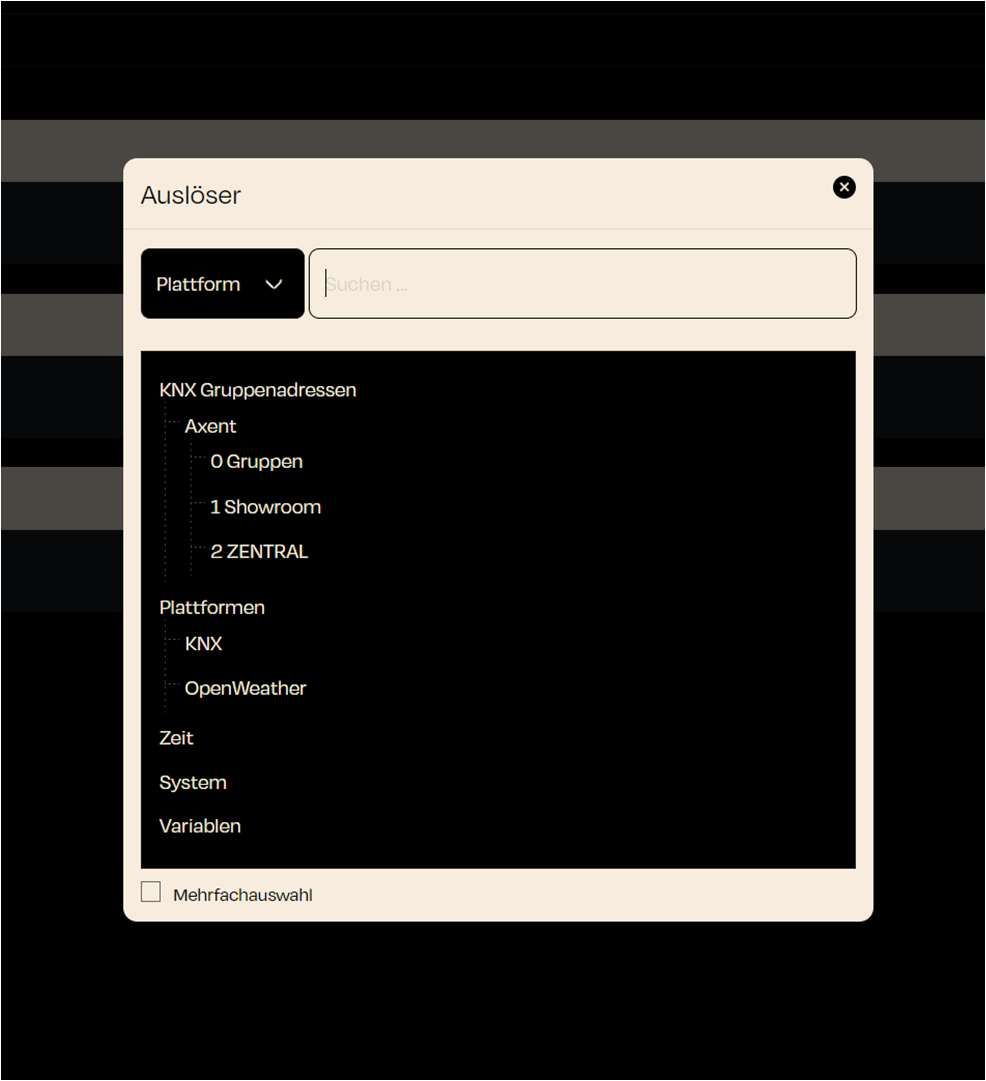
- Click on "Add your first trigger" A dialog window will open where you can select the platform or event that should trigger the automation.
- Select Platform:
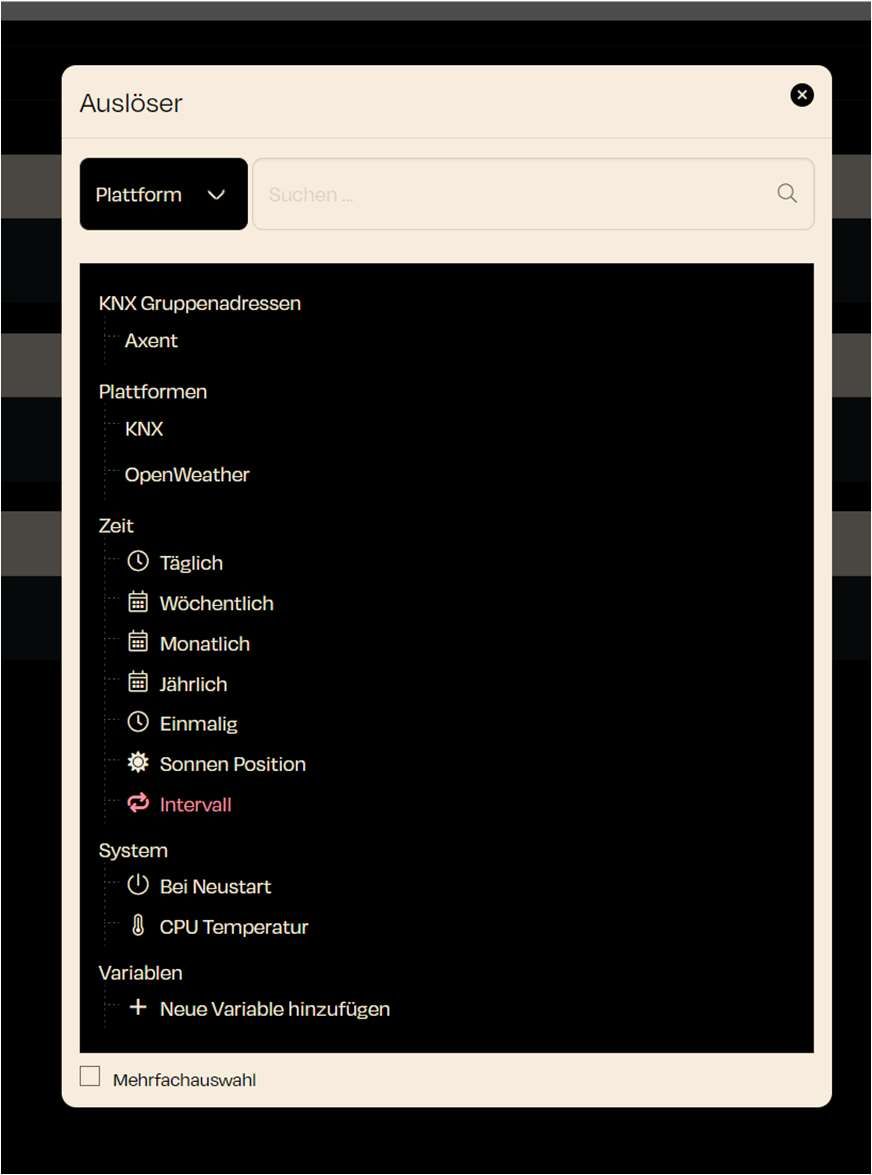
- In the "Platform" dropdown menu, choose the appropriate platform or category that provides the trigger.
- Examples of platforms:
- KNX: Access KNX group addresses to use devices or scenes on this platform as triggers.
- OpenWeather: Set weather conditions as triggers (e.g., rain, sunset, temperature change).
- System: System events like restart or shutdown can also be used as triggers.
- Variables: Changes in defined system variables can also serve as triggers.
- Multiple Selection (Optional):
- If you want to select multiple triggers simultaneously, you can activate the "Multiple selection" option. This allows you to define several events as potential triggers that are monitored in parallel.
- Search for Triggers:
- Use the search field to find specific triggers more quickly, especially in larger installations or when many group addresses are present.
- Confirm:
- After selecting the desired trigger, close the window to add the trigger to the automation.
INFO
Note:
- Triggers are the first step of every automation. They define when and under what circumstances an action is executed. By using different platforms, you can utilize a wide range of events as triggers to optimally automate the system.