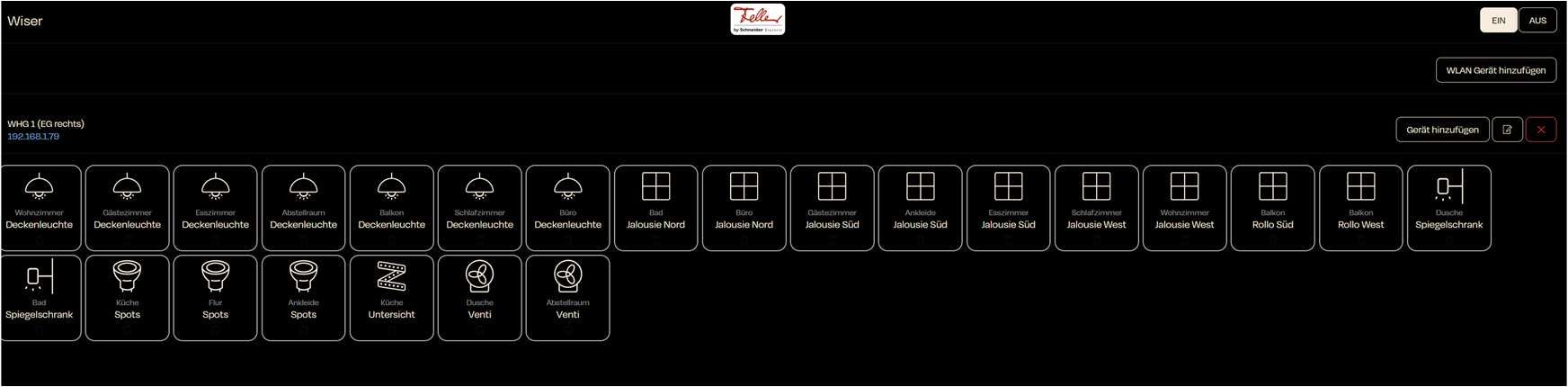
Dashboard – Overview of Connected Devices
On the nomos/Skills/Wiser dashboard, you can see an overview of the devices that are already connected.
Wiser Dashboard Overview:
Connected Devices:
- In the main overview, all the devices that have been added, such as ceiling lights, spotlights, blinds, fans, and more, are displayed.
- Each device is represented by an icon and a name that is associated with the respective room.
- IP Address of the Controller:
- Above the list, you will find the IP address of the connected controller that manages the devices. In this case, it is 192.168.1.79.
- This is useful to ensure that the connection to the controller is set up correctly.
- Add Device:
- In the top right corner, there is a button to add a device to incorporate new devices into the system. Here, additional Wiser components such as switches, lamps, blinds, and more can be added.
- Edit or Remove Device:
- Next to the add button, there is also the option to edit or remove a device. These actions can be accessed through the corresponding icons (pencil for editing, X for deleting).
- Detailed Information about Devices:
- By clicking on a device, you can access more detailed information such as the device status, assigned scenes, or automations.