Dashboard
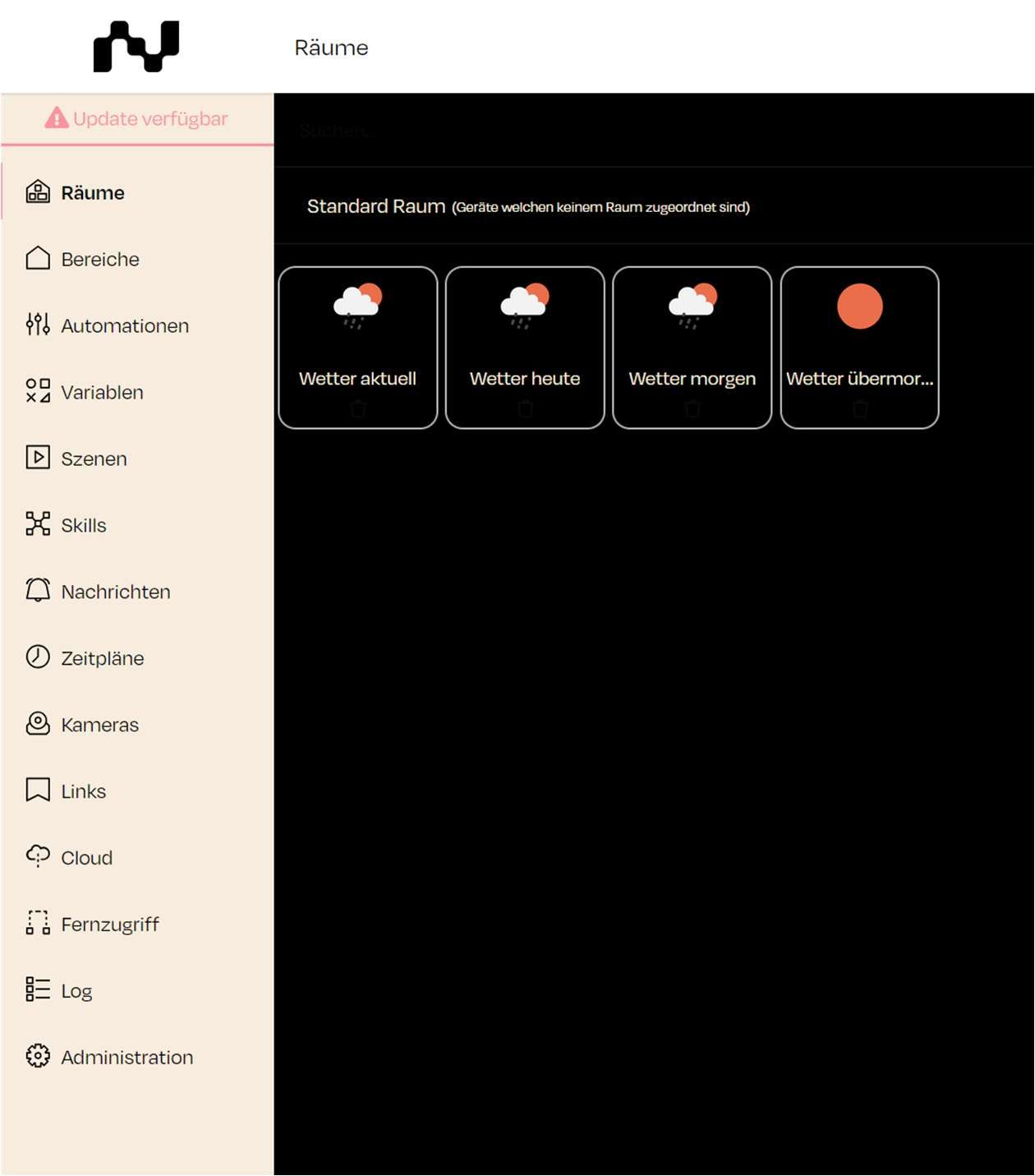
After successfully logging into the nomos system Controller, you are directed to the main dashboard view, which offers a variety of functions and settings.
Room Management
- Rooms: Displays an overview of rooms to which devices are assigned. Devices not assigned to a specific room are placed in the default room. For example, weather information can be integrated, showing Weather Current, Weather Today, Weather Tomorrow and Weather Day After Tomorrow.
- Zones: Allows the creation and organization of different physical or virtual areas of the project (e.g., ground floor, upper floor).
Automation & Control
- Automations: Define automated processes based on specific events or conditions.
- Variables: Variables can be used within the system to store states or values utilized in automations and scenes.
- Scenes: Create scenarios that control specific sequences and events, such as executing automations or switching devices (scene button located at the bottom right in the app view).
- Schedules: Enables the creation of schedules for various actions and automations within the system.
Connectivity
- Skills: Lists all standardized communication protocols that can be fully integrated into the nomos system Controller.
- Cloud: Access cloud-related settings and integrations for remote management (nomos-Cloud/Alexa/Google Home).
- Remote Access: Configure settings to enable or disable remote access to the nomos system Controller.
Communication & Security
- Notifications: Allows the creation of individual notifications (email/push/log) triggered by desired scenes, functions, or automations.
- Cameras: Integrate and manage camera feeds within the dashboard for monitoring purposes.
Management
- Links: Manage and access external or internal links relevant to your system setup.
- Log: View system logs for monitoring activities and troubleshooting.
- Administration: Access administrative settings, including user management, network configurations, and system updates.
Updates
At the top left corner of the dashboard, a notification appears when an update is available, ensuring that the controller is always up to date.