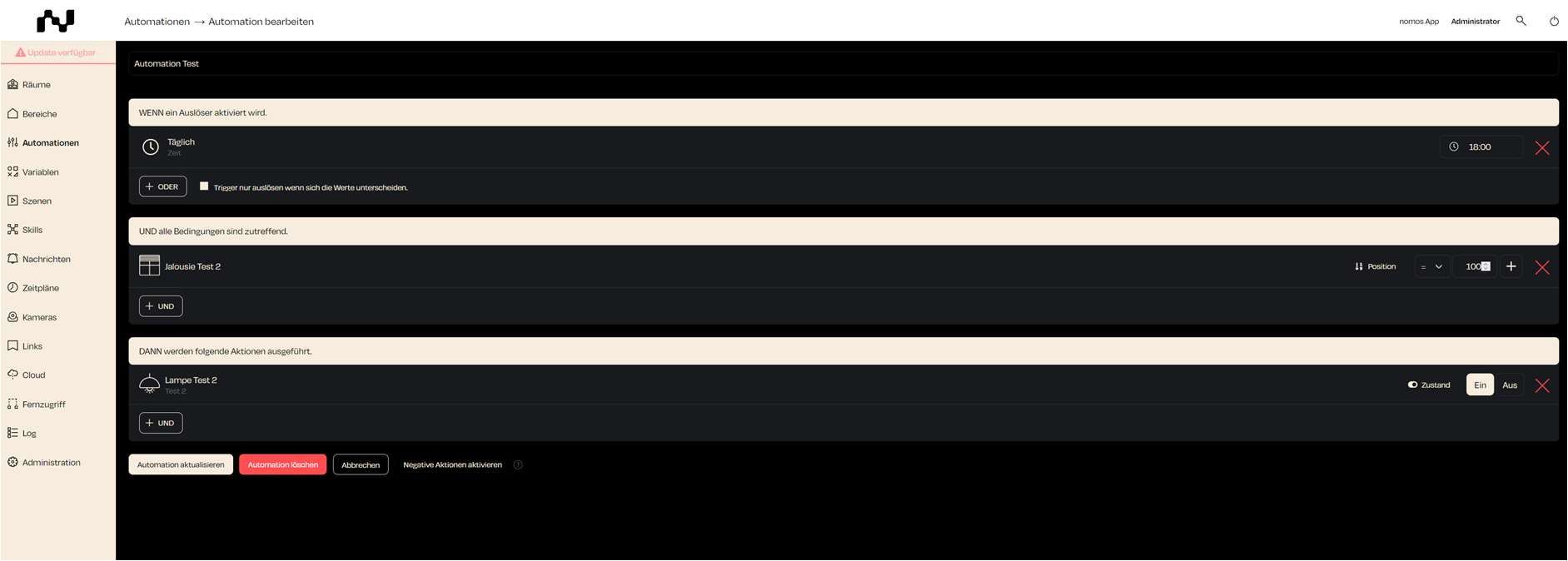
Define Condition
After defining a trigger for an automation, you can optionally add a condition to further control the execution of the automation. A condition ensures that the automation is executed only under specific circumstances.
Steps to Select a Condition:
Add Condition:
- Click on "Add your first condition" A dialog window will open, presenting various types of conditions to choose from.
Select Platform:
- Similar to triggers, you can select from the "Platform" dropdown menu whether the condition should be based on a specific device, a system variable, or a time factor..
Examples of Conditions:
- Time: Conditions can be set on a daily, weekly, or monthly basis. For example, an automation can be executed only during certain times of the day or only on weekends.
- System: System-based conditions, such as a system restart or CPU temperature monitoring, can be used here.
- KNX Group Addresses: Devices and group addresses in the KNX system can be used as conditions. For example, an automation can be triggered only if a specific device is in a particular state.
- Variables: You can create custom variables and use them as conditions, e.g., based on certain thresholds or status information.
Multiple Selection (Optional):
- You can activate the "Multiple selection" option to define multiple conditions that must be met for the automation to be executed.
Search for Conditions:
- MUse the search function to quickly find specific conditions or group addresses.
Confirm:
- After selecting the desired condition, close the window to add the condition to the automation.
Run-on time and minimum duration
Under Time there are two conditions that do not check whether something is true, but for how long. You enter the time in seconds, minutes or hours. Only one of the two can be used per automation.
Run-on time (formerly "Retarder")
The actions are not run right away, but only once the set time has passed. If the automation triggers again before that, the time starts over.
- Example staircase light: trigger "motion detected", run-on time 2 minutes, action "light off". The light only goes off after two minutes without any new motion.
Minimum duration
The actions only run if the triggers and all conditions stay true for the set time without interruption. If the state ends earlier, nothing is run.
- Example garage door: trigger "garage door = open", minimum duration 30 minutes, action "Notification". The notification only comes if the door stays open for 30 minutes in a row. If it is closed earlier, the time starts over the next time it opens.
WARNING
Good to know:
- The minimum duration applies to the whole automation, not to a single device.
- After a restart of the controller, the minimum duration only starts with the next change of state. If the door is already open during the restart, no notification comes until it has been closed and opened again.
- Negative actions run as soon as the state ends, even if the minimum duration was not reached.
- If the automation is disabled while the time is running, the actions still run once when it has passed.
INFO
Note:
- A condition is optional but helps ensure that the automation is executed only under specific circumstances. This can be especially useful to avoid unnecessary actions or to further refine the system's behavior.