

Telegram
Notifications through Telegram go through a bot of the controller's own. An administrator sets it up once; after that every person links their own Telegram to their account. Profiles then send:
- to people through the Telegram channel of a profile,
- to a Telegram group through a service of the type Telegram group.
The controller sends to Telegram directly, not through the nomos cloud.
Setting up the bot
Only administrators set up the bot.
- In Telegram, create a bot with @BotFather and /newbot. BotFather then gives you its token.
- In the configuration, open Notifications → Services and click New service.
- Under Service, choose Telegram bot. This type is only offered while no bot is set up. The editor then has only the Token field: no name, no URL and no test message.
- Enter the token and click Save at the top. If Telegram accepts the token, the bot is the first row of the services list: its Telegram name as Name, for example @MyHouseBot, and Telegram bot as Service.
Set up the bot on a profile's Telegram tab opens New service with the type Telegram bot already chosen.
The token is not shown again after that. Whoever knows it can write as the bot and read what is written to it.
Changing or removing the bot
- Edit in the bot's row shows its name and the field New token. Left empty, the bot stays as it is. The token of another bot breaks every link; they have to be made again.
- Delete in the bot's row or in the editor's bar asks first (Remove the Telegram bot?) and then removes the bot. People and groups get no more Telegram messages; every link is removed and has to be made again with a new bot.
Linking Telegram
Every person links their own Telegram in their account. Administrators can do it for other users too.
- Open the user menu at the top right and choose Profile. As an administrator, open Users → Edit for another user (see Users).
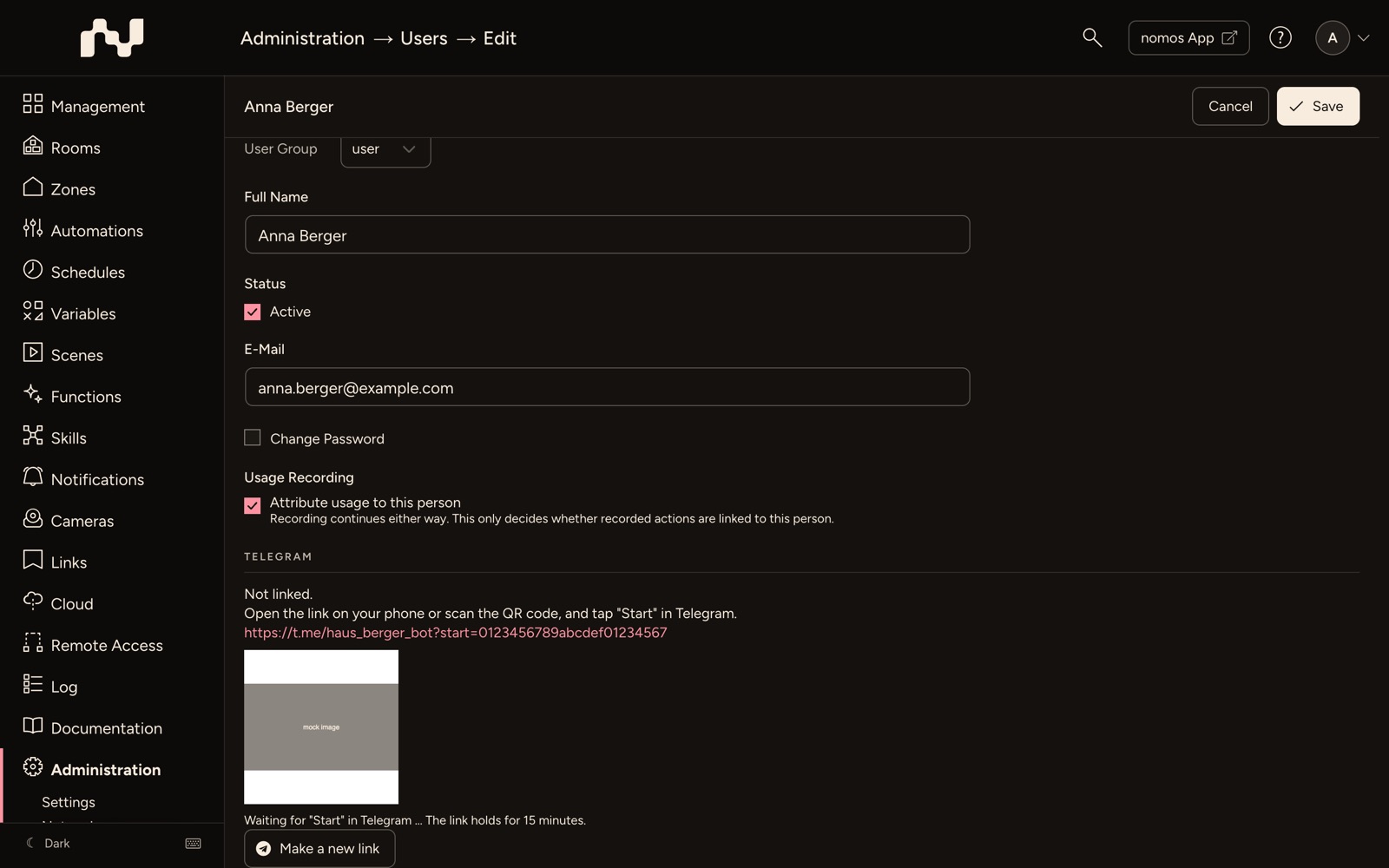
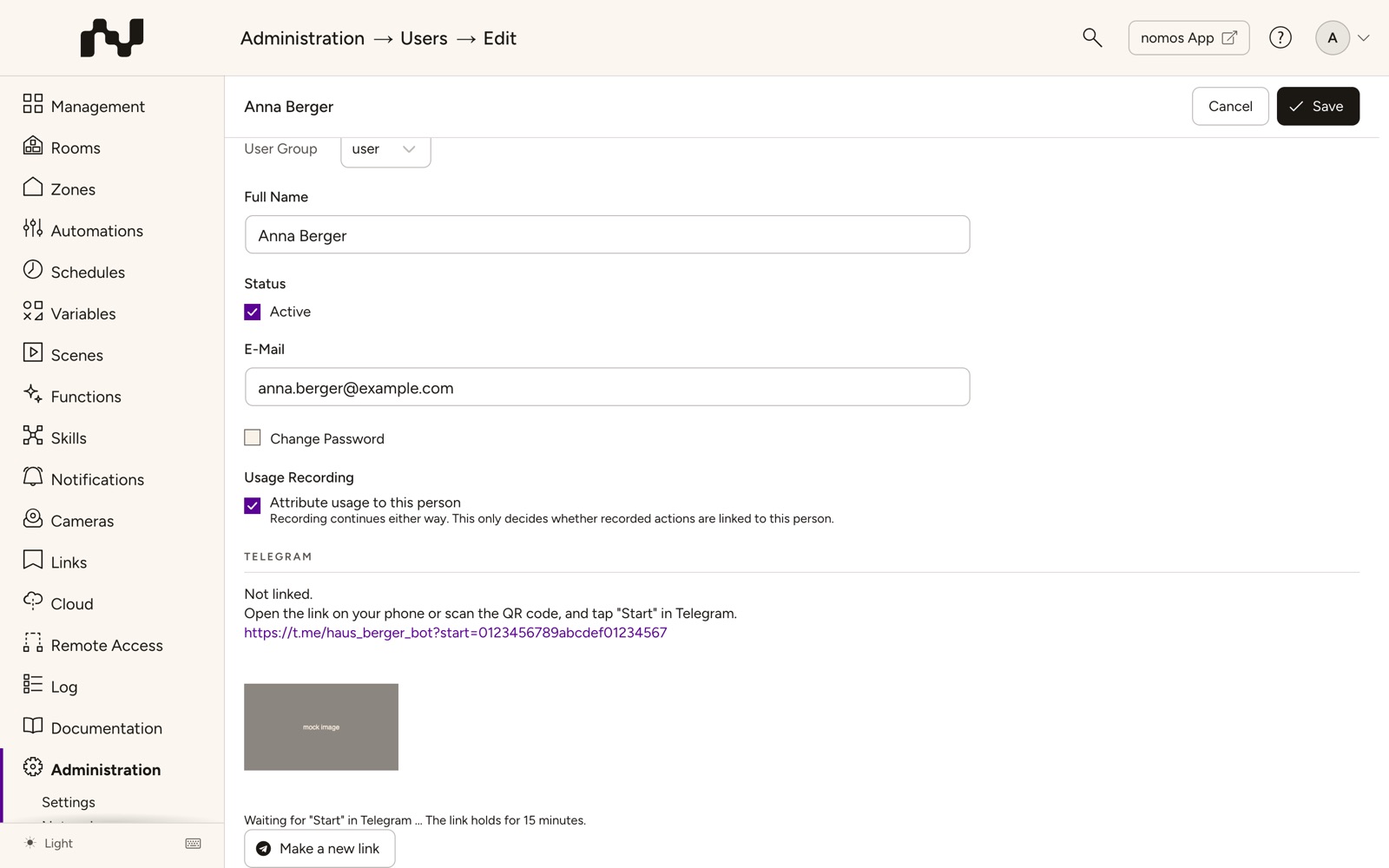
- In the Telegram section, click Connect Telegram. A link and a QR code appear.
- Open the link on your phone or scan the QR code, and tap Start in Telegram. The link holds for 15 minutes; Make a new link creates a new one.
- As soon as Telegram reports the start, the section shows Linked as … with the Telegram name.
Disconnect removes the link after a confirmation; the account then gets no more Telegram messages until it is linked again. If someone blocks the bot in Telegram, the controller removes the link by itself.
Without a bot set up, the section says No Telegram bot set up yet (Notifications › Services › New service).
INFO
The user "guest" is a shared, anonymous login: it cannot link Telegram and is not offered as a recipient in the profiles.
Telegram in a profile
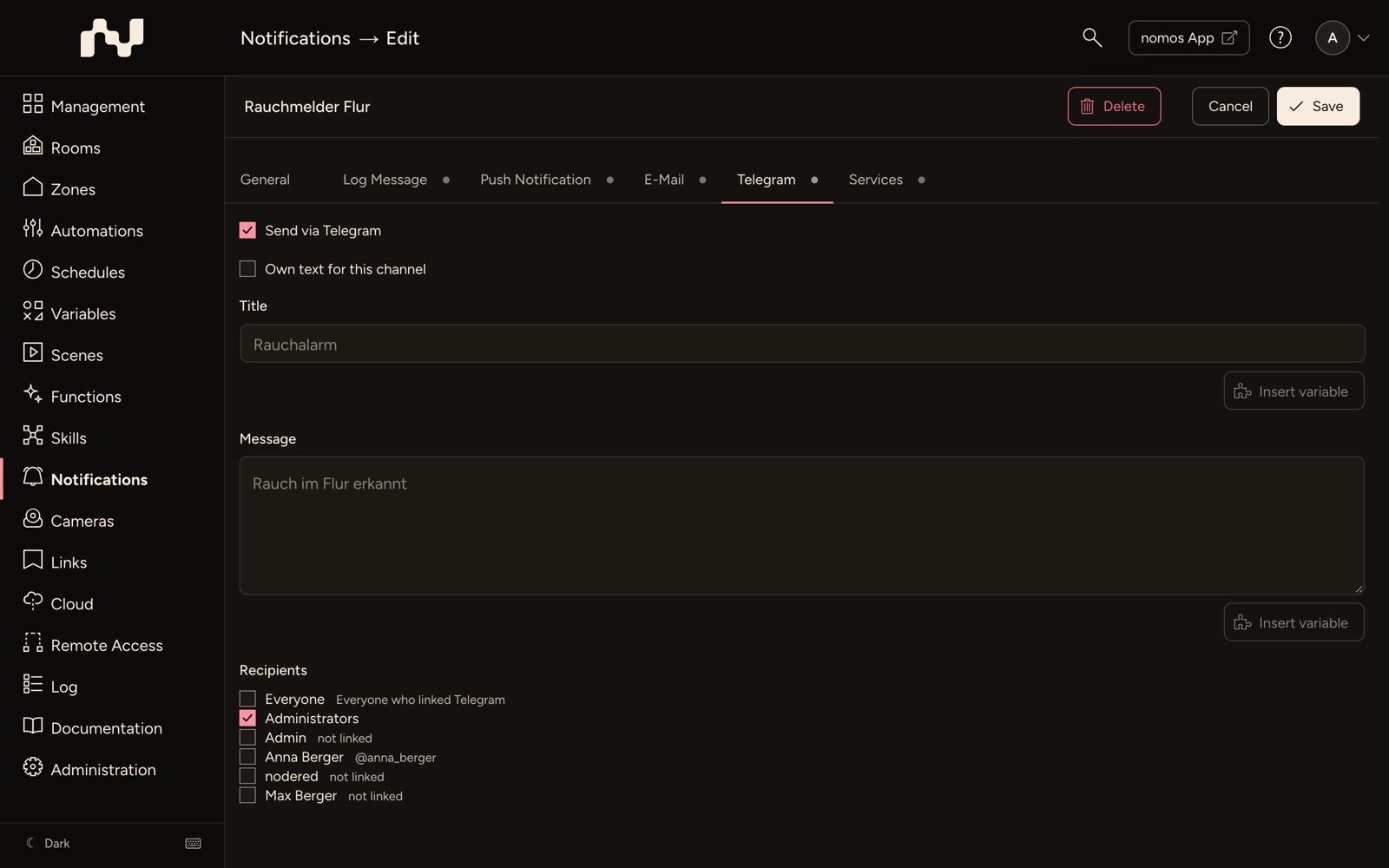
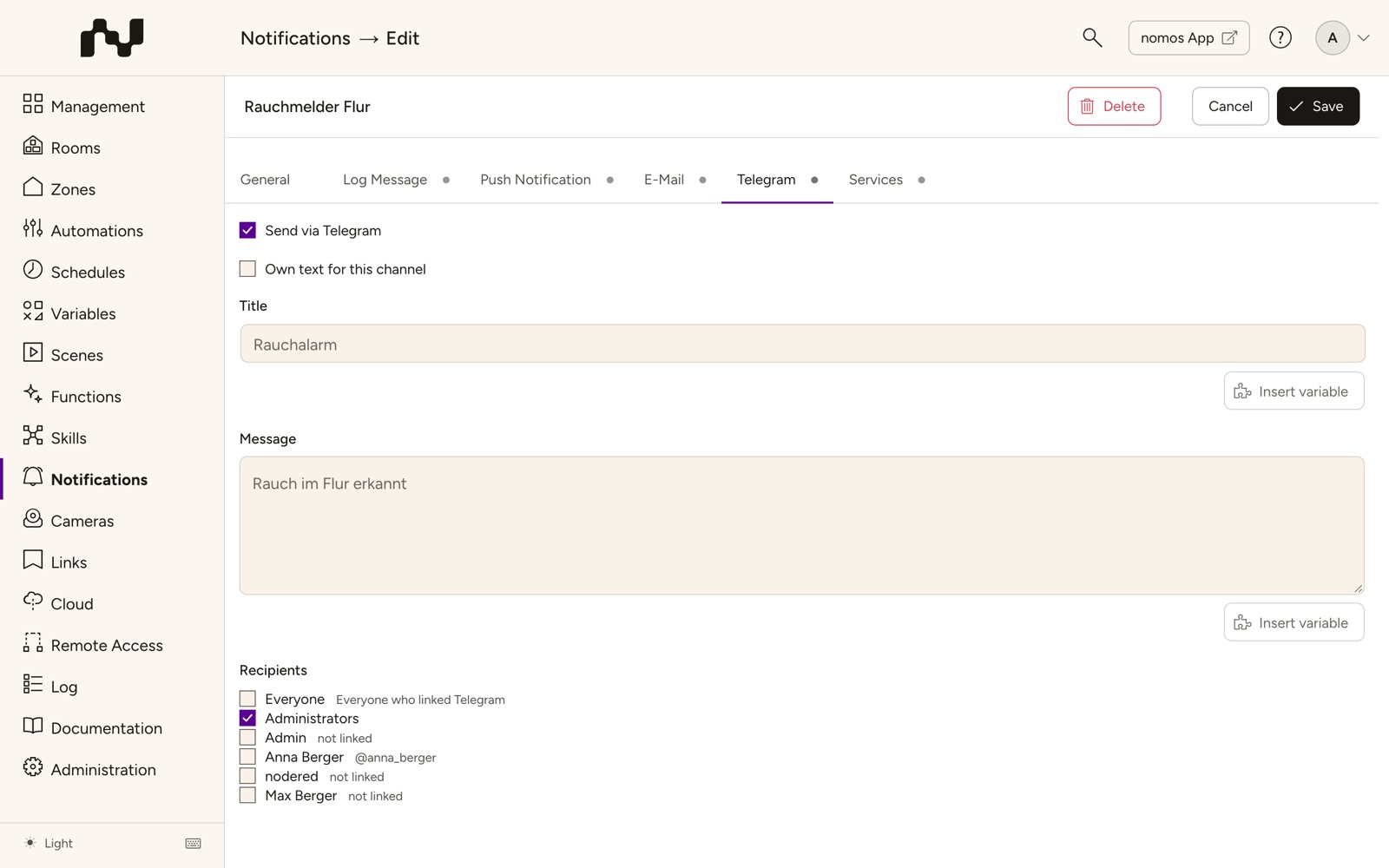
On a profile's Telegram tab you set Send via Telegram and choose the recipients: Everyone (everyone who linked Telegram), Administrators or single users. Next to each user stands their Telegram name or not linked. A user without the Push Notification permission is greyed out and marked without the "Push Notification" permission.
A Telegram message reaches whoever is chosen, has linked their Telegram, has an active account and has Full Access for Push Notification under permissions.
Telegram group
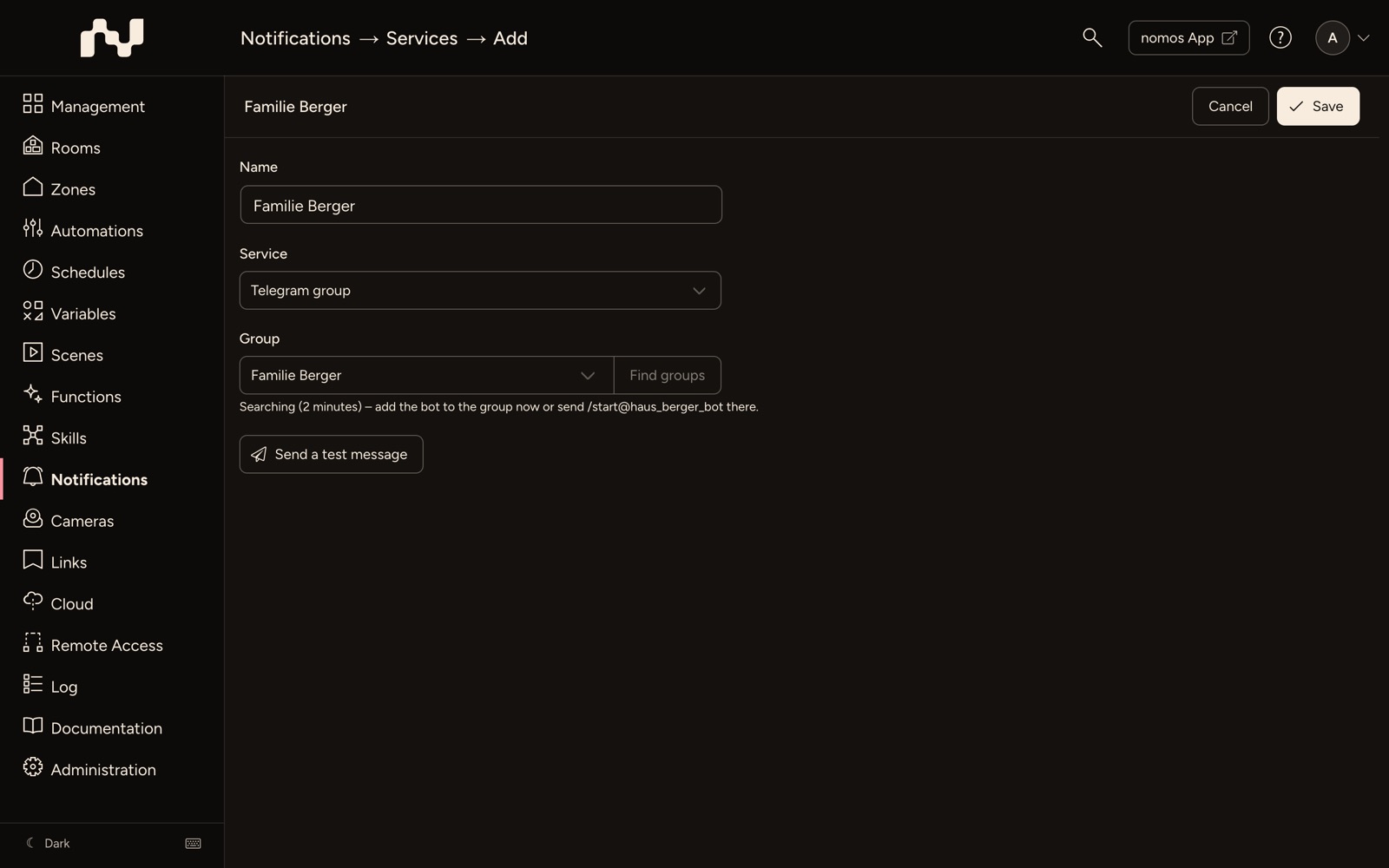
If a notification should go to a Telegram group, for example the family group, set up the group as a service:
- Open Notifications → Services and click New service.
- Under Service, choose Telegram group. This type is only offered once a Telegram bot is set up.
- In Telegram, add the bot to the group, or send /start@ followed by the bot's name in the group. If the bot was already in the group, remove it and add it again.
- Click Find groups. The controller searches for 2 minutes; every group the bot is seen in during that time appears under Group. The first group found is picked right away, and its name is taken as Name if that field is still empty.
- Check the group with Send a test message and click Save at the top.
Then pick the group in a profile on the Services tab.
Handover to the customer
Setup for new User (see Configuration) removes the Telegram bot and every link: the integrator's phone must not get the customer's notifications, and whoever has the bot's token reads what is written to it. The customer then sets up a bot of their own.
A forwarded notification goes, on the managed controllers, through their own bot to everyone who linked their Telegram there.