

Matter
nomos in Apple Home, Google Home, Amazon Alexa, SmartThings and other apps.
Matter is a common standard of the major smart home providers. Your nomos Controller provides its devices as a Matter bridge: you add it once to Apple Home, Google Home, Alexa or SmartThings and see your nomos devices there, controlled directly in your home network.
Requirements
- Admin rights in the nomos system app. The pairing code is only visible to admins.
- Your smartphone is in the same network as the Controller.
- For most apps, a hub from the respective provider in your home: for Apple a HomePod or Apple TV, for Google a Nest speaker or display, for Amazon an Echo with Matter support, for Samsung a SmartThings Hub.
- Matter must be included in your nomos license. If the Matter entry is missing under Settings → Configuration, ask your integrator.
Showing the pairing code
- Open Settings → Configuration → Matter.
- If Matter is switched off, switch it on with On and wait a moment.
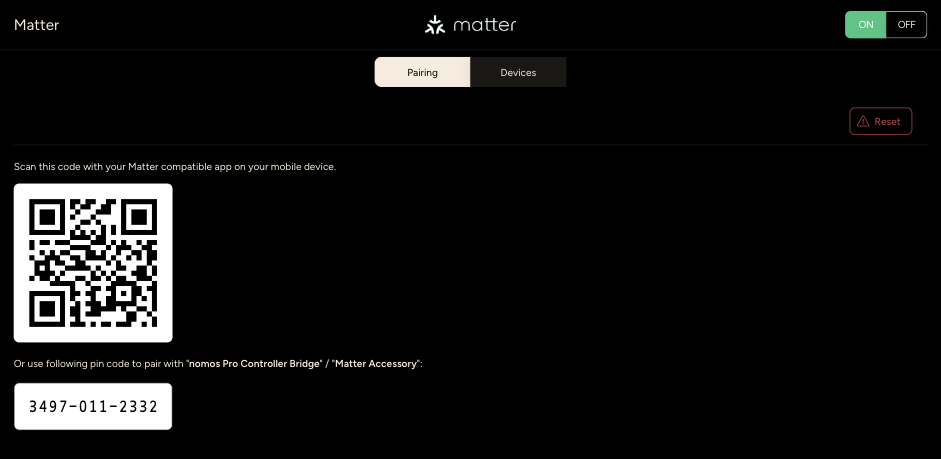
- On the Pairing page, a QR code and an eleven-digit PIN code appear, together with the note Scan this code with your Matter compatible app on your mobile device.
WARNING
With this code, anyone in your home network can pair the Controller while pairing is open. Do not share it.
Adding it in an app
The names may differ slightly depending on the app version.
Add a device
- Apple Home: + → Add Accessory
- Google Home: Devices → Add → Matter-enabled device
- Amazon Alexa: Devices → + → Add Device → Matter
- SmartThings: + → Add device → Matter
Scan the code
Scan the QR code on the nomos Matter page. If that does not work, choose "Enter code manually" in the app and type in the PIN code.
Confirm and assign rooms
The app reports a bridge called "… Bridge", for example "nomos Pro Controller Bridge", and offers its devices. Confirm. Assign the devices to your rooms in the app, because Matter does not transfer rooms.
After that, the nomos Matter page shows Controller is commissioned already. This means that pairing was successful.
Adding another app
You can connect nomos to up to nine apps at the same time, for example Apple Home for you and Google Home for your family.
- On the nomos Matter page, tap Turn On Pairing Mode. The QR and PIN codes appear again; it is the same code as the first time.
- Add the Controller to the second app as described above. You have 15 minutes to do this; after that, pairing closes by itself. Turn Off Pairing Mode closes it earlier.
If nine apps are already connected, Maximum number reached appears. In that case, remove a connection first.
Which devices are transferred
| nomos device | In the other app |
|---|---|
| Light | on/off, brightness, color temperature, color (depending on the light) |
| Switches and sockets | on/off |
| Shading with position | position, for venetian blinds also the slats |
| Heating and climate | target temperature and operating mode |
| Fan | speeds off, low, medium, high, auto |
| Sensors | temperature, brightness, rain, humidity, smoke, window/door (contact), motion |
| Speakers | volume and mute only |
Not transferred are: locks, nomos scenes, cameras, alarm systems, garage doors, energy values, vehicles, and shading that can only move up and down. Matter also passes on the battery level and reachability. If you rename a device in nomos, most apps take over the new name.
Removing a connection
Remove the bridge in the respective app, for example in Apple Home via the bridge's settings → Remove Bridge. The other apps stay connected.
Reset on the nomos Matter page, on the other hand, disconnects all apps at once. The devices then remain in the apps as "No Response" and must be deleted there by hand. The pairing code stays the same.
If it does not work
- Are your smartphone, the Controller and the app's hub in the same network? Guest networks and separate Wi-Fi networks prevent pairing.
- Is pairing still open? Turn on pairing mode again.
- If the Matter page keeps showing a loading circle or Connection error, the Controller needs an internet connection once when Matter starts for the first time. Contact your integrator if that does not help.