

nomos cloud account
Creating an account, linking it to the Controller and securing it.
For Amazon Alexa and Google Home via the cloud, you need a free nomos cloud account. It is not needed for Matter or for the app's remote access.
Creating an account
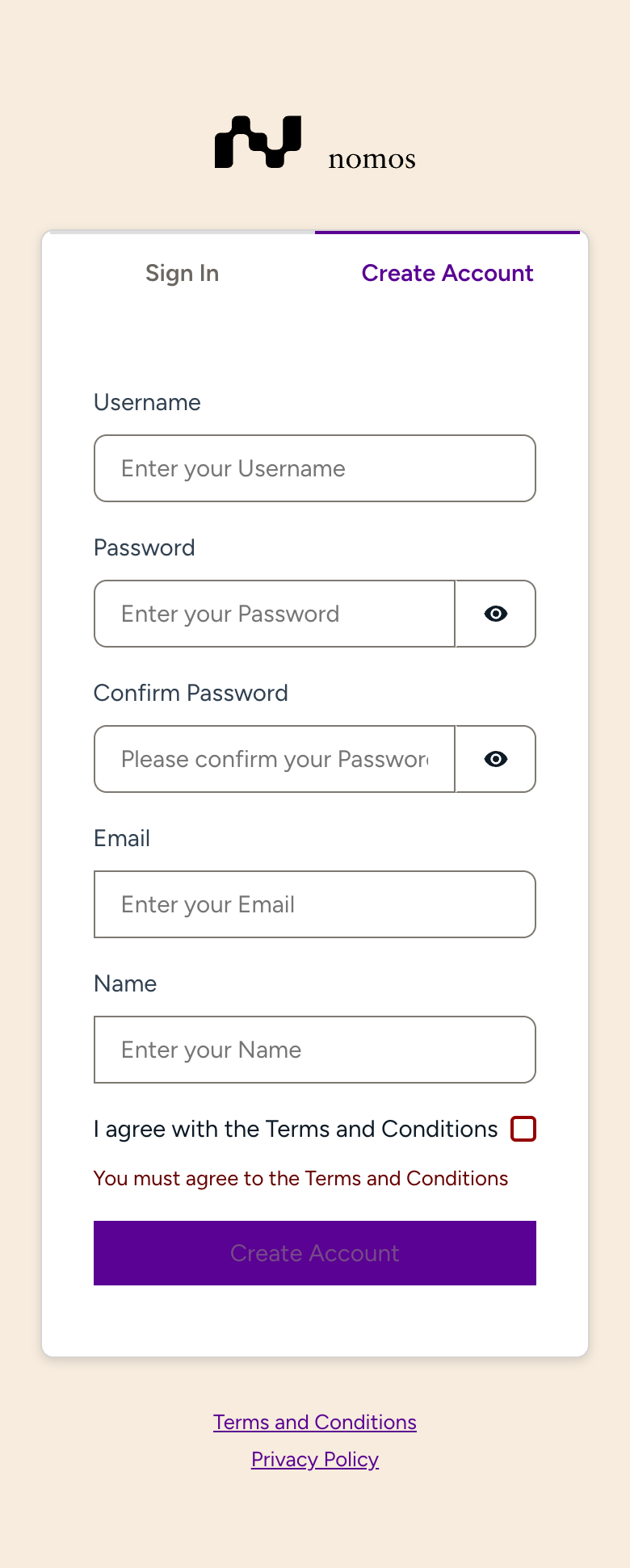
- In your browser, open account.nomos-system.com and choose Create Account.
- Enter your Username, Password, Confirm Password, Email and Name, and check I agree with the Terms and Conditions. The password needs at least 8 characters with upper and lower case letters, a digit and a special character.
- Tap Create Account. You receive an email with a code. Enter it to confirm your address.
Linking the Controller
You link the account on the Controller, not in the portal. For this you need admin rights or the Cloud permission from your integrator, and you must be in your home network.
Open the cloud page
In the app: Settings → Configuration → Cloud and other services.
Switch on the cloud and sign in
Switch the cloud on. The message To use the cloud services please link the nomos Controller with your cloud account. appears. Enter the Username and Password of your cloud account and tap Sign in.
Connected
After Connecting…, the page shows Connected and your account. Below it, Amazon Alexa and Google Home are listed under Cloud Services.
You can link up to three Controllers per account. If you have several, Cloud Synchronization also appears.
The portal
After signing in on account.nomos-system.com, you find:
- Controllers: Your Controllers with serial number, name, Cloud connected and Remote Access.
- User: Your User Account with your profile, Password Update, Multi-Factor Authentication, Passkeys and Delete User Account.
Securing your account
Under Multi-Factor Authentication you switch on a second step when signing in: Time-based One-time Password Authentication with an authenticator app, or SMS Authentication (this requires a phone number in your profile). Alternatively, you can sign in with a passkey, for example with Face ID or your fingerprint: Add Passkey. Passkeys and multi-factor authentication cannot be used at the same time.
Unlinking
Unlink the account on the Controller: Cloud and other services → Unlink this nomos Controller. The Unregister button in the portal only removes the Controller from the portal's list; the old account remains stored on the Controller.
Deleting your account
Before you delete the account, unlink your Controllers as described above and disable the nomos system skill in Alexa or the link in Google Home. Then, in the portal, choose User → Delete User Account → Delete account. This cannot be undone.