

Adding a device
Searching for and adding new devices.
Under Settings → Configuration → Add Device you add new devices.
Automatic search
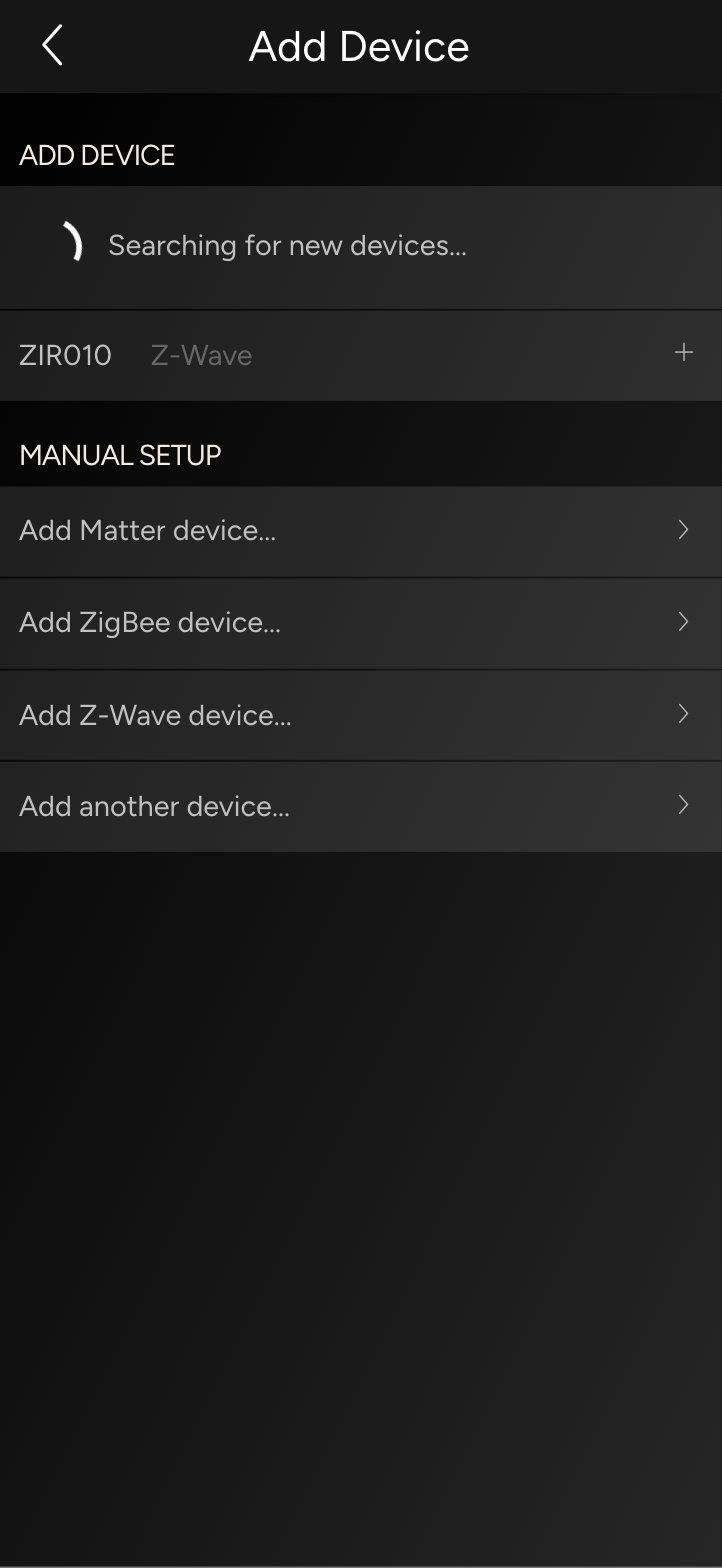
As soon as the screen is open, the app shows Searching for new devices and lists what the Controller finds in your network, for example new Wi-Fi lamps or speakers. Tap a device that was found and set:
- Name, for example "Reading lamp"
- Room
- Device Type, if the app does not detect it by itself, such as light or switch
- Add as Favorite, if it should appear on the Overview
Tap Add.
Devices that need pairing
Some devices have to be paired explicitly. Which options you see depends on what your Controller supports:
| Entry | How it works |
|---|---|
| Add Matter device | Scan the device's Matter QR code or enter the code found on the accessory, its packaging or its instructions. The device must already be connected to your network; to do this, set it up beforehand with the manufacturer's app. |
| Add ZigBee device | The app reports that it is ready. Then press the device's pairing button; its instructions tell you how. |
| Add Z-Wave device | Same as ZigBee. With Remove Z-Wave device you unregister a device before using it elsewhere. |
| Add Philips Hue Bridge | Press the button on your Philips Hue Bridge when the app asks you to. |
| Add Nuki Bridge | Press the button on your Nuki Bridge. |
| Add Apple Device | For an Apple TV: pair the nomos Controller with the Apple TV as a remote. |
| Add another device | For devices without automatic search; the details from your integrator will help here. |
If pairing fails, the app shows Pairing failed. Try again. Bring the device closer to the Controller or the bridge and try again.
INFO
KNX, DMX and other hard-wired systems are set up by your integrator. They do not appear here.