

Overview
Your start page with status bar, greeting, search, suggestions, favorites and notifications.
The Overview shows at a glance what is going on in your home.
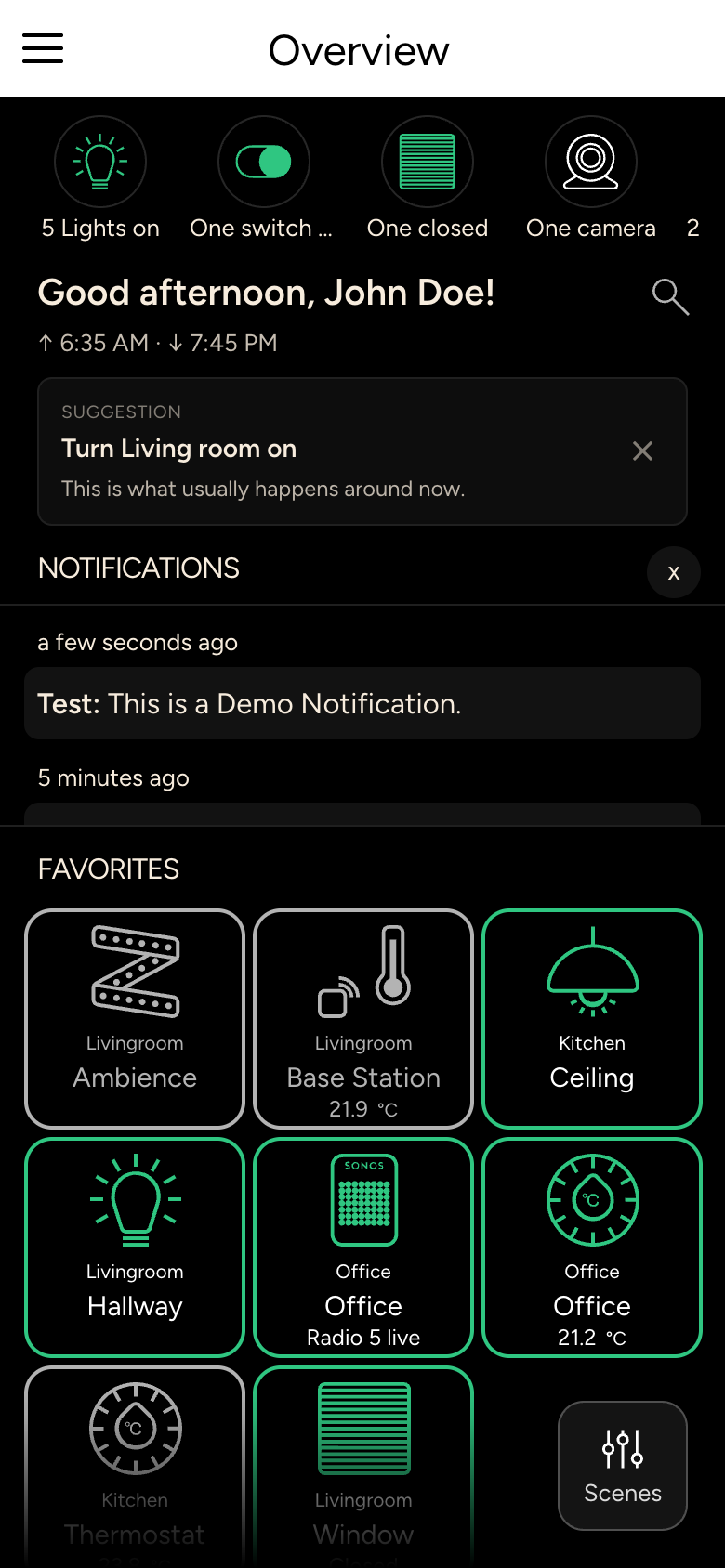
Status bar
At the very top, round icons show what is currently switched on or needs attention, for example 5 Lights on, open windows, music playing, temperatures or energy values. Warnings such as Not reachable or Malfunction also appear here. Swipe sideways to see them all.
- Tap to switch the whole group, for example to turn all lights off.
- Long-press to open the list of the devices concerned. This way you can see, for example, which lights are still on.
Greeting
Below that, the app greets you by name. Depending on the setup, you also see:
- whether someone is At home or everyone is Away,
- the Vacation mode, if it is switched on,
- weather, outdoor temperature, and sunrise (↑) and sunset (↓).
Tap one of these values to open the matching device. Tapping your name takes you to the user settings, where you can change it.
Search
The magnifying glass to the right of the greeting opens Search devices and rooms. Type part of the name, such as "kitchen" or "ceiling".
Suggestions
The app learns what you usually do at certain times of day. Under Suggestion, it offers this to you with a single tap, along with the note This is what usually happens around now. With the cross, you choose Dismiss.
INFO
Suggestions are only available if usage recording is switched on on your Controller. You can switch it off for yourself, see User.
Notifications
Under Notifications you find the latest messages from your home, for example an open window or an alarm, with the time they arrived. Important messages are marked as High or Emergency.
- Tap a notification to open the device concerned. Images or videos in a notification open in full size.
- Swipe a notification aside to delete it. The cross next to Notifications deletes them all.
Your integrator decides which notifications you receive. You also get the same messages as a push notification.
Favorites
Under Favorites you find your most important devices and scenes. As long as you have not chosen any, the app shows Frequently used or No favorites yet. here.
To make a device a favorite, open it and tap the heart at the top. You mark a scene in the scene list.
Arranging
Long-press the Overview title or an empty spot, and the tiles start to wiggle. Now drag them to where you want them. You can sort rooms, zones and the device list the same way.