

Scenes
Setting several devices with a single tap.
A scene sets several devices at once, for example "Night": all lights off, roller shutters down, heating to night mode. Your integrator has prepared scenes for you; depending on what has been enabled, you can also create your own.
Starting a scene
Tap Scenes at the bottom right and then the scene you want. On newer iPhones and Android smartphones, Scenes is a tab of its own in the bar at the bottom of the screen. A circle shows that the scene is running, a check mark that it has finished.
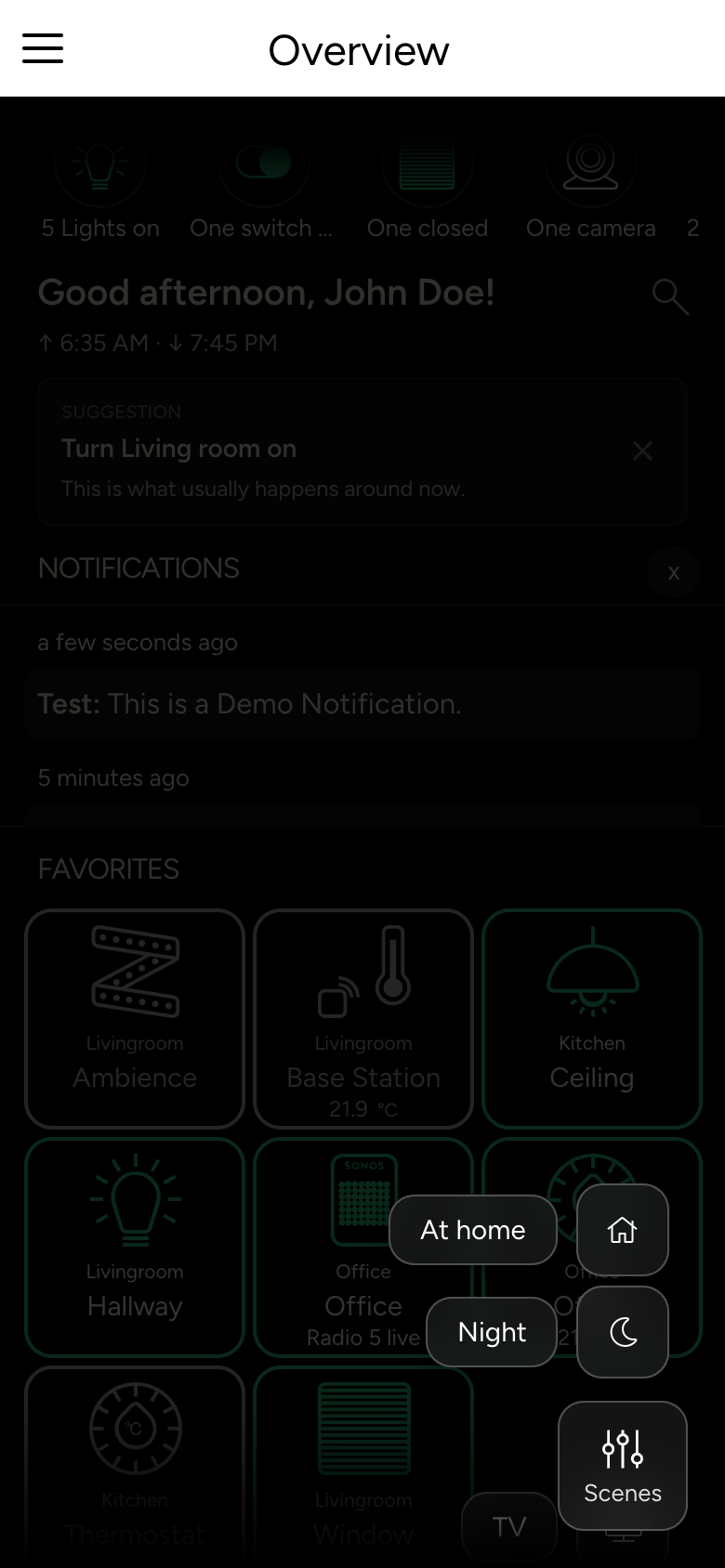
You can also start your favorite scenes from the home screen, from the Apple Watch or with Siri, see Smartphone extras.
Favorites and order
- Favorite: swipe a scene aside and tap the heart. Favorites appear at the top of the list and on the Overview.
- Edit sorting: rearrange the scenes with the arrows.
Creating your own scene
INFO
For this, your integrator must have enabled scene editing for you. Otherwise Add Scene is missing in your app.
Open the Scene Editor
In the scene list, tap Add Scene. To edit an existing scene, long-press it.
Choose and set the devices
The Scene Editor lists all devices by room. Select the devices that belong to the scene, and set each one the way it should be in the scene, for example a light at 30 %.
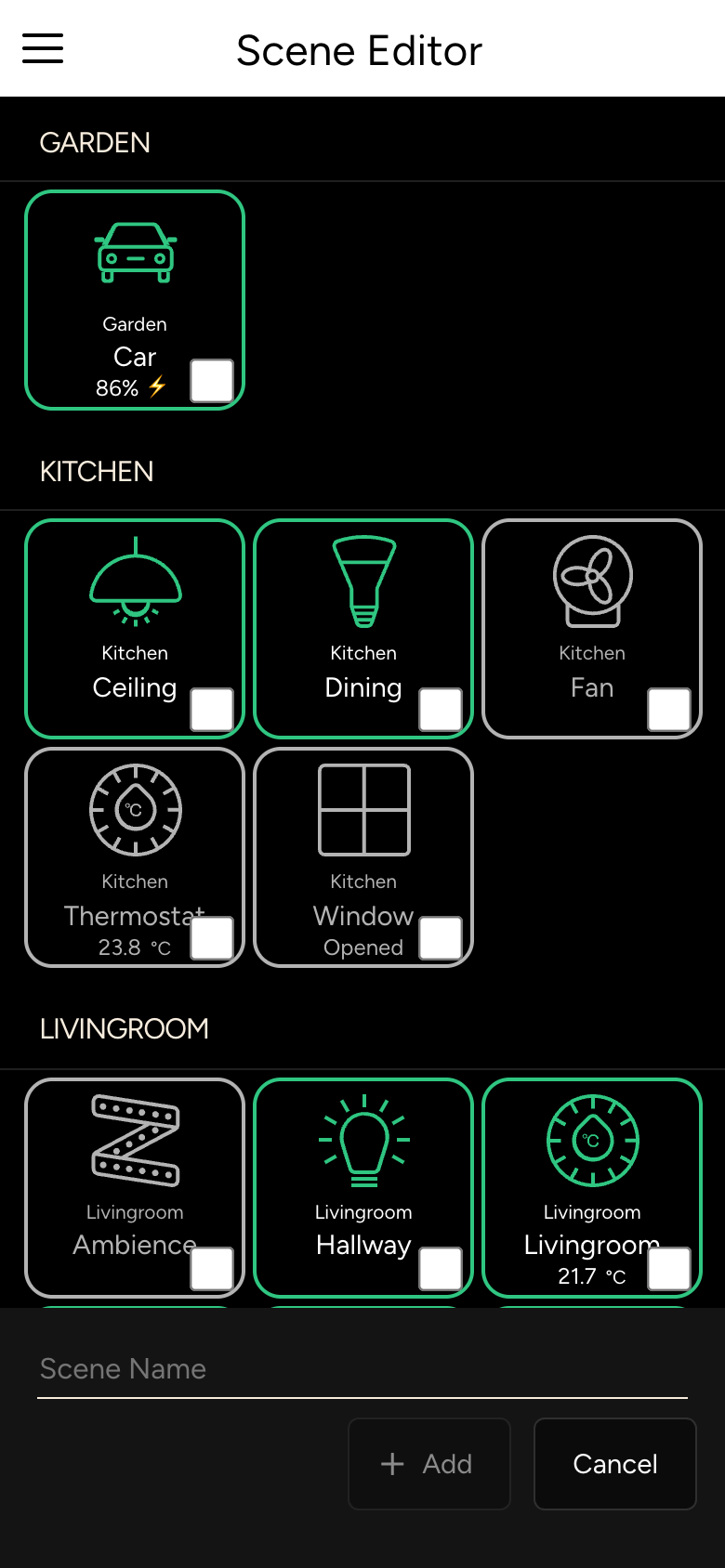
Save
Enter a Scene Name and tap Add. When you edit a scene, the button is called Save; Remove deletes the scene.