> For the complete documentation index, see [llms.txt](https://documentation.nomos-system.com/nomos-system/llms.txt). Markdown versions of documentation pages are available by appending `.md` to page URLs; this page is available as [Markdown](https://documentation.nomos-system.com/nomos-system/integratore-it/stanze/visualizzazione-stanza-visu.md).
# Visualizzazione stanza (Visu)
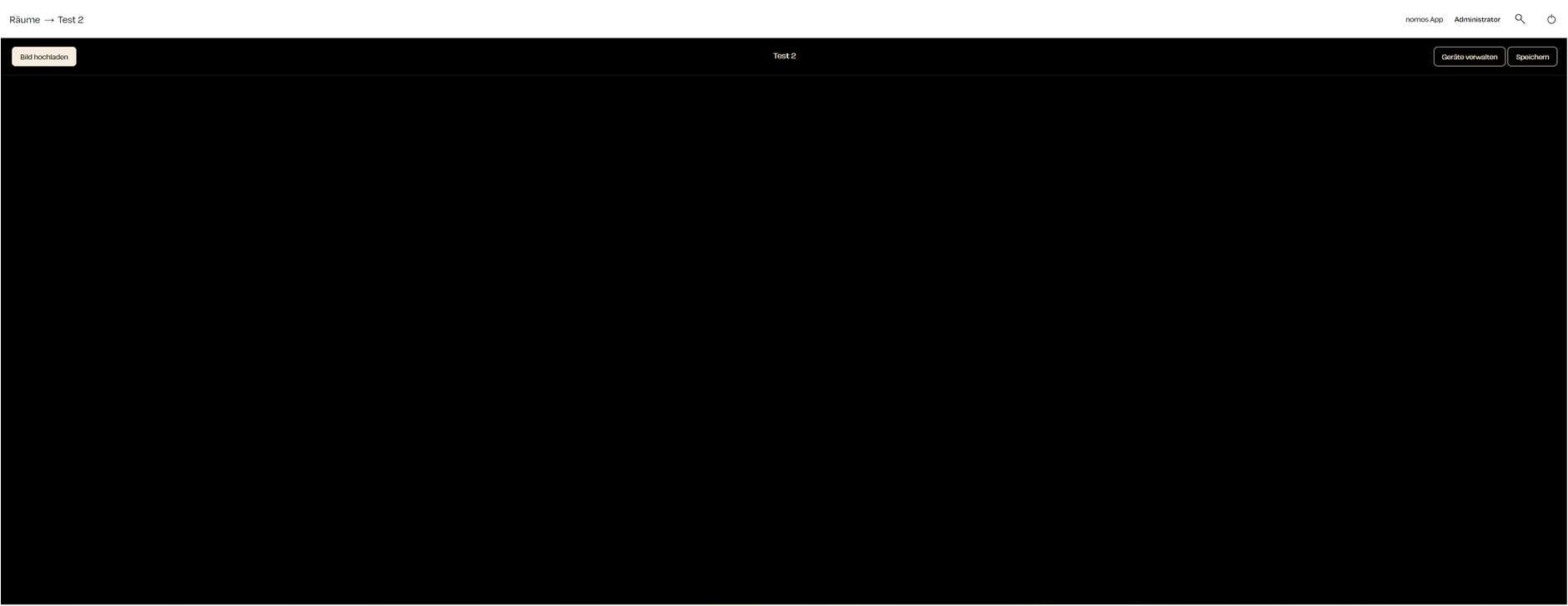
La **funzione di visualizzazione (Visu)** nel nomos system Controller offre un modo per rappresentare graficamente e personalizzare la struttura di una stanza. Questa funzione consente di caricare un'immagine per visualizzare meglio i dispositivi all'interno della stanza.
**Passaggi per utilizzare la visualizzazione**
1. **Pulsante Visu:**
* Per avviare la visualizzazione, clicchi il pulsante "**Visu**" accanto alla stanza che desidera visualizzare.
* Questo apre la modalità di visualizzazione per la stanza selezionata.
2. **Carica immagine:**
* Nella modalità di visualizzazione, vedrà l'opzione "**Carica Immagine**". Questo consente di caricare un'immagine, come una planimetria o una vista della stanza, per iniziare la visualizzazione.
* **Passaggio:** Clicchi "Carica Immagine" per selezionare e caricare un'immagine dal Suo dispositivo.
3. **Gestisci Dispositivi:**
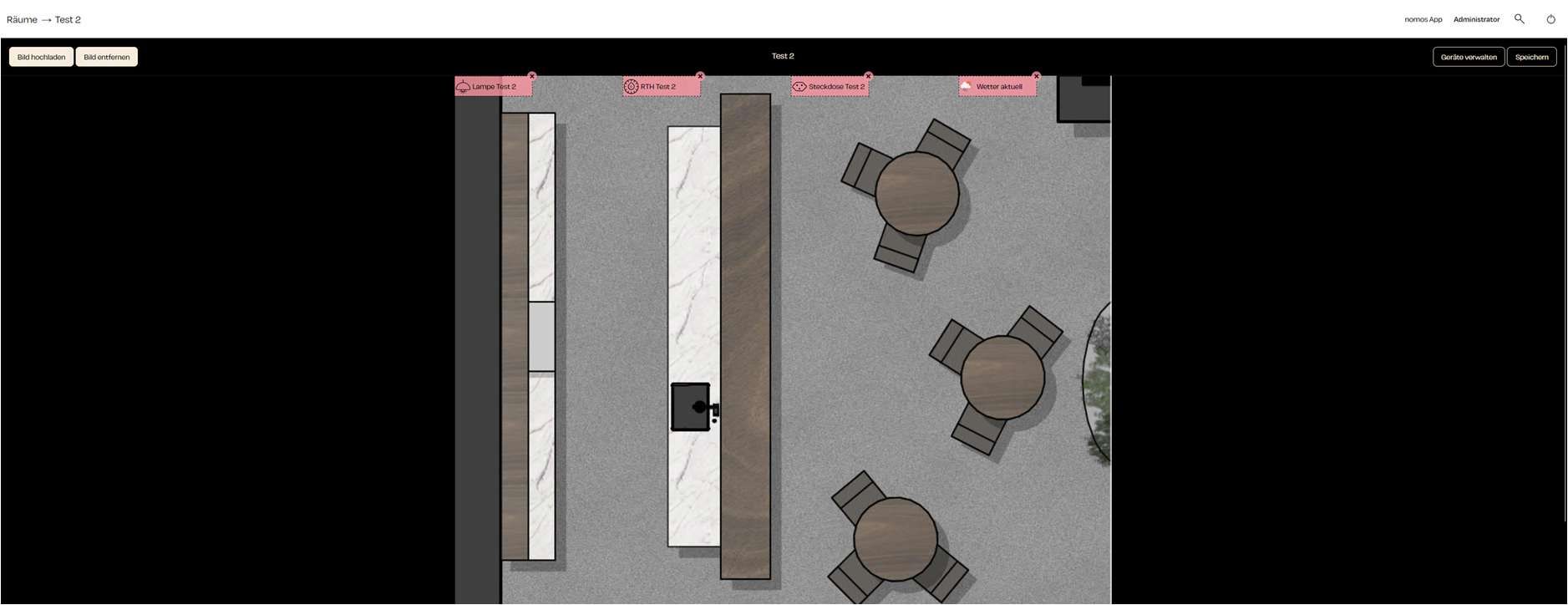
* Dopo aver caricato un'immagine, è possibile posizionare visivamente i dispositivi all'interno della stanza sulla grafica caricata.
* Usi il pulsante "**Gestisci Dispositivi**" per aggiungere o rimuovere dispositivi e disporli di conseguenza sull'immagine.
4. **Salva:**
* Una volta posizionati i dispositivi e configurata la visualizzazione, clicchi "Salva" per salvare le modifiche. Questa visualizzazione verrà quindi salvata e potrà essere modificata in qualsiasi momento.
{% hint style="info" %}
**Nota:**
* La funzione di visualizzazione fornisce un metodo intuitivo per rappresentare graficamente la disposizione e il posizionamento dei dispositivi in una stanza. È particolarmente utile per installazioni di grandi dimensioni.
{% endhint %}
---
# Agent Instructions
This documentation is published with GitBook. GitBook is the documentation platform designed so that both humans and AI agents can read, navigate, and reason over technical content effectively. Learn more at gitbook.com.
## Querying This Documentation
If you need additional information that is not directly available in this page, you can query the documentation dynamically by asking a question.
Perform an HTTP GET request on the current page URL with the `ask` query parameter, and the optional `goal` query parameter:
```
GET https://documentation.nomos-system.com/nomos-system/integratore-it/stanze/visualizzazione-stanza-visu.md?ask=&goal=
```
`ask` is the immediate question: it should be specific, self-contained, and written in natural language.
`goal` is optional and describes the broader end goal you are ultimately trying to accomplish on behalf of the user. GitBook uses it to tailor the answer towards what is most useful for that goal.
The response will contain a direct answer to the question and relevant excerpts and sources from the documentation.
Use this mechanism when the answer is not explicitly present in the current page, you need clarification or additional context, or you want to retrieve related documentation sections.